
Introduction #
Effortlessly Manage Queue Overflow with 3CX Queue Notifier (Chime)
3CX Queue Notifier (Chime) is a 3CX add on that alerts users when call queues reach a defined threshold for queue size or hold time. The notification can be played through an overhead paging system or phone speakers as a chime or a text to speech message. This helps staff stay aware of waiting callers while focusing on their daily tasks, improving response times and customer service.
Why Choose 3CX Queue Notifier? #
 |
PERSONALIZED ALERTS | Play custom chimes or alarm messages through your overhead speakers to notify staff of important events and queue activity. |
 |
EFFICIENT QUEUE MONITORING | Configure settings for each queue to help manage call volume and respond to waiting callers more effectively. |
 |
INCREASED MULTI-TASKING CAPABILITIES | Queue Notifier helps staff stay focused on their work by providing an audio alert when a queue requires attention. |
 |
MINIMIZED WAIT TIMES | Set queue size or hold time limits to identify delays early and help reduce customer wait times. |
 |
USER-FRIENDLY CUSTOMIZATIONS | Use the web portal to configure settings and manage Queue Notifier through a simple, browser based interface. |
 |
ELIMINATE MISSED CALLS | Use audio alerts to notify agents when queue activity requires attention, helping ensure calls are answered without delay. |
 |
SEAMLESS INTEGRATION | Queue Notifier can play alerts through your overhead paging system or phone speakers and supports notification settings that can be tailored to your requirements. |
Prerequisites #
Before you begin with the installation steps mentioned in this guide, you need to ensure that your computer meets the minimum requirements mentioned below for installing a 3CX Queue Notifier.
| PREREQUISITE | PURPOSE |
|---|---|
| 3CX Version V20 | 3CX Queue Notifier is designed to work seamlessly with this version for enhanced features and performance. |
| Windows 10 or above / Windows Server 2012 or above | These operating systems provide the necessary environment for the application to run efficiently. |
| IIS Features and Configuration – VoIPTools | IIS is needed as a web server to host and manage web-based applications and services. |
| .NET Framework 4.7.2 (Web Installer) | This framework provides essential components for running and developing applications. |
| VoIPTools Universal Updater | This component is necessary for updates, ensuring the application remains current and functional. |
| VoIPTools Relay Service | It is used for proper integration and functionality of the 3CX Queue Notifier within the 3CX environment. |
| Microsoft SQL Server 2016 or above (Including the free SQL Express edition) | 3CX requires Microsoft SQL Server 2016 or later for database management. |
| Static IP for VoIPTools and 3CX servers | This is to ensure proper two-way communication, both the 3CX server (Relay) and the VoIPTools server. Dynamically assigned IP addresses are not supported. Additionally, it is recommended to use HTTPS for secure communication, which requires a FQDN for SSL/TLS certificate validation between the VoIPTools server and the Relay. |
| Port number 6900 opened on your device | Port 6900 is a specific network port used by 3CX for communication purposes. Opening this port on the device’s firewall allows incoming and outgoing traffic to pass through, enabling the 3CX software to send and receive data over the network effectively. |
NOTE:
- When installing SQL Server, we recommend you install it in “Mixed Mode” to include SQL Authentication, and install SQL Management Studio
- When installing IIS, be sure to install Basic Authentication, .Net Extensibility, and ASP.Net 4.X
- Installation on a domain controller is not supported.
Installation overview #
 |
DOWNLOAD SOFTWARE | You can order 3CX Queue Notifier online at https://www.voiptools.com. Your order confirmation email will include your license key and a link to download the software. |
 |
INSTALL PREREQUISITES | You must install several prerequisites before installing the 3CX Queue Notifier. The Advanced Installer identifies and installs these applications automatically. Click here to learn about the required prerequisites. |
 |
INSTALL 3CX QUEUE NOTIFIER | This User Guide contains step-by-step instructions to successfully install 3CX Queue Notifier. Begin by extracting the installer from the downloaded zip file (Step 1 above), then run the setup program named QueueNotifierInstaller.exe |
 |
LOG IN TO THE WEB APPLICATION | You can now log in to the web application using the extension number and the PIN. |
Step-by-step Installation Procedure #
The following section guides you through a detailed walk-through of the installation process:
Step 1: Download 3CX Queue Notifier (Server) #
Find the software download link in the Order Confirmation Email, or you can download the application by following the procedure,
-
- Open your browser and go to the VoIPTools official website or click here to get redirected to the website.
- Search for the On Queue Notifier Application and click the Download
 button to download your application.
Step 2: Install Prerequisites #
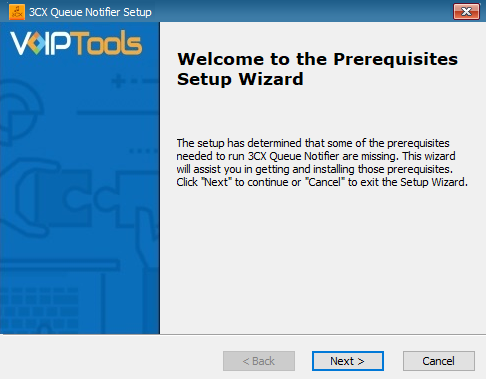
Click on the software installer that was downloaded in Step 1 above. The installation wizard will automatically identify the needed prerequisites and assist you with the installation of the prerequisites needed to run the ‘3CX Queue Notifier’.
- Click the downloaded installer executable to launch the Prerequisites Setup Wizard and click Next > .
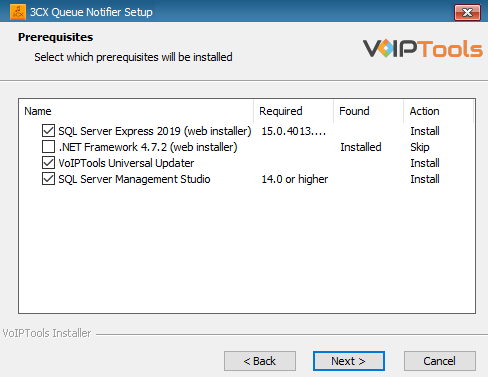
- In the Prerequisites window, the installer will identify the missing prerequisites. You must install all the required prerequisites. However, you can select/unselect the applications to be installed based on your unique requirements and click Next > to continue.
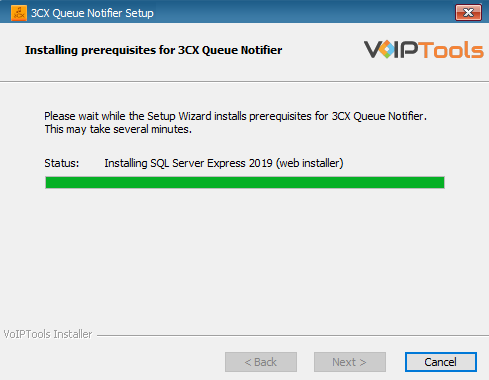
The installer will download and install the selected applications.
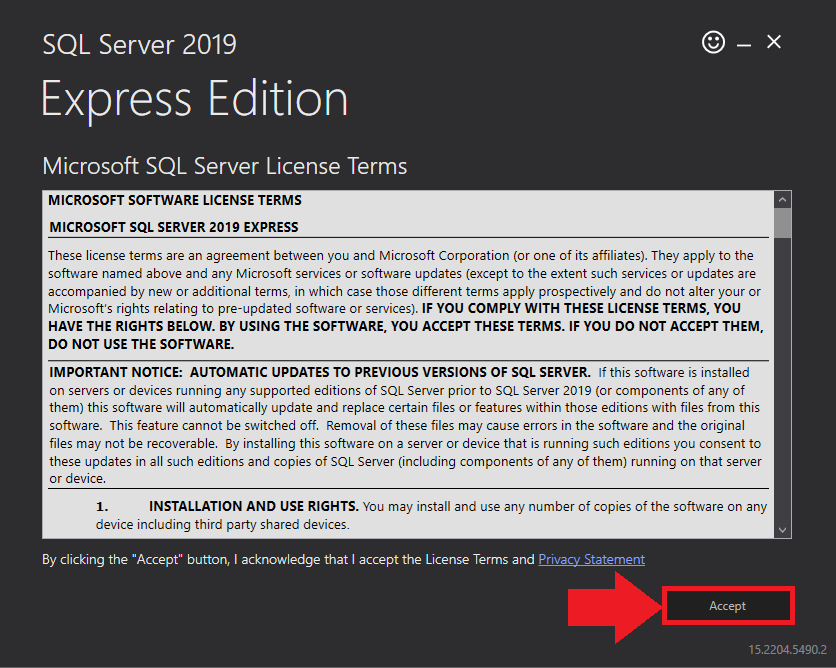
- In the Microsoft SQL Server License Terms click the Accept button to acknowledge the license terms and continue.
- This page appears if you do not have SQL Server Express preinstalled in your device.
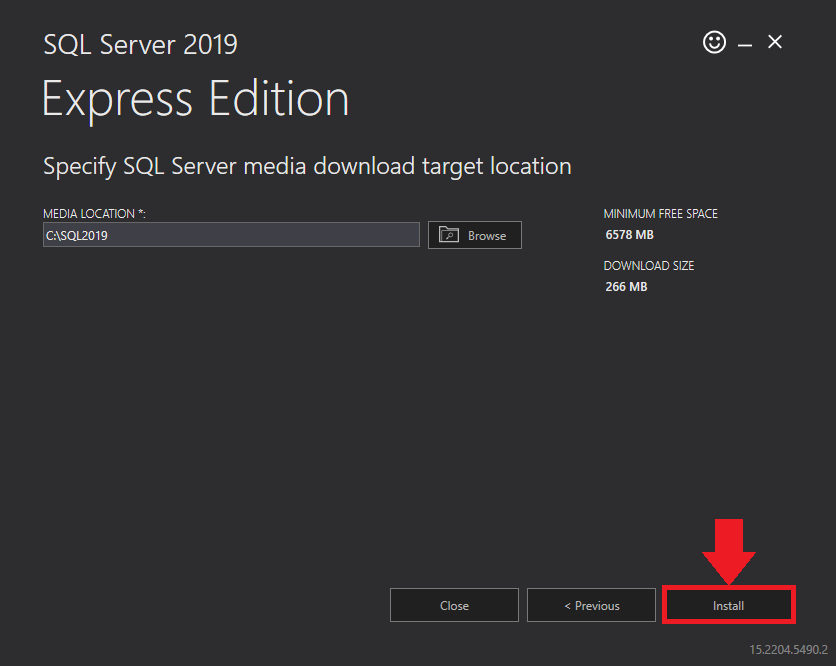
- View the SQL Server Media target location in the Media Location field. If required, you can click the Browse button to change the location. Click Install to begin the installation of SQL Server Express.
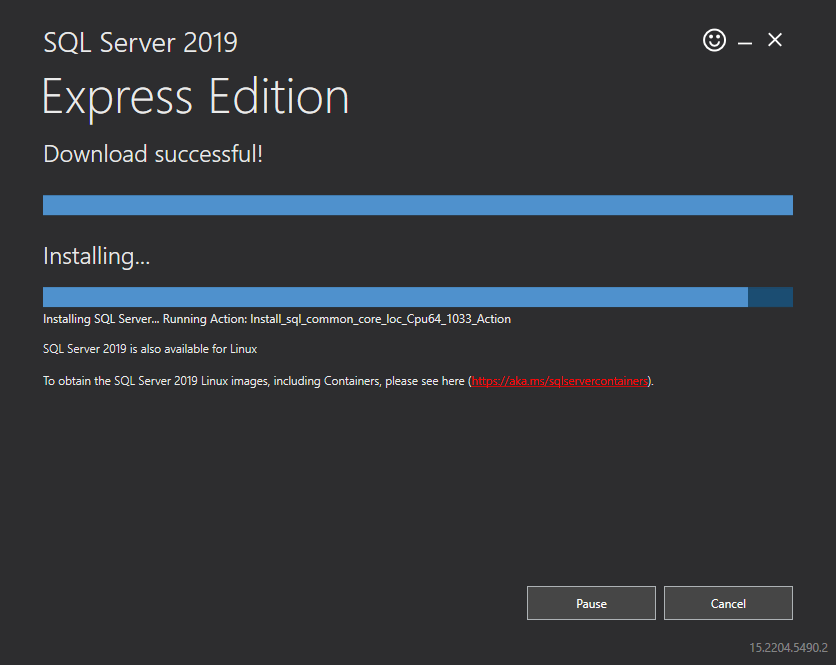
SQL server installation is in progress. This may take several minutes to complete.
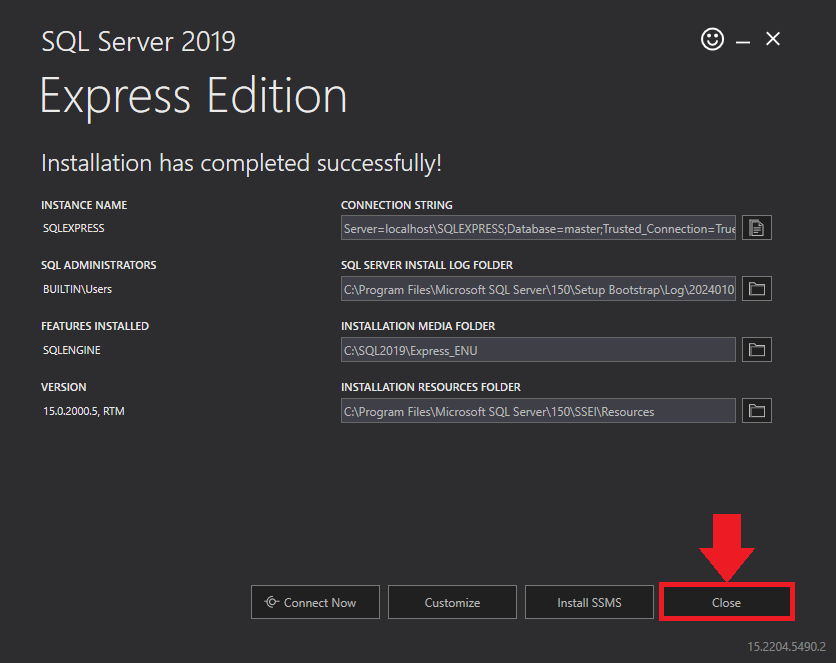
- Click the Close button once the prerequisites are installed.
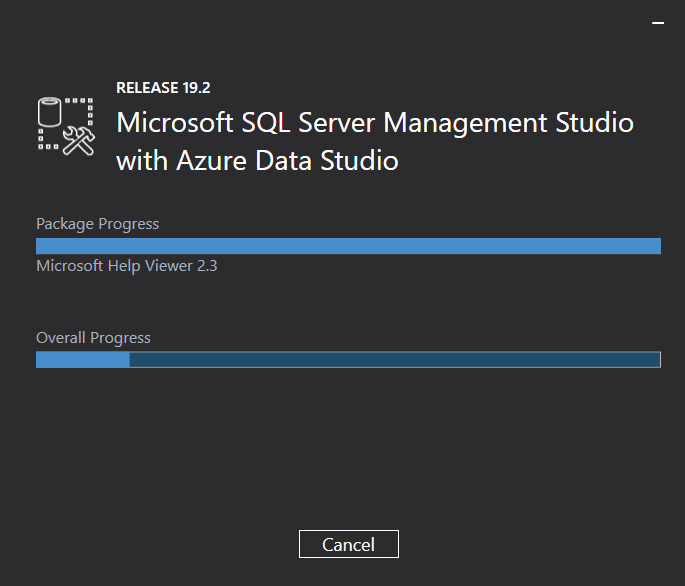
Microsoft SQL Management Studio installation is in progress. This may take several minutes to complete.
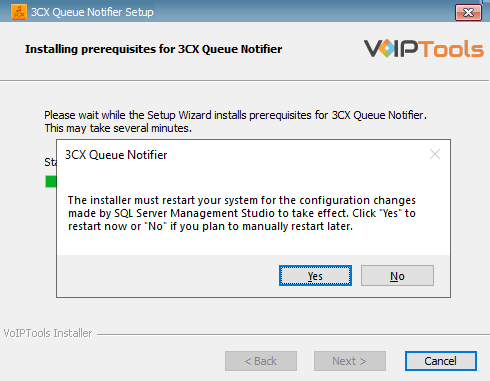
- In the Confirmation Message box, click Yes to reboot the computer.
Step 3: Start the installation process #
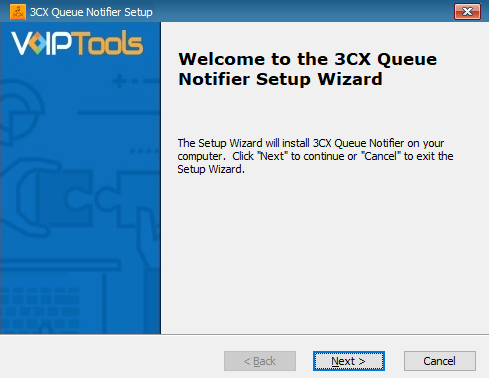
- After all the prerequisites are installed, click Next > in the 3CX Queue Notifier Setup Wizard Continue.
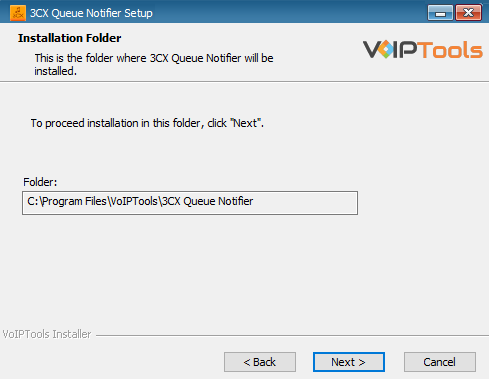
- On the Select Installation Folder window, in the Folder field view the location where the ‘3CX Queue Notifier’ gets installed.
- Click Next > to continue with the installation.
You cannot change the path.
Step 4: Test Relay Settings #
- In the 3CX Relay Services window, in the Relay Host field, enter the FQDN of your 3CX server.
- Enter 8801 in the Relay Port field.
- Enter the public key you took from VoIPTools Relay services in the Public Key text area.
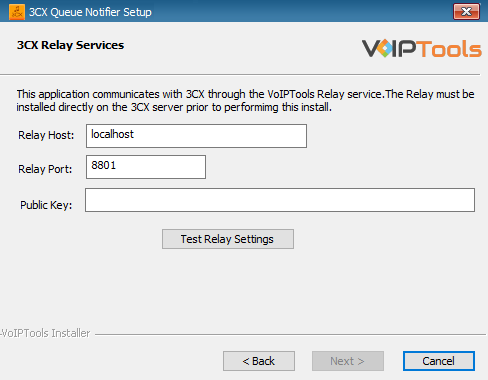
- Click the Test Relay Settings to confirm 3CX Queue Notifier can communicate with the Relay services running on the 3CX server.
- If the 3CX Queue Notifier successfully communicates with the Relay services that run on the 3CX server, a Success message box appears. Click OK. If the test fails, you will not be able to continue until communication with the relay is established.
- Click Next to continue with the installation.
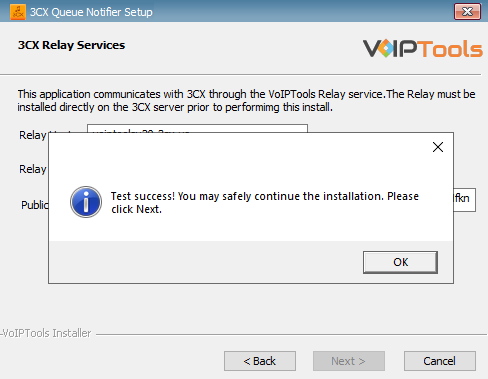
- You must set the Relay Port to 8801.
- If the Relay test fails, you cannot continue the installation until you establish communication with the Relay. Confirm the following if the test was unsuccessful:
- Confirm you have the correct firewall port open (default TCP 8801) on the 3CX server and the firewall protecting the 3CX server.
- Confirm that you have entered the correct FQDN for the 3CX server.
- Confirm that the 3CX Queue Notifier and Relay use the same port and protocol.
Step 5: Configure the database #
When configuring the 3CX Queue Notifier, select an existing Microsoft SQL Server instance in your environment. The database server can be a remote SQL Server, or a local instance running on the VoIPTools server.
You can set up the SQL database using SQL Authentication or Windows Integrated Authentication.
SQL Authentication #
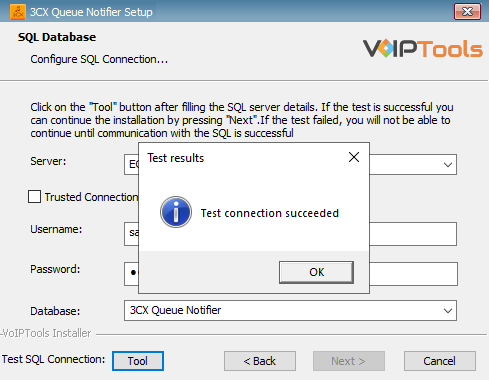
- Enter your server name in the Server field.
- If using the free SQL Express Edition, the default SQL Instance name is SQLExpress.
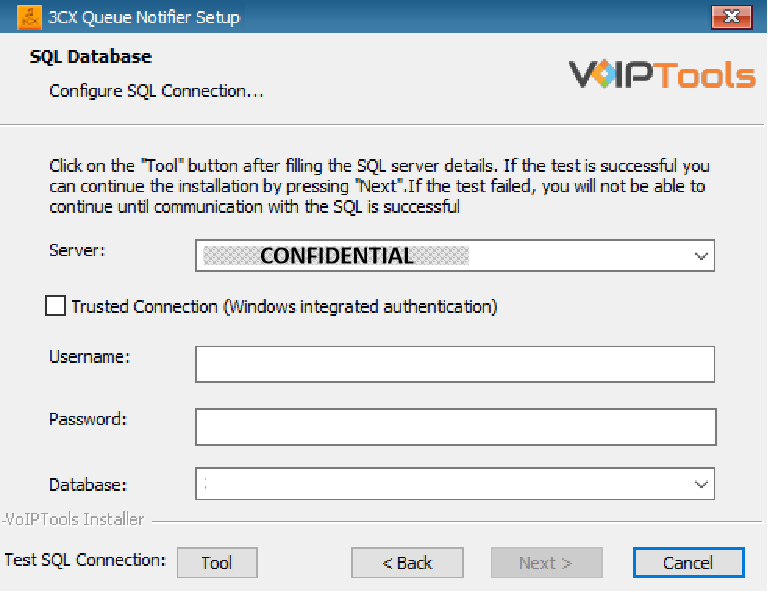
- If you want to use ‘SQL Authentication’, then install SQL Server in ‘Mixed‘ mode.
- If SQL Server is installed on a server other than the server where 3CX Exporter is installed, you will need to configure SQL Server to allow remote connections.
- Enter your credentials in the Username and Password fields.
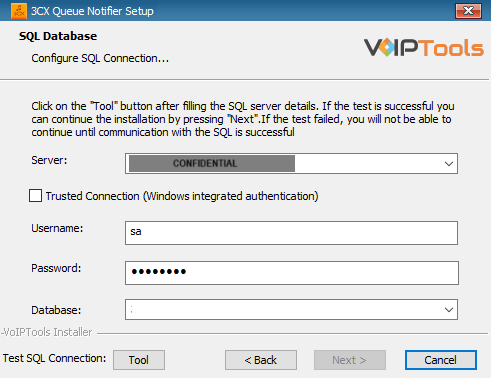
Make sure that you select a SQL Login that has sufficient permissions to alter the database and create SQL objects.
- Select or enter the 3CX Queue Notifier in the Database dropdown.
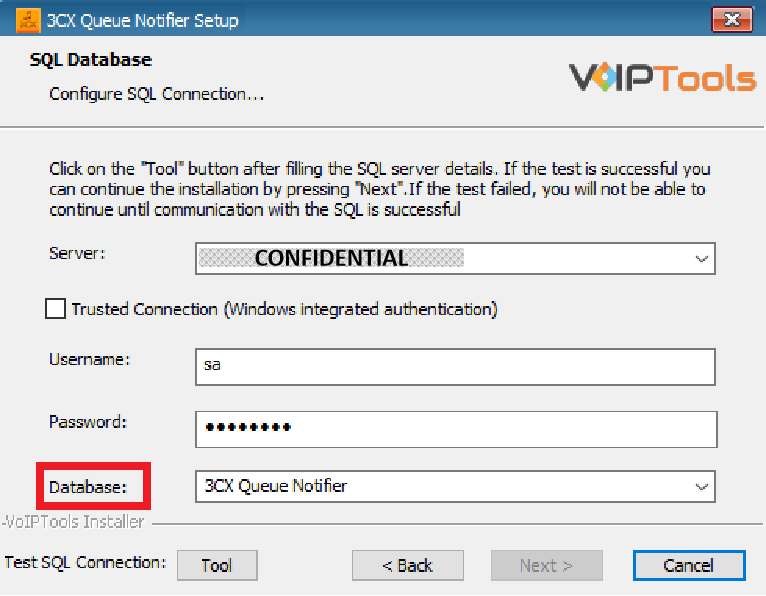
- In the Test SQL Connections section, click the Tool button to test the connection and click OK in the Test Results popup box.
Windows Integrated Authentication #
- To use Windows Integrated Authentication check the Trusted Connection (Windows integrated authentication) checkbox.
- The VoIPTools installer will create a local Windows user name as “VoIPToys” and give you sufficient rights to this user to create/update the SQL database.
- In the Test SQL Connection section, click the Tool button to test the connection.
- Click the Next button which gets enabled when the database connection is successful.
We encourage you to use SQL Authentication rather than Windows authentication. Many of our tools leverage a Call Flow Designer (CFD) application running on the 3CX. Frequently our CFD applications require access to a SQL database. If the 3CX server and the database server are not in an Active Directory domain, Windows authentication will fail. To use SQL authentication, your SQL Server must be configured to run in “Mixed Mode”. If you installed SQL Server with one of our tools, we configure SQL in “Mixed Mode”.
Step 6: Installing 3CX Queue Notifier #
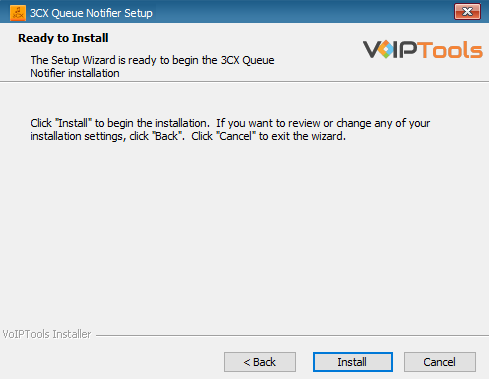
- In the Ready to Install window, click Install to start the installation of the ‘3CX Queue Notifier’.
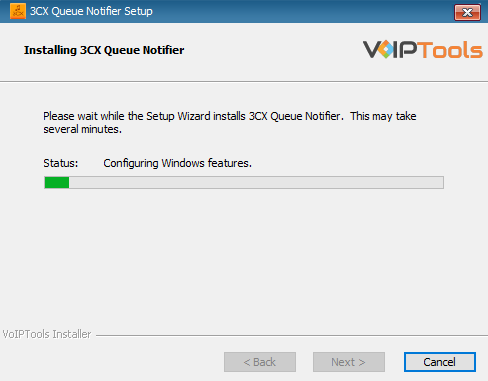
The application installation progresses.
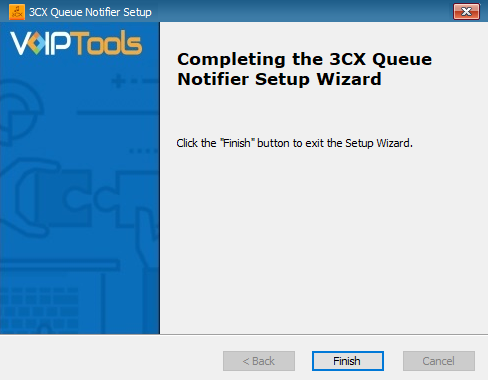
- Once the installation is complete, click Finish to complete the installation process.
Step 7: Login to the Web Application #
Follow the procedure to register your software,
- Click the Queue Notifier desktop icon
 to launch the Queue Notifier Web application.
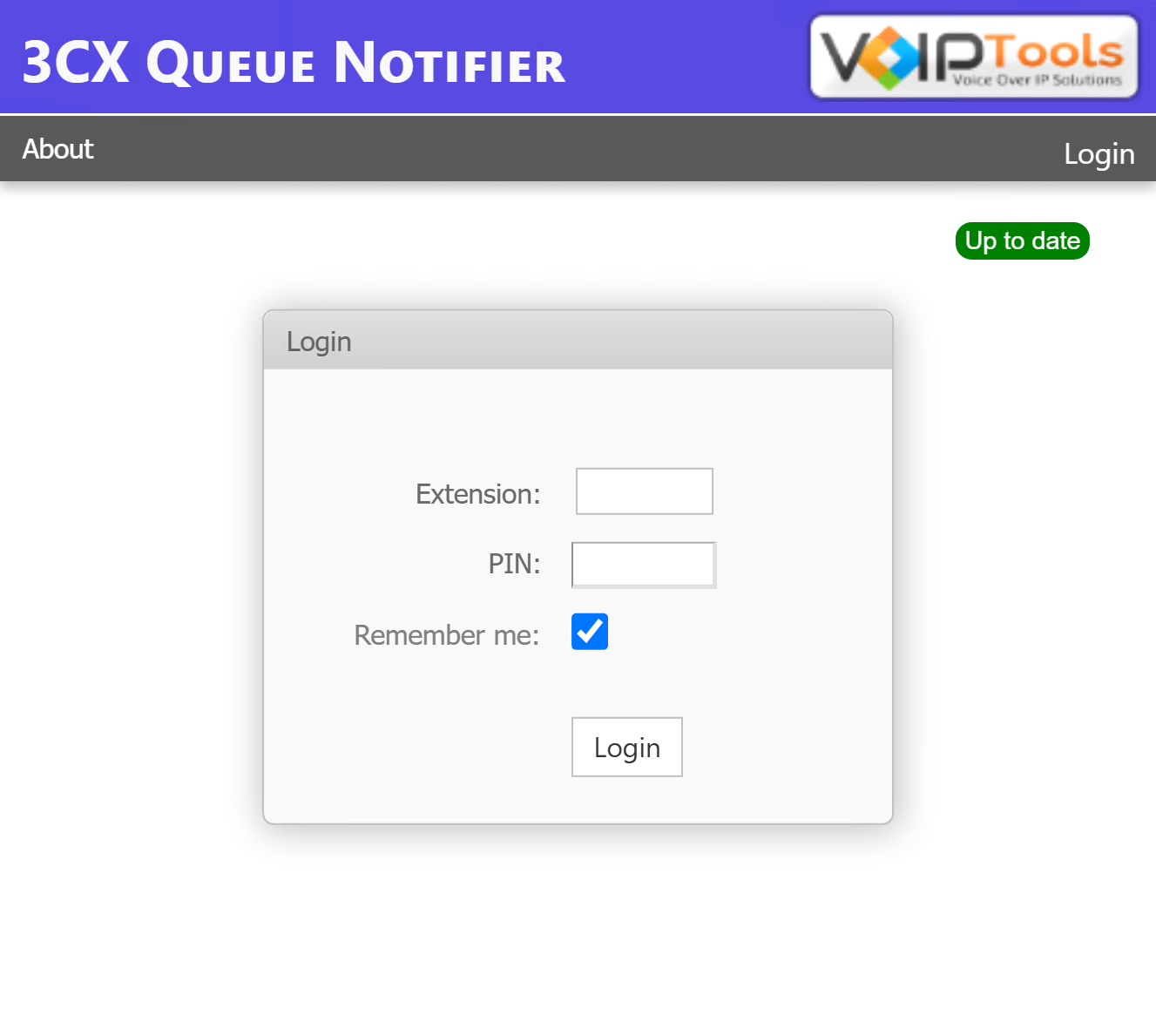
 - On the Login page, do the following tasks,
- In the Extension field, enter your 3CX extension number.
- In the PIN field, enter your 3CX voicemail PIN.
- Check to Remember Me checkbox if you do not want to enter your username and password each time you log in to the application.
- Click the Login button to log in to your account.
Web Portal #
To access the ‘3CX Queue Notifier’ web portal, click on the desktop icon that was created during the installation process (3CX Queue Notifier).
Settings #
The Settings screen enables you to start or stop a service, configure 3CX paging dial code that allows you to play notifications through your phone speakers, and customize brand settings.
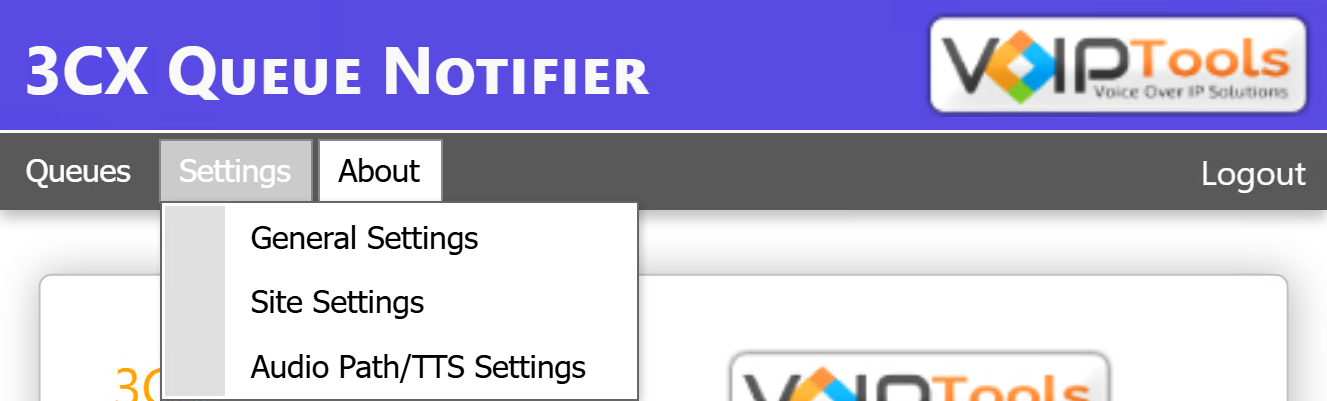
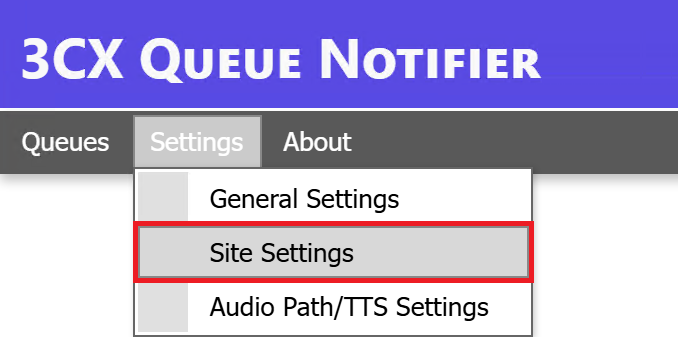
Hover the mouse over the Settings tab to display the dropdown menu with the following menu options:
| General Settings | Start or stop service and configure 3CX paging dial code |
| Site Settings | Customize branding settings for the application |
| Audio Path Settings | Set the audio path |
General Settings #
The General Settings enable you to start or stop service and configure 3CX paging dial code that allows you to play notifications through your phone speakers.
Service Status #
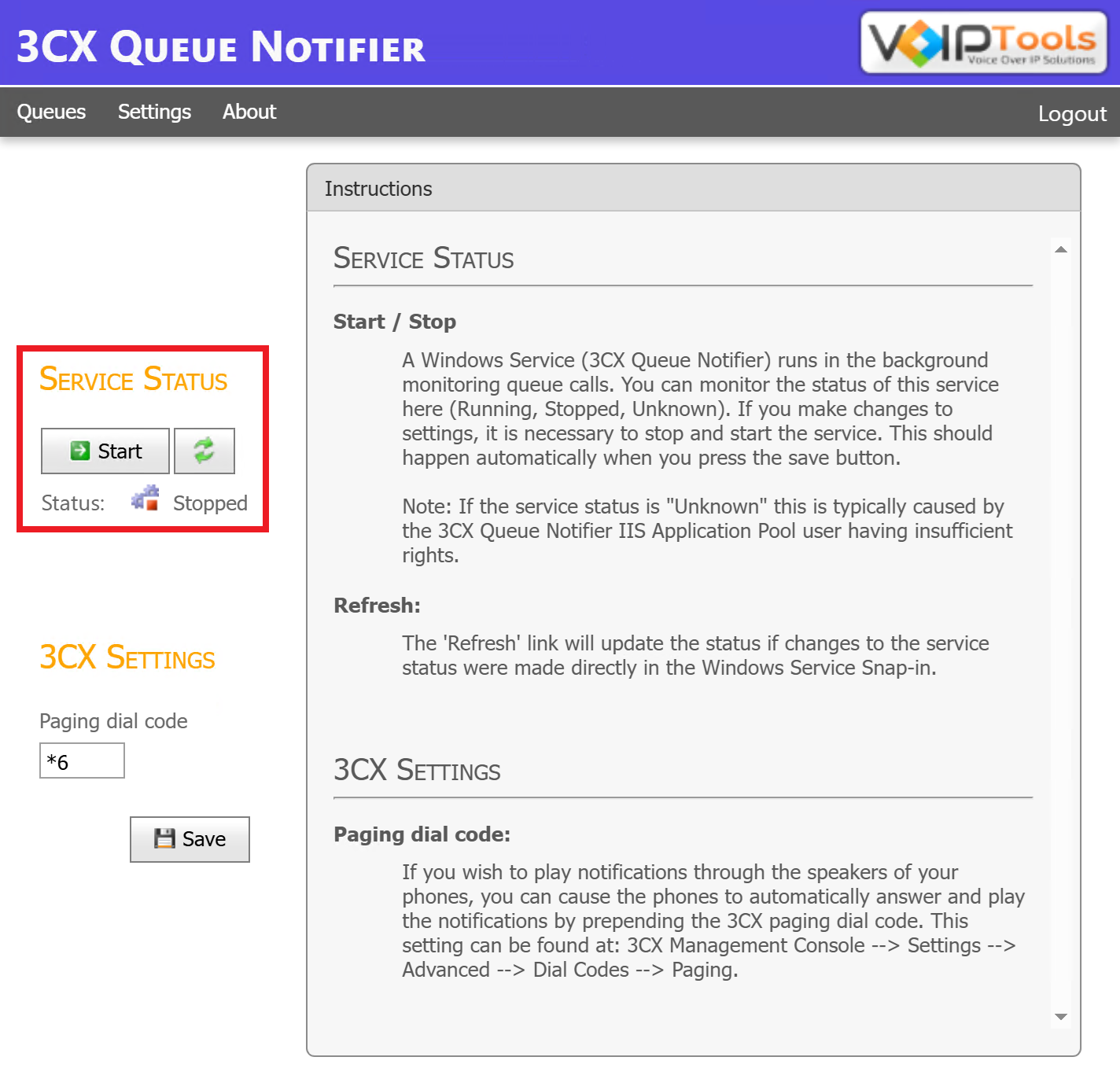
In this section, you can start or stop a service.
 |
Start/ Stop | A Windows Service (3CX Queue Notifier) runs in the background monitoring for active calls. You can monitor the status of this service here (Running, Stopped, Unknown).
|
 |
Refresh | The ‘Refresh’ link will update the status if changes to the service status were made directly in the Windows Service Snap-in. |
3CX Settings #
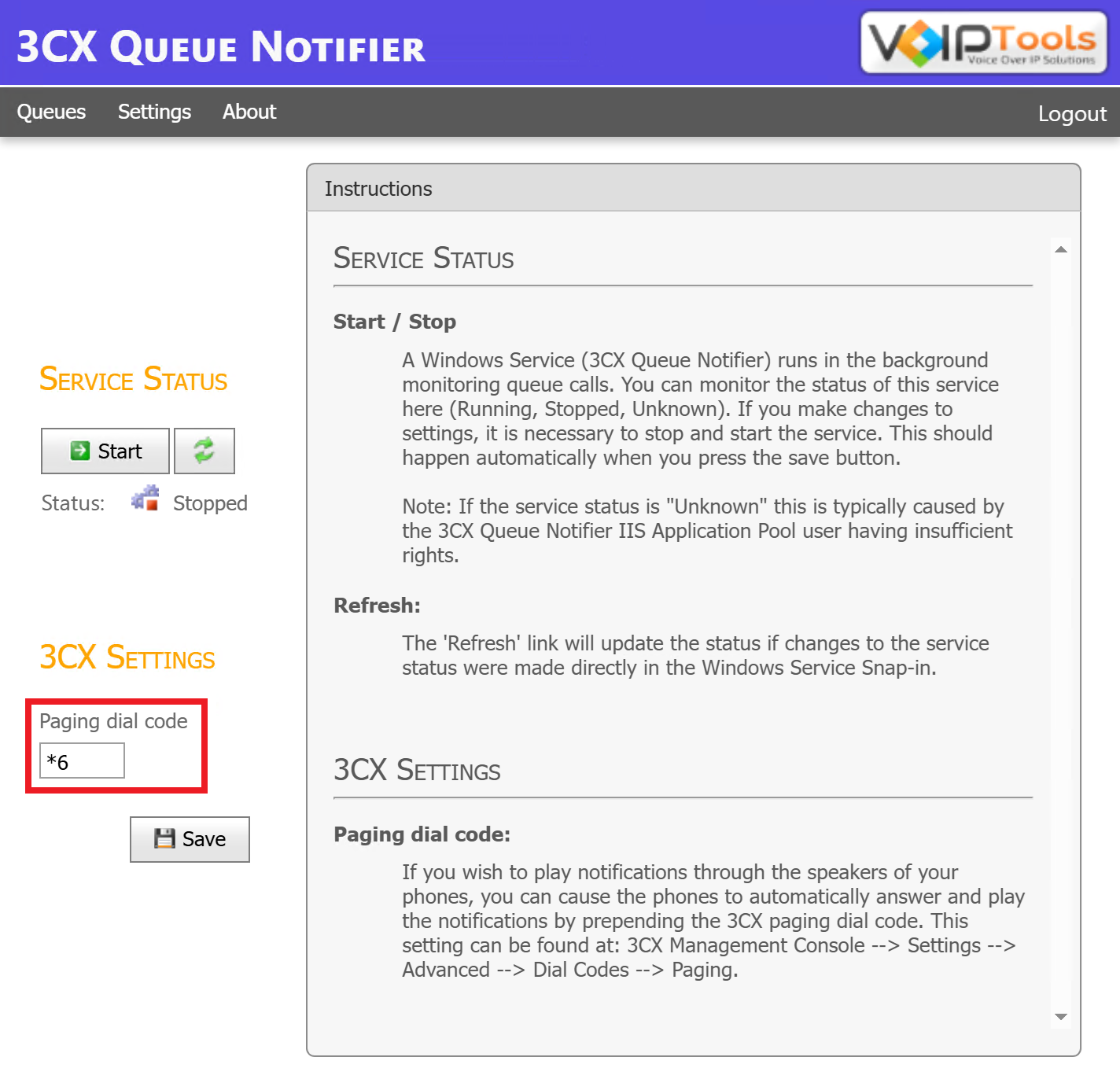
This section enables you to configure 3CX paging dial code. If you wish to play notifications through the speakers of your phones, you can cause the phones to automatically answer and play the notifications by prepending the 3CX paging dial code.
Click here to learn how to set paging dial codes in 3CX.
Site Settings #
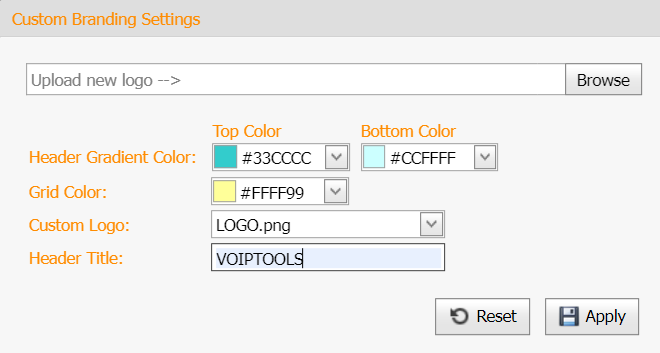
Site Settings enable you to customize branding settings for the application that includes the following:
- Customize the gradient color of the ‘Application Header’
- Customize grid color in screens that display grid data
- Customize the logo on the ‘Application Header’
- Customize ‘Header Title Prefix’ on the ‘Application Header’
Follow the procedure to open the Site Settings screen,
- Hover over the mouse on the Settings tab.
- In the Settings drop-down menu, select Site Settings.
- Perform any of the desired customizations and click the
 Apply
button to save your customizations.
Apply
button to save your customizations.
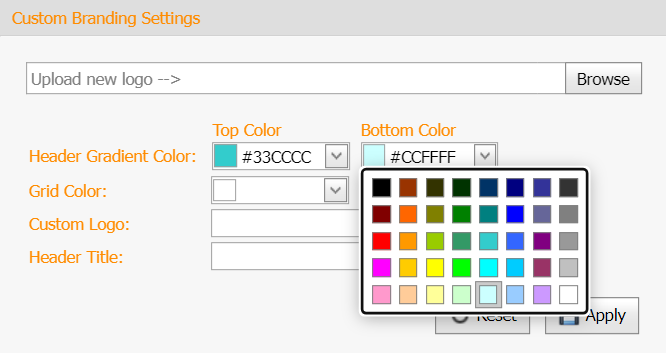
Customize Application Title Header – Gradient Color #
- In the Header Colour section do the following,
- Select the top paint from the Top Color color palette.
- Select the bottom paint from the Bottom Color color palette.
- Click Apply to Save the settings.
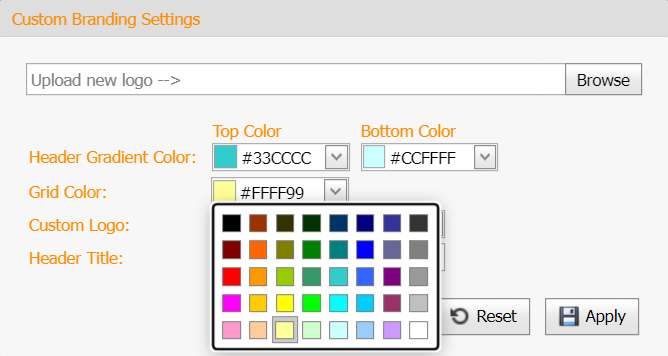
Customize Grid Color #
- From the Grid Color palette, select the color that you want to display for the grid in screens that display grid data
- Click Apply to save your settings.
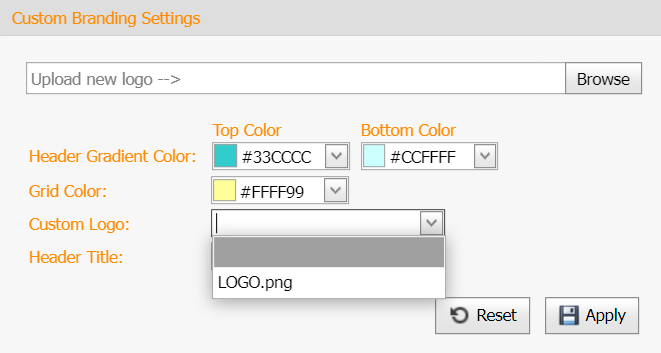
Customize Logo #
- If you are uploading the logo for the first time then,
- In the Custom Logo section, click Browse button to choose a logo from your device.
- Select the uploaded logo from the Select Logo dropdown list.
- Click
Apply
to save your changes.
- If your have uploaded the logo,
- Select the uploaded logo from the Select Logo dropdown list.
- Click
Apply
to save your changes.
Customize ‘Header Title Prefix’ Text #
- In the Header Title field, enter the text that you want the application to display as a ‘prefix’ for the existing title in the application header.
- Click
Apply
to save the header title prefix.
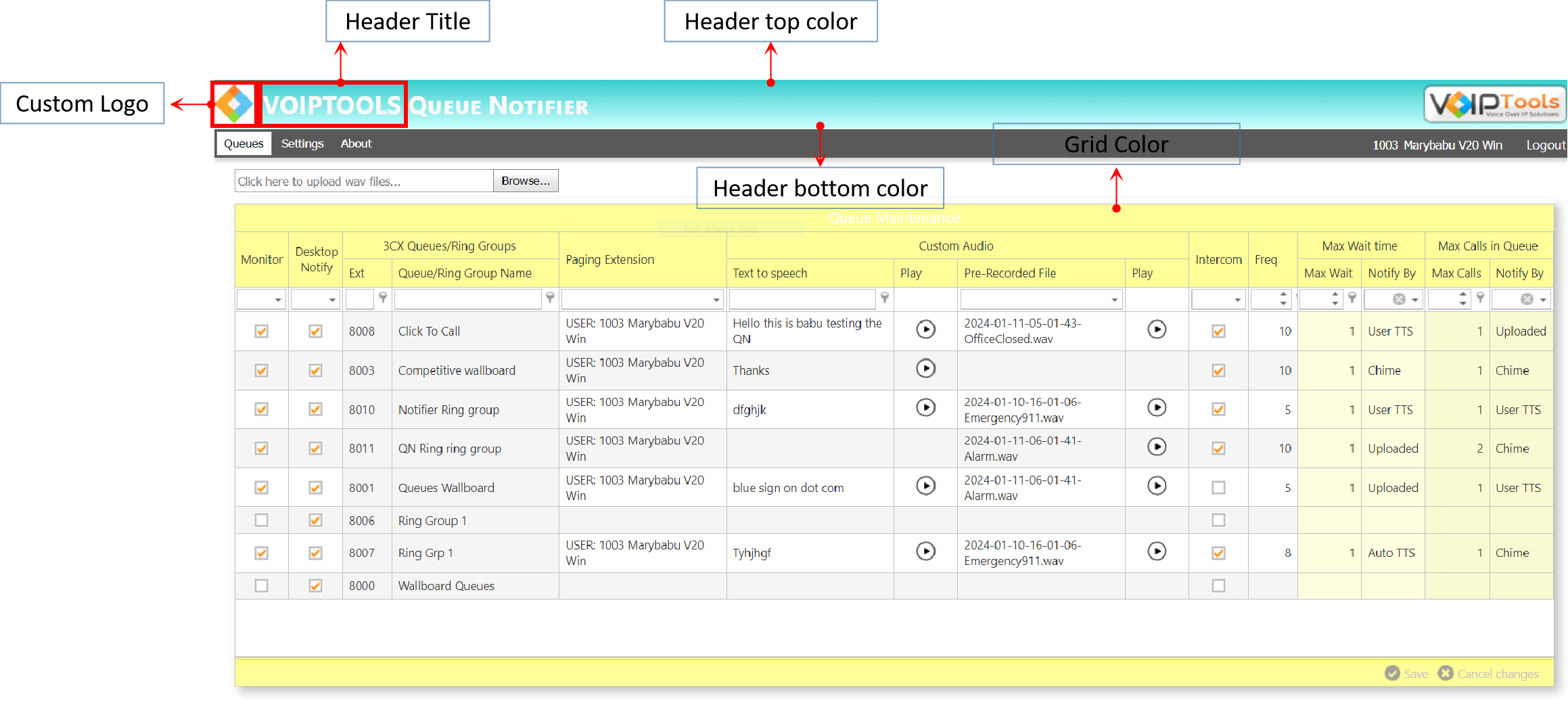
The final result of the page when you do all the customizations,
Audio Path/TTS Settings #
The Audio Path settings enable you to configure the audio path according to your preferences. You have the option to either utilize the default audio path, where you can conveniently download and locate your audio files, or you can specify a custom audio path of your choice.
Find your Audio files: #
Follow the procedure to find your audio files,
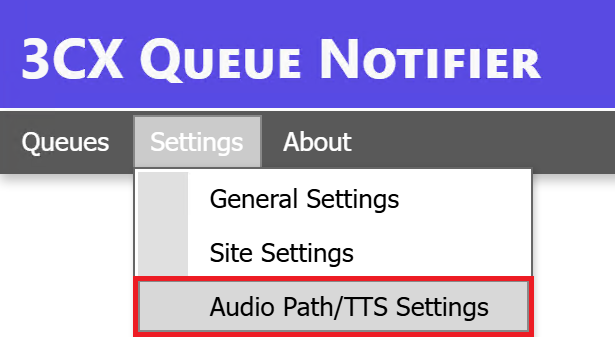
- In the Settings menu, select the Audio Path Settings option.
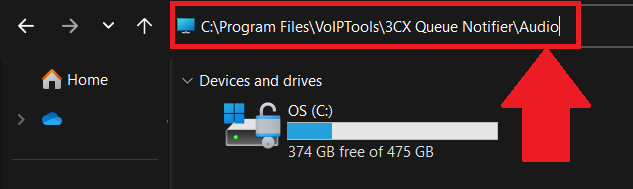
- Copy the default audio path.
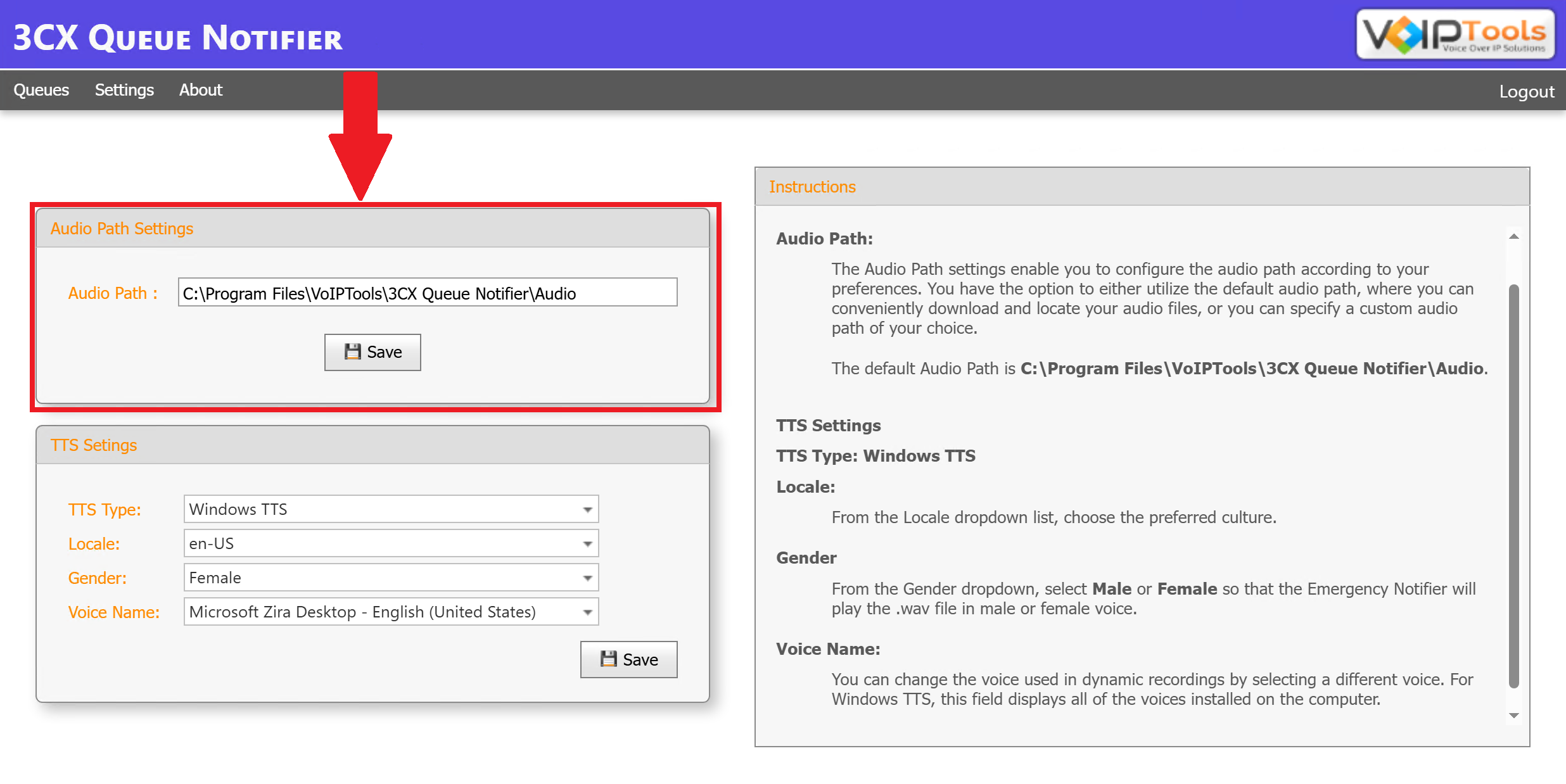
- and paste the address in the Address field on your device to find the Queue Notifier audio files.
Change the Audio path: #
To change the audio path, follow the procedure,
-
-
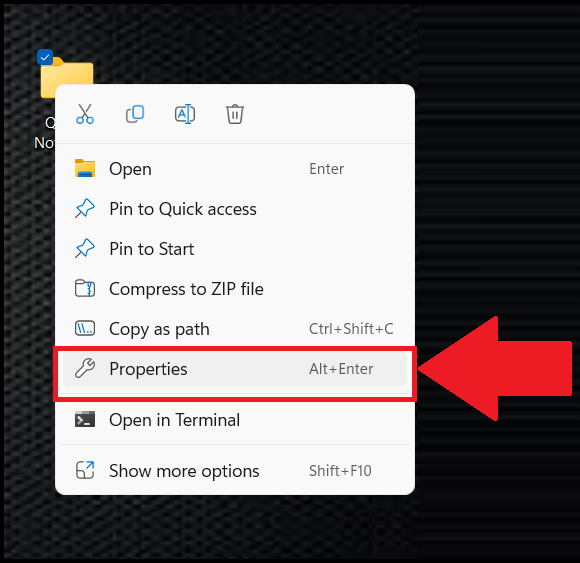
- Right-click the desired folder on your device to open the Right Click menu and select the
 Properties option.
- Right-click the desired folder on your device to open the Right Click menu and select the
-
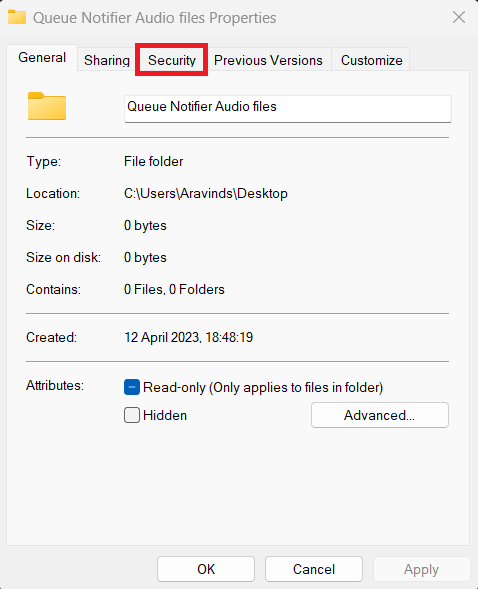
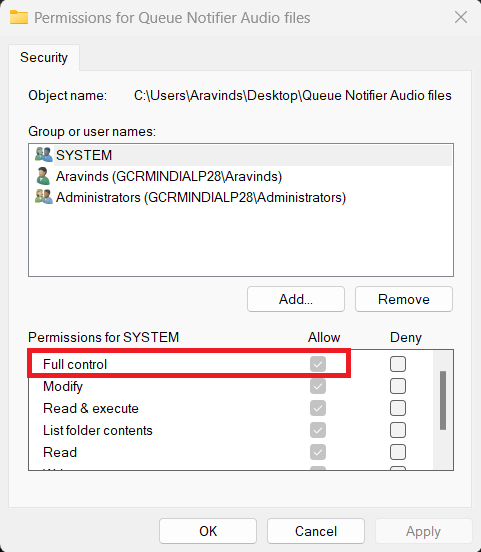
- On the top menu click the Security tab.
- Click the Edit button to edit the permissions.
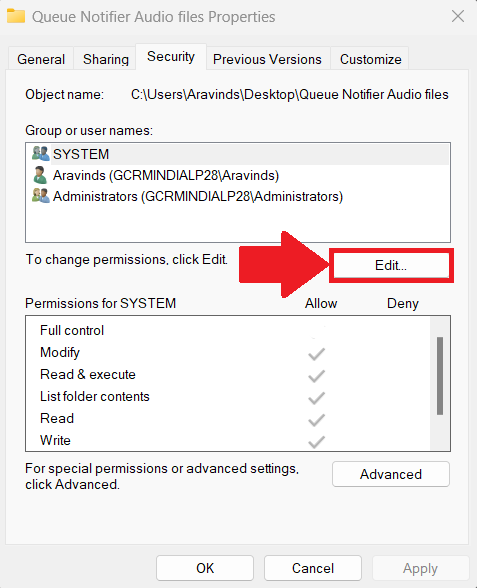
- Select the Full Control checkbox.
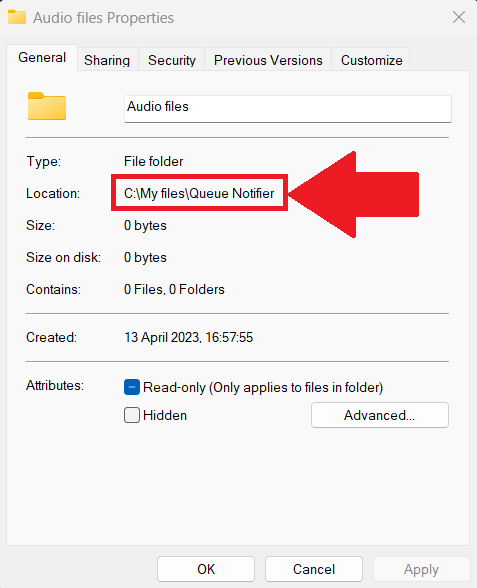
- In the top menu select the General tab and copy the folder location.
- Switch to the Queue Notifier (Server) web application and paste the folder path in the Audio Path field. Click
Save
to save the audio path.
The above steps are applicable when you create a folder in any of the local disks in you device. The folders created in the desktop has full control by default.
TTS Settings #
#
The TTS Settings panel controls the voice the Queue Notifier uses to read out queue alerts. TTS stands for Text to Speech, the tech that turns written words into spoken audio.
Windows TTS #
Windows TTS uses voices already installed on the computer running the Queue Notifier.
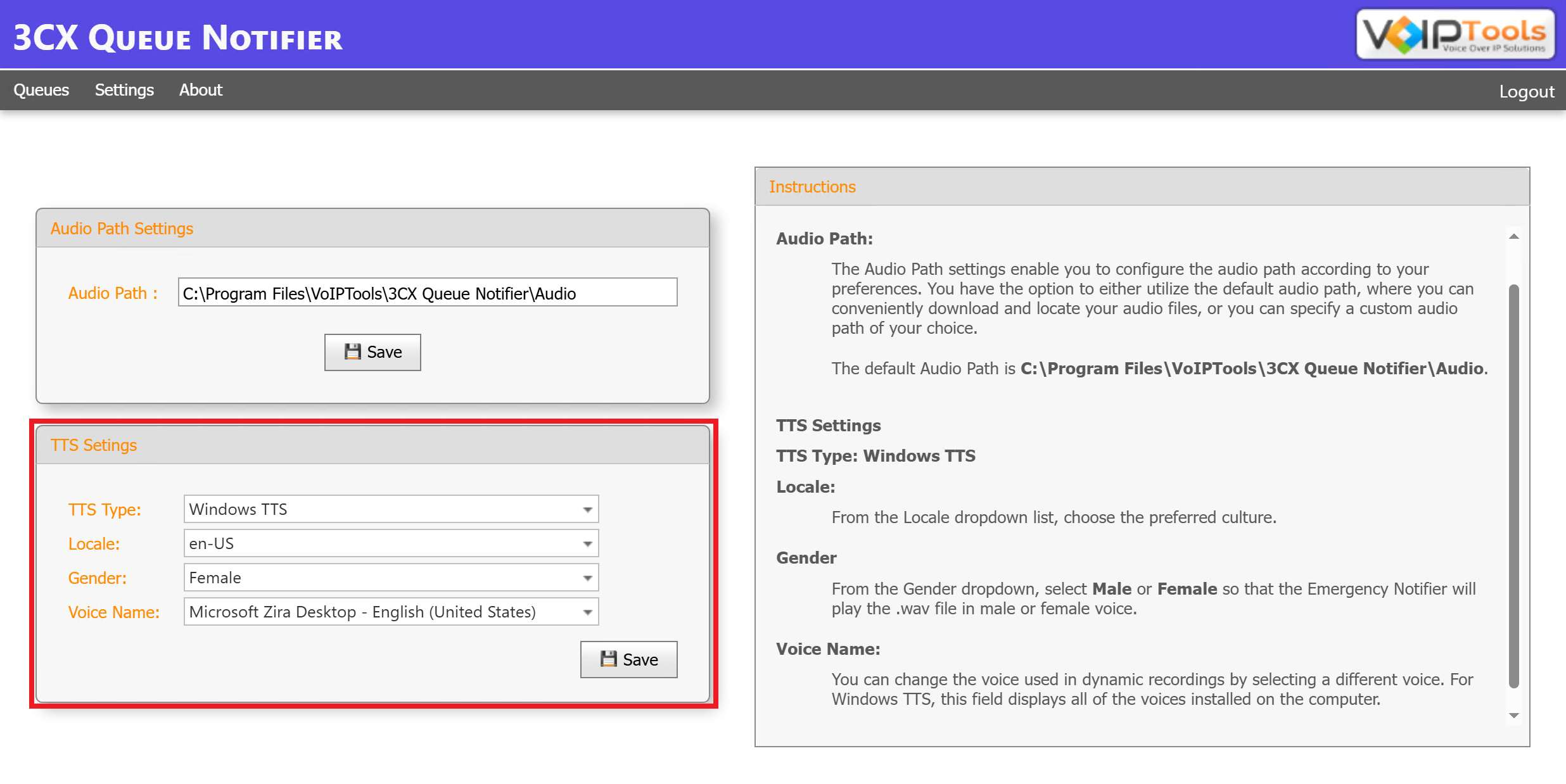
| Field | What It Does |
|---|---|
| Locale | Pick the language and region for the voice. |
| Gender | Pick Male or Female. This decides which voice reads the alert out loud. |
| Voice Name | Pick from every voice installed on the computer. The list changes to match the Locale and Gender you picked above. |
OpenAI #
OpenAI swaps the computer’s built in voices for cloud voices from OpenAI itself.
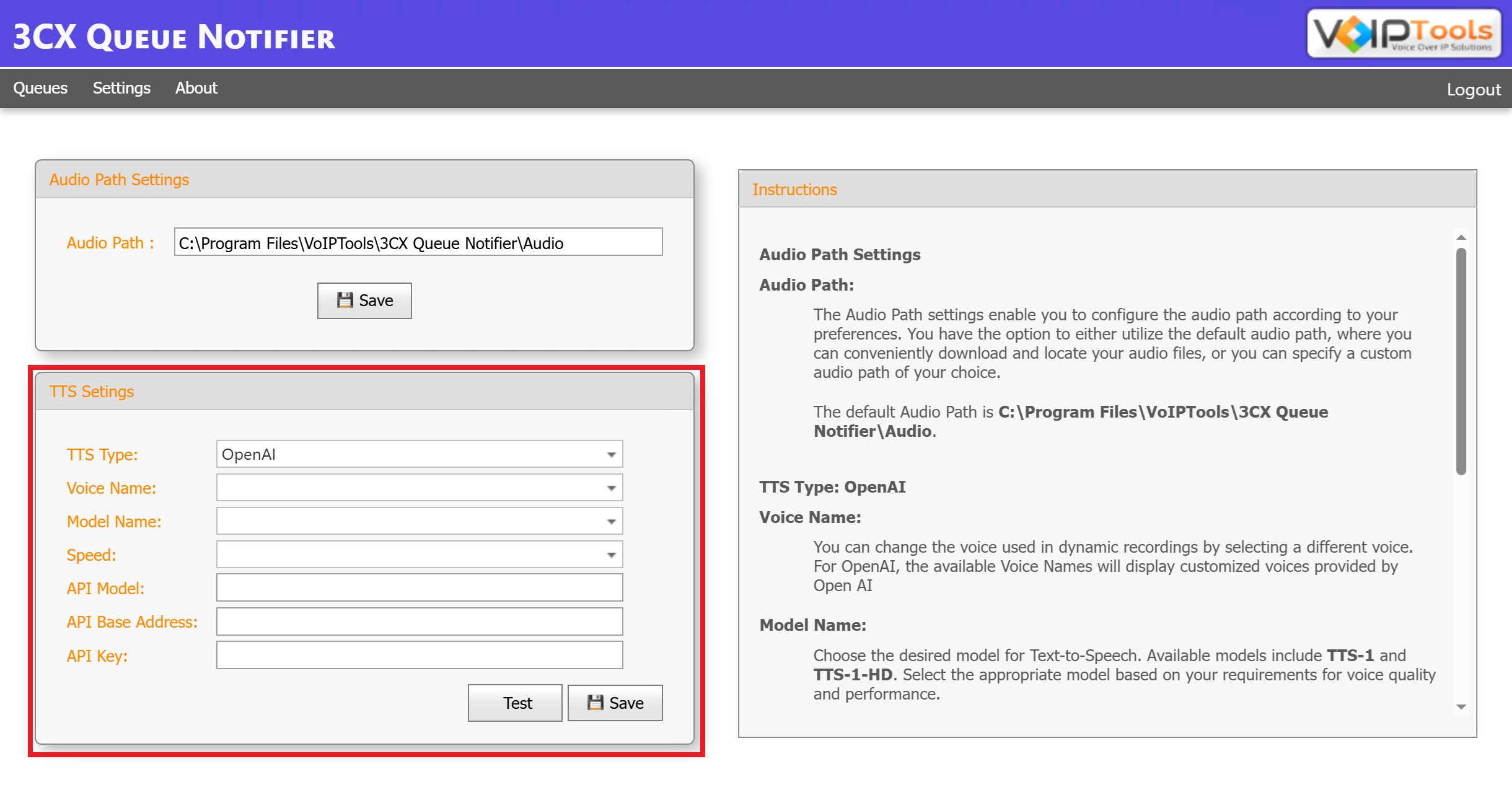
| Field | What It Does |
|---|---|
| Voice Name | Pick a voice from the list. These are custom voices OpenAI provides, not ones from this computer. |
| Model Name | Pick tts-1 or tts-1-hd. tts-1-hd gives richer audio but needs a bit more time to process. |
| Speed | Pick how fast the spoken audio plays back. |
| API Model | Type the model id in this box: gpt-5, gpt-4o, gpt-4o-mini, or o3-mini, depending on which model you want to power the speech. Leave it blank and gpt-5 gets used. |
| API Base Address | The web address the Queue Notifier uses to reach OpenAI’s service. (An API is just the connection point two programs use to talk to each other.) |
| API Key | Your private key for OpenAI’s API. Treat it like a password. Anyone who has it can use your OpenAI account. |
Queues #
The Queues screen allows you to configure several important settings. You can set the maximum wait time for callers, specify the maximum number of calls allowed in the queue, and designate the paging extension that should be notified when the uploaded audio file is played.
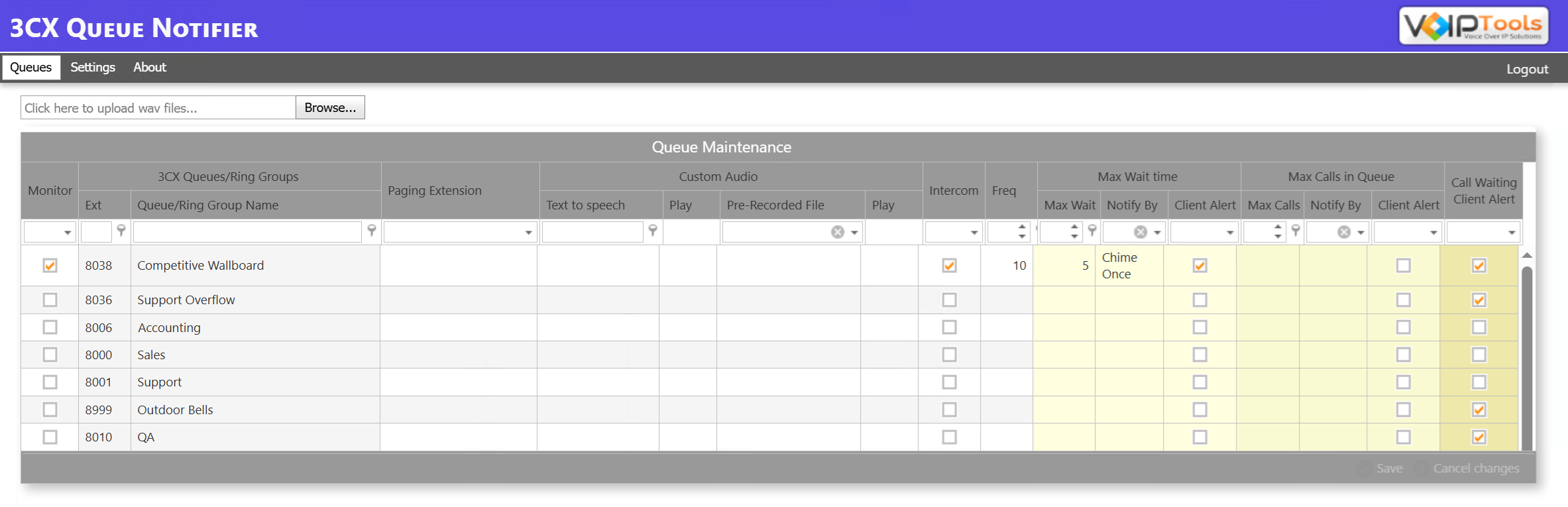
Field Definitions #
| COLUMN NAME | TASK DONE | PURPOSE OF THE TASK | |
| MONITOR | Select the checkbox | Activates the queue notification for the selected extension or group | |
| 3CX QUEUES/RING GROUPS | |||
| Ext | Enter the extension number | Activates the queue notification for the mentioned extension of the selected group | |
| Queue/Ring Group Name | Select the Queue/Ring Group from the dropdown | Activates the queue notification for the selected group | |
| PAGING EXTENSION | Select the Paging Extension from the dropdown list | Notifies the selected user extension | |
| CUSTOM AUDIO | |||
| Text to Speech | Enter the text you want to play as audio | Plays the entered text as audio | |
| Play | Click the Play button | Plays back the Text to Speech entry so you can preview it | |
| Pre-Recorded File | Select an uploaded audio file from the dropdown list | Plays the selected pre-recorded audio file | |
| Play | Click the Play button | Plays back the selected pre-recorded file so you can preview it | |
| INTERCOM | Select the checkbox | Configures queue notification based on the max time wait of a caller in the queue | |
| FREQUENCY | Enter the time (in seconds) | Repeats the queue notification after the set frequency | |
| MAX WAIT TIME | |||
| Max Wait | Enter the Max Wait time (in seconds) | The maximum time a caller can wait in the queue, after which the paging extension receives a queue notification | |
| Notify By | Select the desired notification type from the dropdown list | Notifies by the selected method when the max wait time is reached | |
| Client Alert | Select the checkbox | Sends an alert to the Queue Notifier Client when the max wait time is reached | |
| MAX CALLS IN QUEUE | |||
| Max Calls | Enter the maximum number of callers you want waiting in the queue | The maximum number of callers waiting in the queue, after which the paging extension receives a queue notification | |
| Notify By | Select the desired notification type from the dropdown list | Notifies by the selected method when the maximum number of callers waiting in the queue is reached | |
| Client Alert | Select the checkbox | Sends an alert to the Queue Notifier Client when the maximum number of callers in the queue is reached | |
| CALL WAITING CLIENT ALERT | Select the checkbox | Sends an alert to the Queue Notifier Client whenever a caller is waiting in the queue | |
Upload an audio file #
Follow the procedure to upload a pre-recorded audio file,
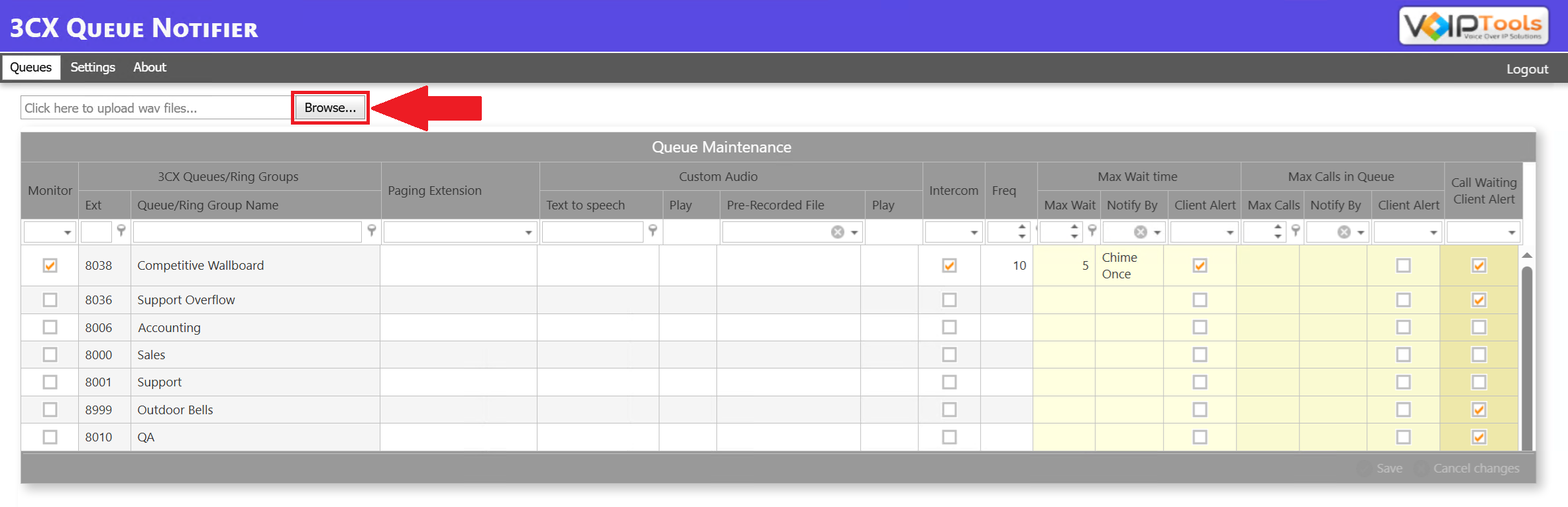
- In the Queues screen, click the Browse button.
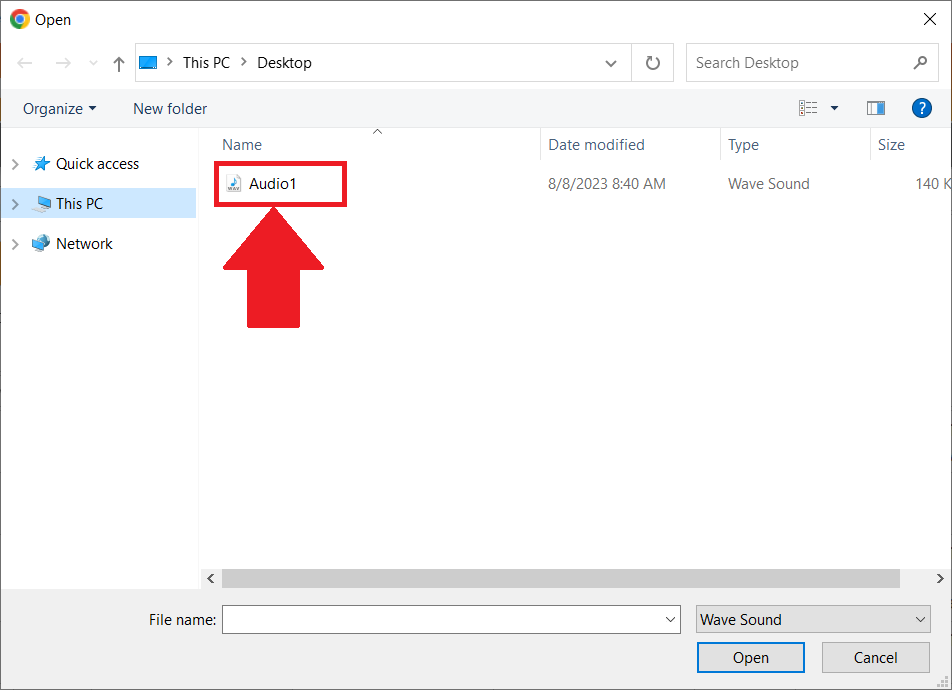
- Select the audio files you want to upload from your local device.
- Click the
 Save button to save your changes. You can see your audio file in the Pre-recorded Audio File column
Need Support? #
You get quick answers to most of your inquiries in our online manual. If you prefer direct contact, we offer various support channels, including phone, email, live chat, and our helpful VoIPTools forums.

24/7 Support Availability #
Rest assured, our dedicated team is here to assist you around the clock, every day of the year. Whether you're based in the USA or India, we're ready to provide prompt responses to your technical queries.

Windows Event Log for VoIPTools Applications and Services #
For troubleshooting any application errors, our Windows Event Log contains a comprehensive list of error messages, warnings, and informative notes related to all our VoIPTools applications and services. It's a valuable resource to help you pinpoint and resolve any issues you may encounter.

Join Our Forum Community #
Are you looking to collaborate with other VoIPTools customers facing similar challenges? Our forum is the perfect platform to exchange ideas, solutions, and best practices. Join the conversation at: https://www.voiptools.com/community/

Real-Time Live Chat Assistance #
Got questions that need immediate answers? Our chat support team is available to assist you in real time. Just click on the Live Chat button located at the lower right corner of our website, and we'll acknowledge your queries right away.

Efficient Email Support #
To ensure a thorough understanding of your concerns, email us at support@voiptools.com. Describe your issue in detail, and we'll get back to you within one business day with the support you need.

Reach Us by Phone #
If you prefer to speak with a representative directly, you can reach us at +1 801-642-4655. Our attentive team is available to take your calls from 8:00 AM to 6:00 PM (Central Standard Time).
Comprehensive support services: #

Free Support #
If you've purchased our products through a VoIPTools Partner, rest assured that they provide first-level support at no additional cost. Partners have access to 100% free technical assistance and actively participate in the troubleshooting process.
VoIPTools customers enjoy access to our online manuals and receive support through emails (with responses within one business day) and live chat. However, please note that we do not provide remote server login assistance.

Paid Support #
For a more hands-on experience, consider our "Installation Support" package. Our expert support team can log in to your servers, and install and configure all our tools. This comprehensive service includes setting up SQL Server Express and Internet Information Server if necessary. We'll work closely with you to tailor our applications to meet your requirements.
We're committed to providing top-notch support to ensure your VoIPTools experience is smooth and hassle-free. Contact us today, and let us assist you in making the most of our powerful tools!
