Boost Phone Call Efficiency with 3CX Wrap-up Codes: Streamline, Classify, and Optimize
Looking to optimize your phone call productivity? Look no further than 3CX Wrap-up Codes. These handy tools allow you to easily classify and analyze the purpose or outcome of your phone calls in real-time. With just a simple selection from a pre-defined list of codes, you can accurately label each call according to its nature. Whether you are part of a support department or a sales team, these codes enable you to streamline your organization effectively.
When making or receiving a call, a convenient popup appears, empowering you to choose the most relevant code that aligns with the call’s objective. Support departments can utilize codes such as “Installation issue” or “Hardware issue” to accurately categorize their calls. On the other hand, sales departments may find it beneficial to classify calls as “follow-up” or “New leads” for efficient tracking.
By implementing wrap-up codes (also known as disposition codes), you gain the ability to effortlessly classify and monitor the purpose and outcome of each call. The process is simple: a popup emerges during your call, providing you with a range of pre-established codes to choose from. For instance, support departments can quickly tag calls with codes like “Installation issue” or “Hardware failure.” Meanwhile, sales teams can easily classify calls as “follow-up” or “lead.” This comprehensive tracking system allows you to gain valuable insights into your time allocation, empowering you to fine-tune your business processes.
Make the most of your valuable time by leveraging 3CX Wrap-up Codes. Seamlessly classify, track, and analyze your phone calls to optimize your workflow. Start enhancing your business efficiency today!
Agents can quickly categorize calls, save time on documentation, and provide better customer service through streamlined call management.
DATA-DRIVEN INSIGHTS
The system collects data for reporting and analytics, offering valuable insights into customer behavior, agent performance, and call trends.
CUSTOMIZATION AND INTEGRATION
Wrapup codes can be customized to fit specific organizational needs and integrate with other systems, enhancing data management and process efficiency.
CONSISTENCY AND COMPLIANCE
Agents maintain data consistency, while organizations ensure compliance with industry regulations by using standardized wrapup codes for call documentation.
IIS is needed as a web server to host and manage web-based applications and services.
.NET Framework 4.7.2 (Web Installer)
This framework provides essential components for running and developing applications.
VoIPTools Universal Updater
This component is necessary for updates, ensuring the application remains current and functional.
VoIPTools Relay Service
It is used for proper integration and functionality of the 3CX Wrapup Codes (Server) within the 3CX environment.
Microsoft SQL Server 2014 or above (Including the free SQL Express edition)
3CX requires Microsoft SQL Server 2014 or later for database management.
Static IP for VoIPTools and 3CX servers
This is to ensure proper two-way communication, both the 3CX server (Relay) and the VoIPTools server. Dynamically assigned IP addresses are not supported. Additionally, it is recommended to use HTTPS for secure communication, which requires a FQDN for SSL/TLS certificate validation between the VoIPTools server and the Relay.
Port number 7750 opened on your device
Port 7750 is a specific network port used by 3CX for communication purposes. Opening this port on the device’s firewall allows incoming and outgoing traffic to pass through, enabling the 3CX software to send and receive data over the network effectively.
NOTE:
You need a Static IP for both VoIPTools and 3CX servers to ensure proper two-way communication, both the 3CX server (Relay) and the VoIPTools server. Dynamically assigned IP addresses are not supported. Additionally, it is recommended to use HTTPS for secure communication, which requires a FQDN for SSL/TLS certificate validation between the VoIPTools server and the Relay.
NOTE:
When installing IIS, be sure to install Basic Authentication, .Net Extensibility, and ASP.Net 4.X
You can order the 3CX Wrapup Codes (Server) online at https://www.voiptools.com. Your order confirmation email will include your license key and a link to download the software.
INSTALL PREREQUISITES
You must install several prerequisites before installing the 3CX Wrapup Codes (Server). The Advanced Installer identifies and installs these applications automatically. Click here to learn about the required prerequisites.
INSTALL 3CX WRAPUP CODES
This User Guide contains step-by-step instructions to successfully install the 3CX Wrapup Codes (Server) . Begin by extracting the installer from the downloaded zip file (Step 1 above), then run the setup program named WrapupCode(server).exe
NOTE:
You must install the same version of the Wrapup Codes Client and Wrapup Codes Server applications.
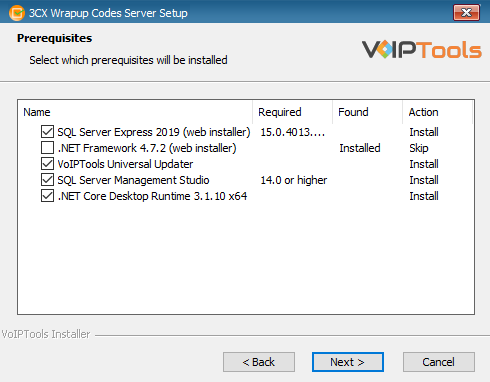
Click on the software installer that was downloaded in step 1 above. The installation wizard will automatically identify the needed prerequisites and assist you with the install of the prerequisites needed to run ‘3CX Wrapup Codes’. These include .NET Framework (Web Installer), SQL Server Express (Web Installer) and, SQL Server Management Studio.
Click the downloaded installer executable to launch the Prerequisites Setup Wizard and click Next.
Figure 1: Prerequisites Setup Wizard
In the Prerequisites window, the installer will identify the missing prerequisites. It is important that you install all the required prerequisites. However, you can select/unselect the applications to be installed based on your unique requirements. Click Next to continue.
Figure 2: Select Prerequisites to Install
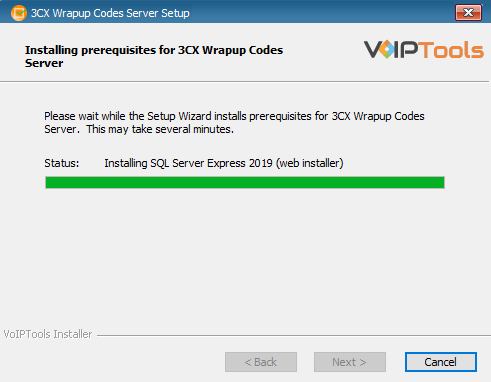
The installer will download and install the selected applications.
Figure 3: Prerequisites Installation in Progress
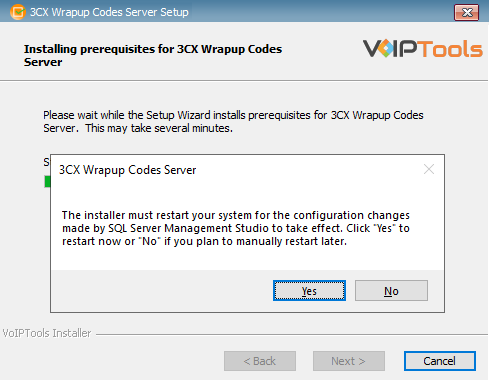
In the confirmation message box, click Yes to reboot the computer.
Figure 4: SQL Server Express: Reboot your Computer
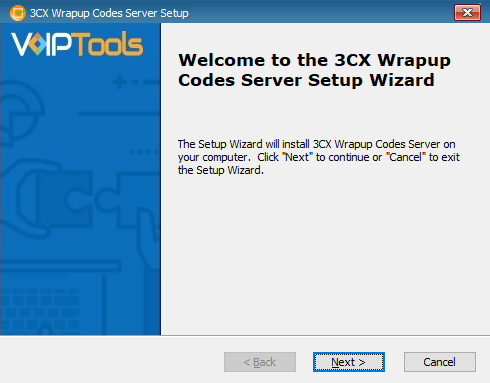
After all the prerequisites are installed, the 3CX Wrapup Codes Setup Wizard appears. Click Next to Continue.
Figure 5: 3CX Wrapup Codes Setup Wizard
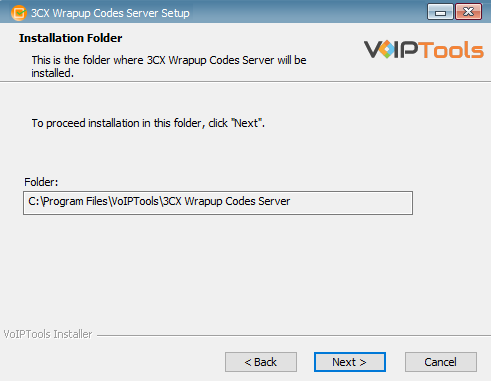
On the Select Installation Folder window, the Folder field displays the location where the ‘3CX Wrapup Codes’ will be installed. Note that you cannot change the path.
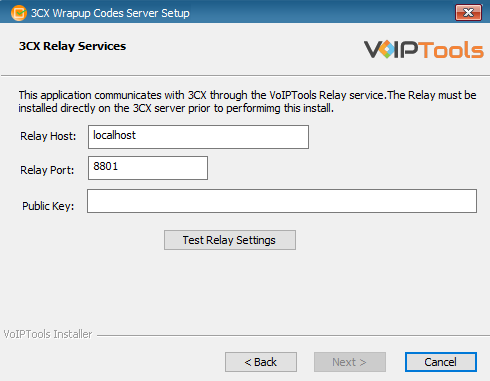
In the 3CX Relay Services window, in the Relay Host field, enter the FQDN of your 3CX server.
Enter 8801 in the Relay Port field.
Enter the public key you took from VoIPTools Relay services in the Public Key text area.
Figure 7: Configure Relay Services
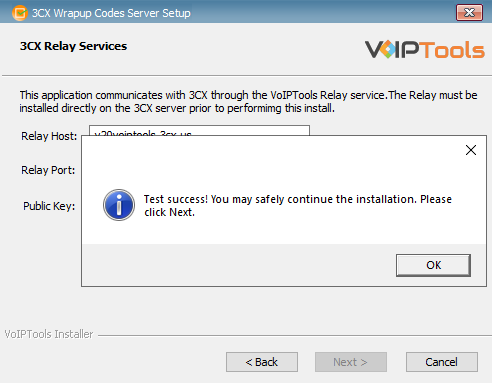
Click the Test Relay Settings to confirm ‘3CX Wrapup Codes Server’ can communicate with the Relay services running on the 3CX server.
If the ‘3CX Wrapup Codes Server’ is successfully able to communicate with the Relay services that run on the 3CX server, a Success message box appears. Click OK. If the test fails, you will not be able to continue until communication with the relay is established.
Click Next to continue with the installation.
Figure 8:Test Relay services
NOTE:
If the test was unsuccessful:
confirm you have the correct firewall port open (default TCP 8801) on the 3CX server and the firewall protecting the 3CX server.
confirm that you have entered the correct FQDN for the 3CX server.
confirm that 3CX Wrapup Codes and the Relay are using the same port and protocol.
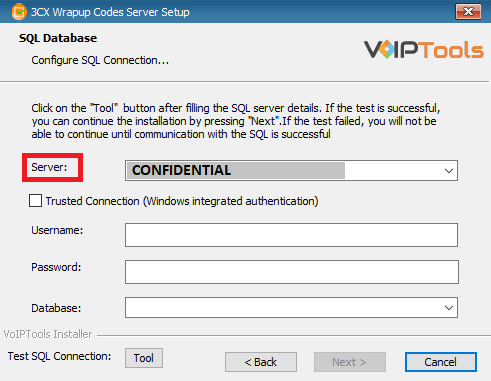
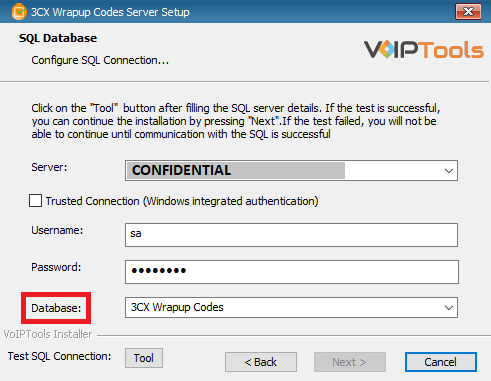
When configuring the 3CX Wrapup Codes (Server), select an existing Microsoft SQL Server instance in your environment. The database server can be a remote SQL Server, or a local instance running on the VoIPTools server.
You can set up the SQL database using SQL Authentication or Windows Integrated Authentication.
If using the free SQL Express Edition, the default SQL Instance name is SQLExpress.
Figure 9: Configure Database – Server Field
NOTE:
If you want to use ‘SQL Authentication’, then install SQL Server in ‘Mixed‘ mode.
If SQL Server is installed on a server other than the server where 3CX Exporter is installed, you will need to configure SQL Server to allow remote connections.
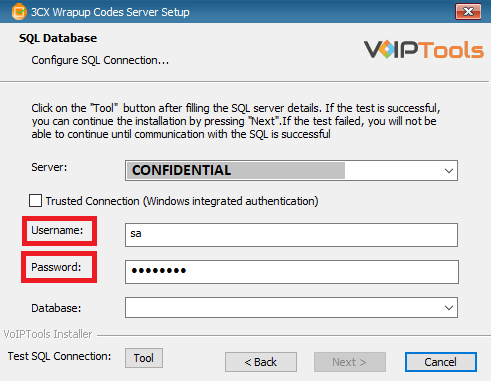
Enter your credentials in the Username and Password fields.
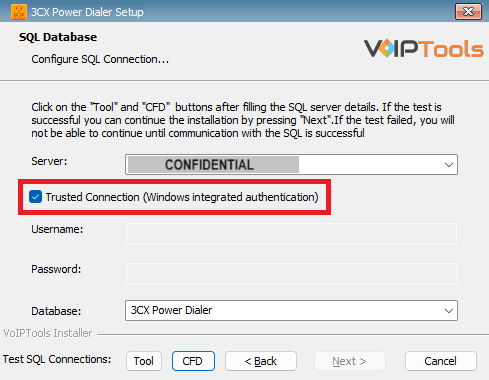
To use Windows Integrated Authentication check the Trusted Connection (Windows integrated authentication) checkbox.
The VoIPTools installer will create a local Windows user name as “VoIPToys” and give you sufficient rights to this user to create/update the SQL database.
Figure 13: Trusted Connection Checkbox
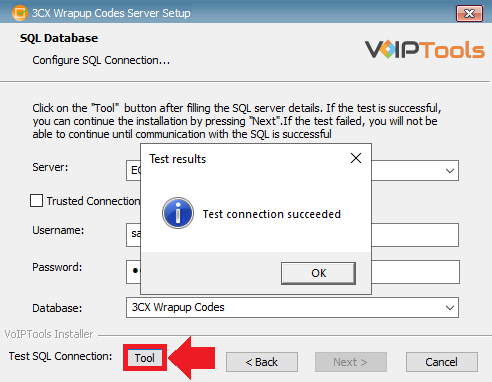
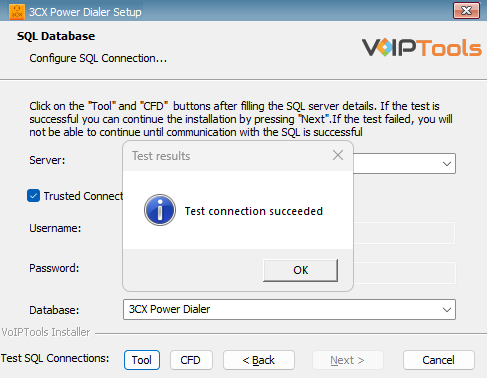
In the Test SQL Connection section, click the Tool button to test the connection.
Click the Next button which gets enabled when the database connection is successful.
Figure 14: Trusted Connection Test Results Message Box
NOTE:
We encourage you to use SQL Authentication rather than Windows authentication. Many of our tools leverage a Call Flow Designer (CFD) application running on the 3CX. Frequently our CFD applications require access to a SQL database. If the 3CX server and the database server are not in an Active Directory domain, Windows authentication will fail. To use SQL authentication, your SQL Server must be configured to run in “Mixed Mode”. If you installed SQL Server with one of our tools, we configure SQL in “Mixed Mode”.
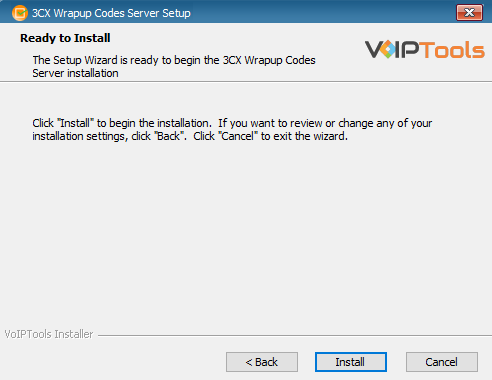
In the Ready to Install window, click Install to start the installation of the ‘3CX Wrapup Codes’.
Figure 15: Install 3CX Wrapup Codes
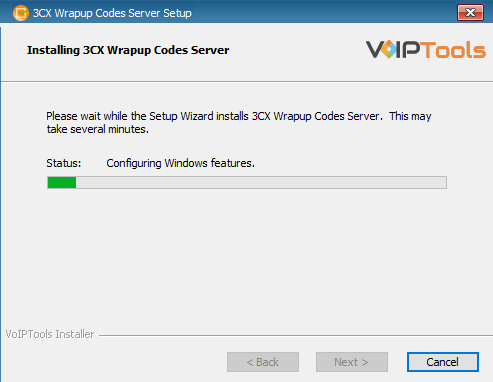
The application installation progresses. It may take several minutes to complete.
Figure 16: Installation of ‘3CX Wrapup Codes’ in Progress
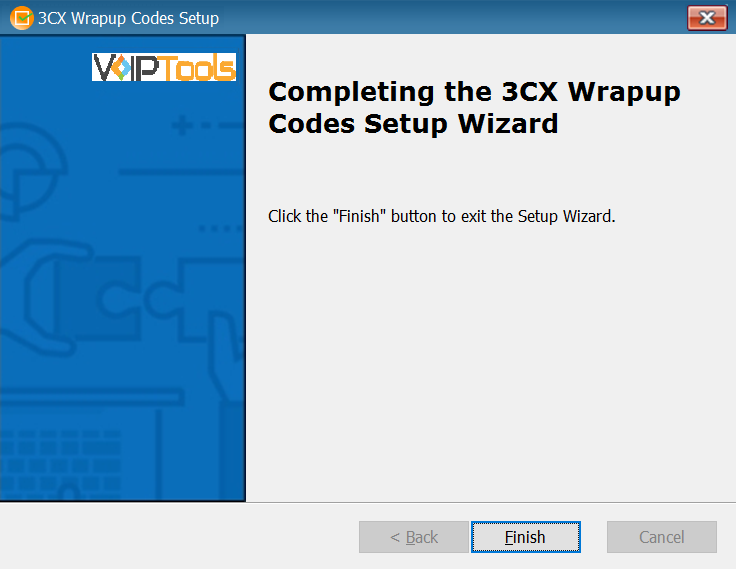
Once the installation is complete, check Launch 3CX Wrapup Codes check box and then click Finish. The 3CX Wrapup Codes configuration screen opens. If you want to simply close the installer without opening the configuration screen, then simply uncheck Launch 3CX Wrapup Codes check box and then click Finish
To ensure the authorization of your license key, it is necessary to complete the registration process. By registering with VoIPTools, you gain access to a range of benefits:
Key Replacement Assistance
In the unfortunate event of a lost license key, registering with VoIPTools lets us provide you with a replacement key promptly.
Product Updates and Reminders
By registering, you will receive timely notifications from VoIPTools regarding any product updates. Additionally, we will send reminders when your key is nearing its renewal date, ensuring uninterrupted access to our services.
Activates 3CX Wrapup Codes Serves application
On registering the ‘3CX Wrapup Codes-Server’ application, the ‘3CX Wrapup Codes-Client’ application will also be automatically activated.
Follow the steps to register your software,
Click the 3CX Wrapup Codes Client desktop icon when the installation is completed.
On the Login page, log in with your credentials.
In the Extension field, enter your 3CX extension number.
To access the ‘3CX Wrapup Codes’ web portal, click the Web Portal button on the configuration program, or click on the desktop icon that was created during the installation process (3CX Wrapup Codes Web).
NOTE:
Users with only ‘Manager’ role can log into the ‘3CX Wrapup Codes-Server’ application.
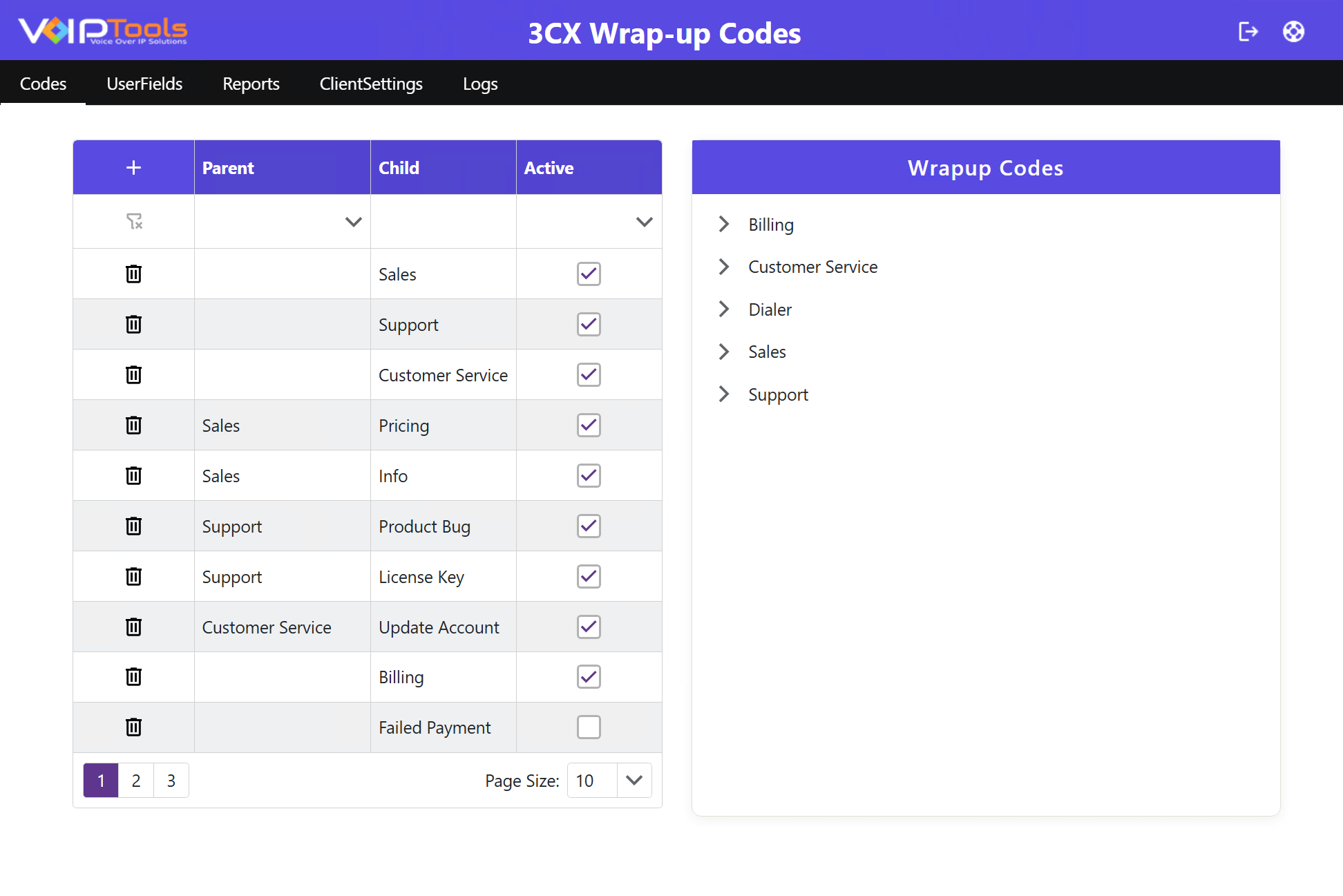
Wrapup codes are a quick way of summarizing the interaction in the call between the customer and the agent. From here, you can create and activate/inactivate a wrap-up code. Wrapup codes can be either independent or can be set up to have parent and child codes. Only the active wrapup codes will be available for the agent while on call with the customer. The Wrapup Codes section of the screen displays a tree view of the active parent-child wrapup codes.
Follow the procedure to ensure efficient call data organization through wrapup codes for structured analysis, enabling effective call management.
Create Wrapup Code
In the Codes screen, and on the column header, click the Add button.
In the Child field, enter the name of the wrapup code.
NOTE:
Only active wrapup codes display in the ‘Wrapup Codes’ section.
Create Child Code and Associate To Parent Code
Select the desired wrapup code from the Parent dropdown list that you want to associate as a parent to the child code.
To make the child code available, check the Active check box and click Save at the footer of the Codes window.
NOTE:
The parent dropdown list displays only active codes.
Activate a Wrapup Code
To activate a wrapup code so that it can be available for use, check the Active check box beside the desired code and then at the footer of the Codes window, click Save.
NOTE:
You cannot delete a wraup code. You can only activate or inactivate by checking or unchecking the ‘Active’ checkbox. When you inactivate a parent code, all the child codes associated to it will be unavailable for use.
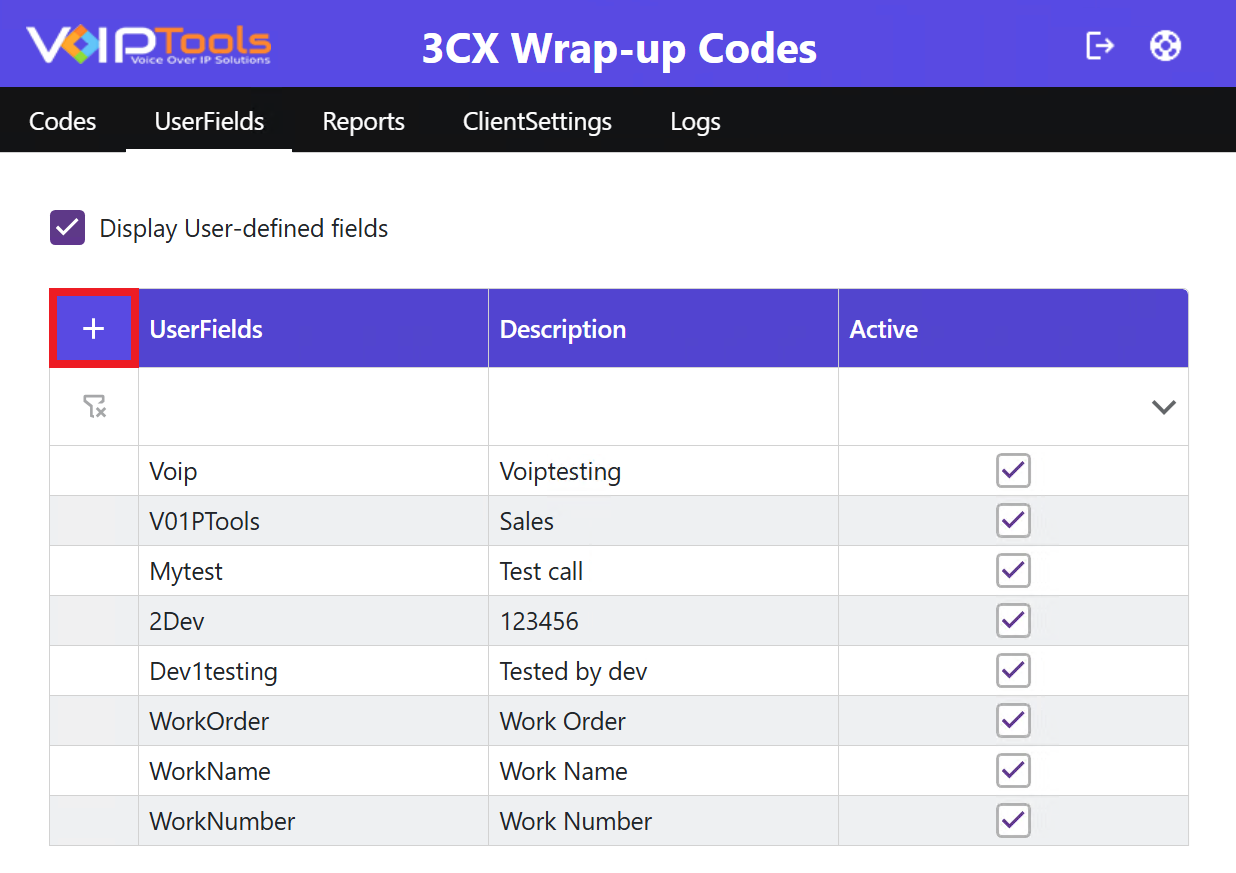
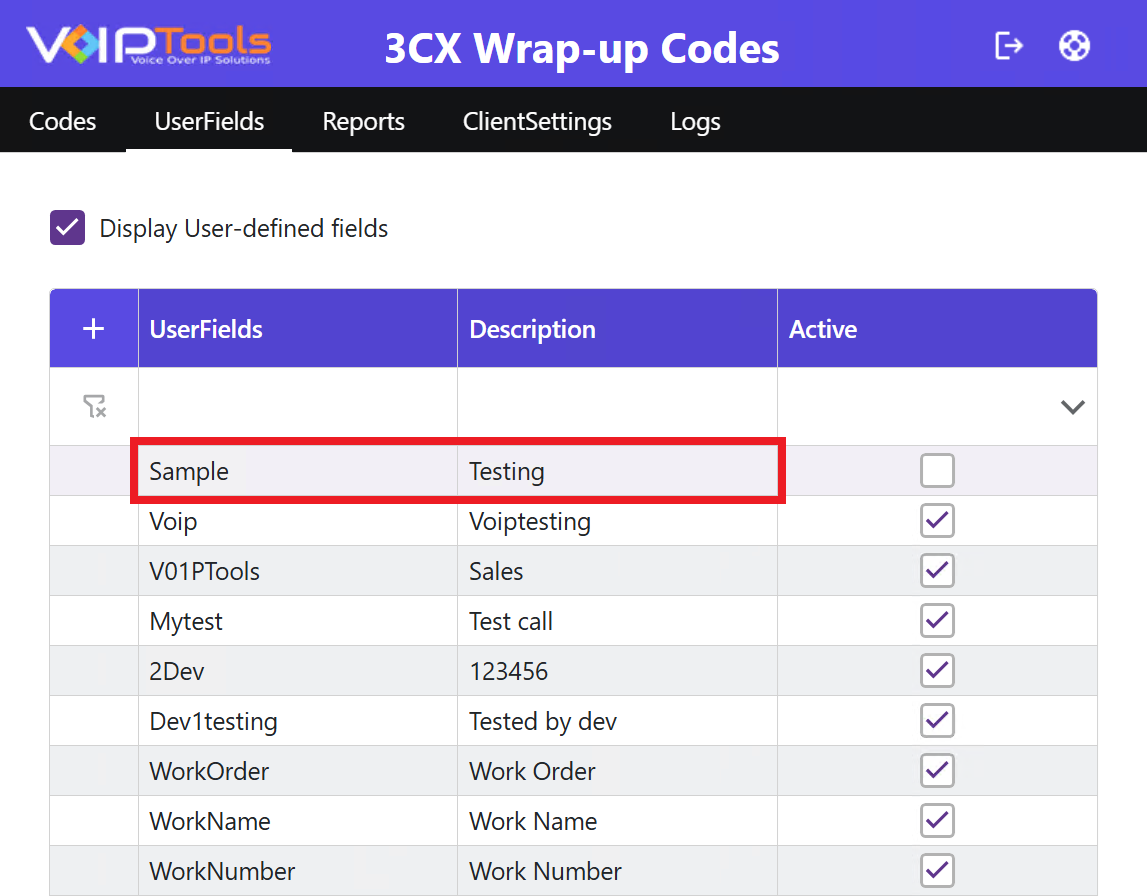
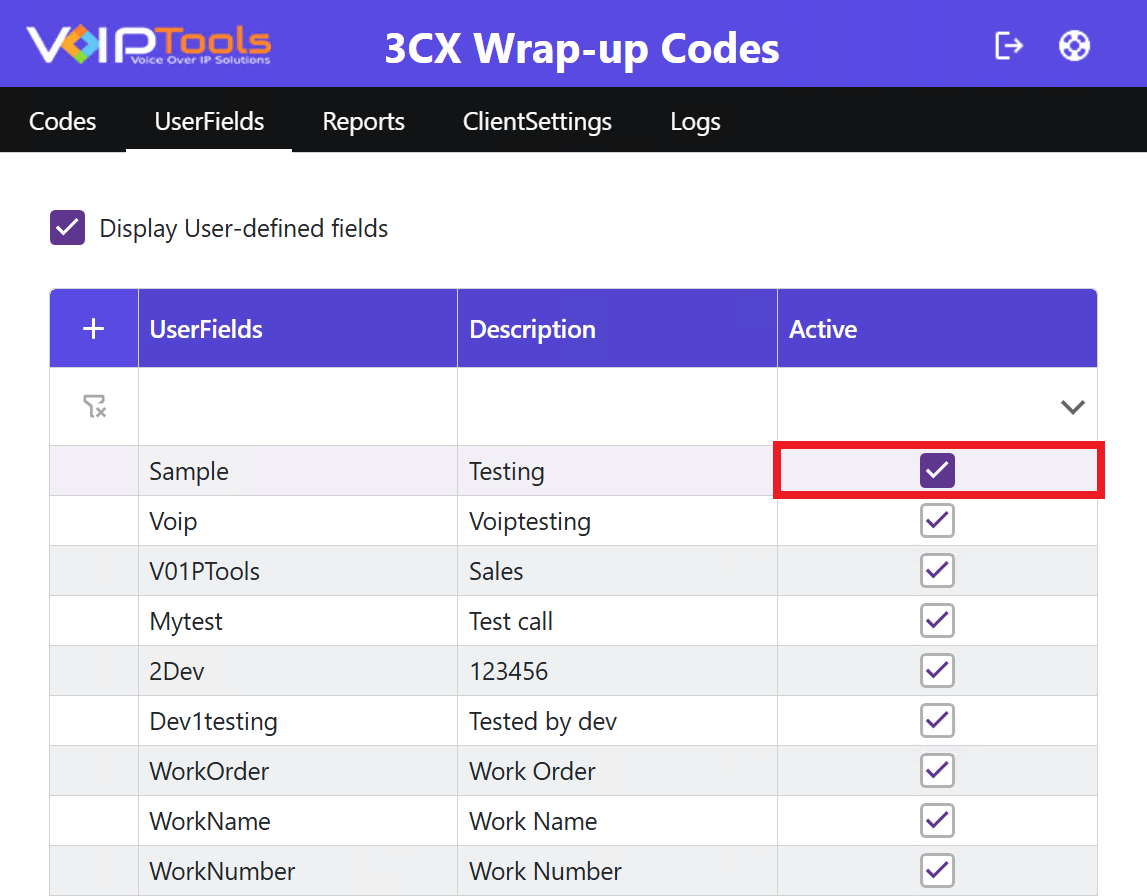
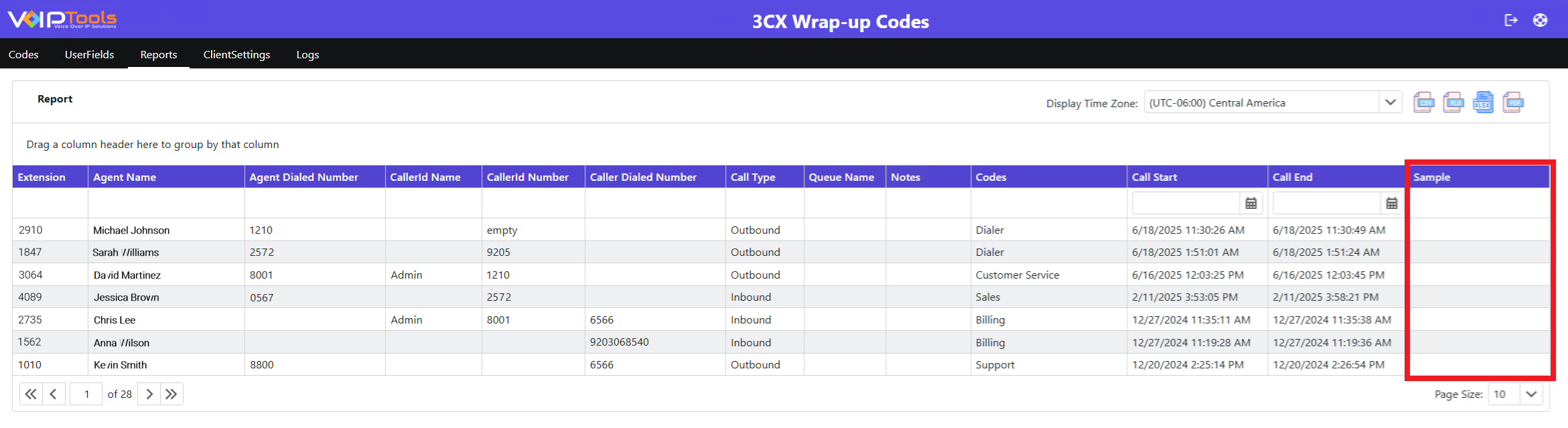
In this section, you can set your custom fields. These fields allow you to gather personalized data and improve reporting with specific details. This enhances your understanding of customer needs, helps adapt to changing requirements, and streamlines workflow for efficient data entry. These fields are reflected in the Reports Tab and your WrapUp Codes Client Application.
Figure 20: UserFields Tab – Overview
NOTE:
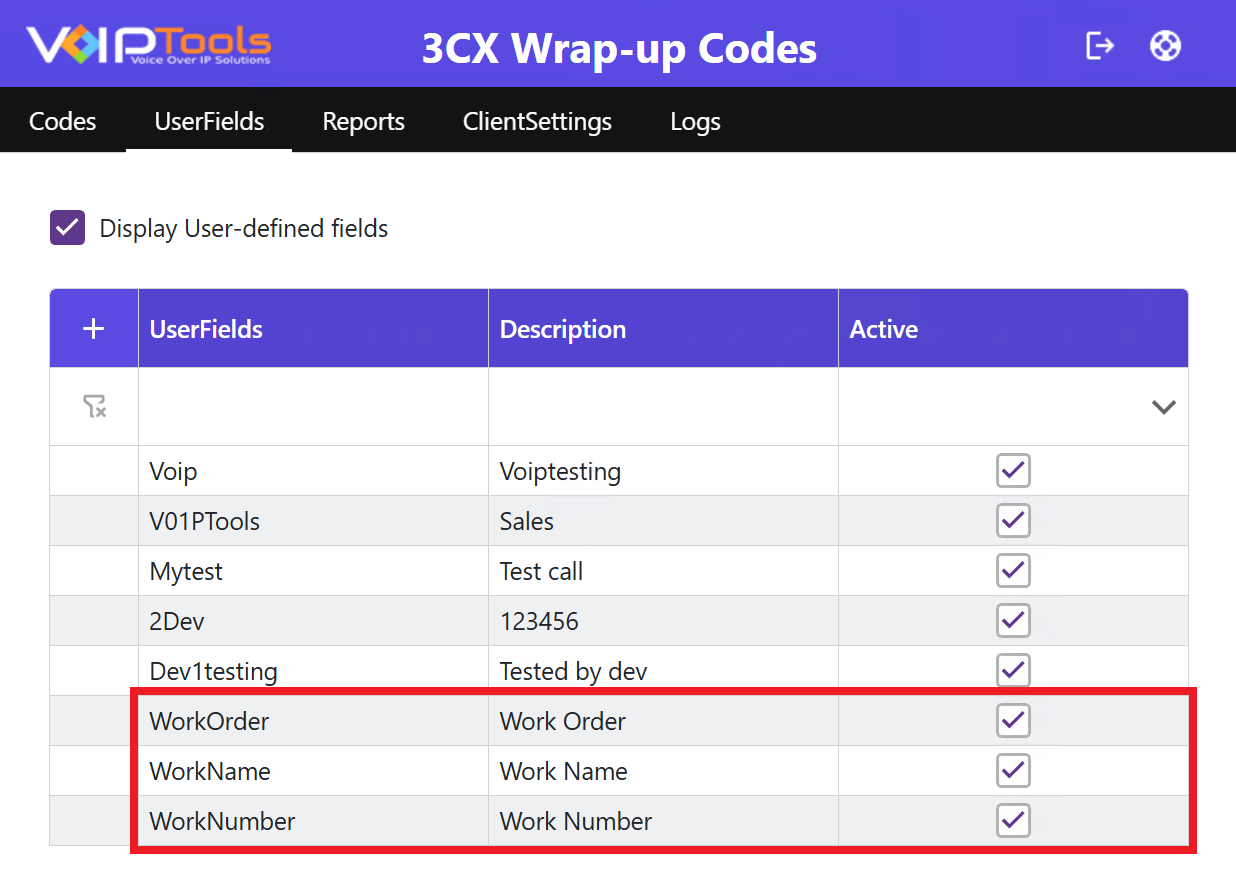
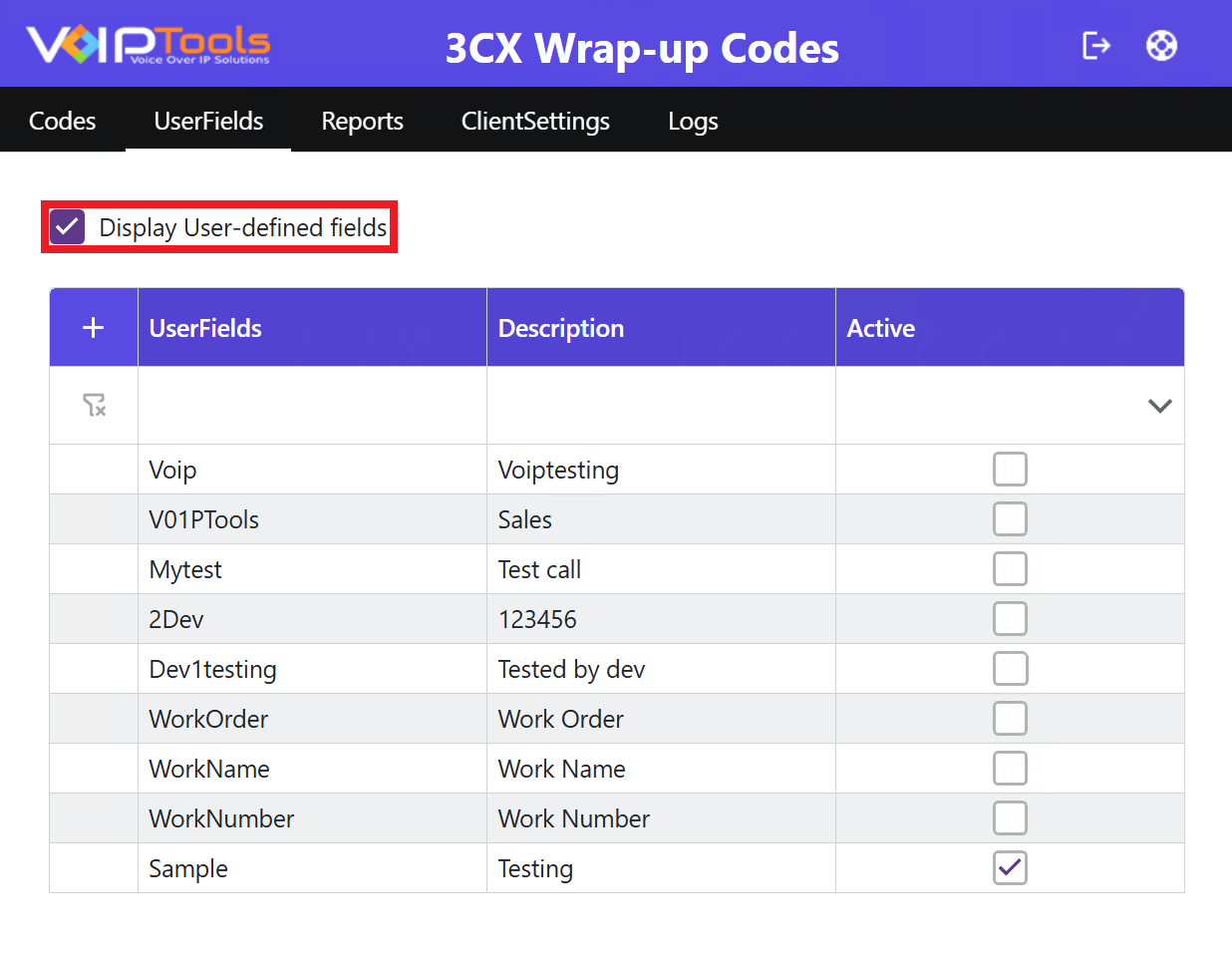
If you integrate with the Power Dialer application in the Settings tab, the WorkOrder, WorkName, and WorkNumber fields are extracted from it. Ensure that you do not alter the UserFields column for these fields.
Figure 21: User Fields Extracted from Power Dialer Application
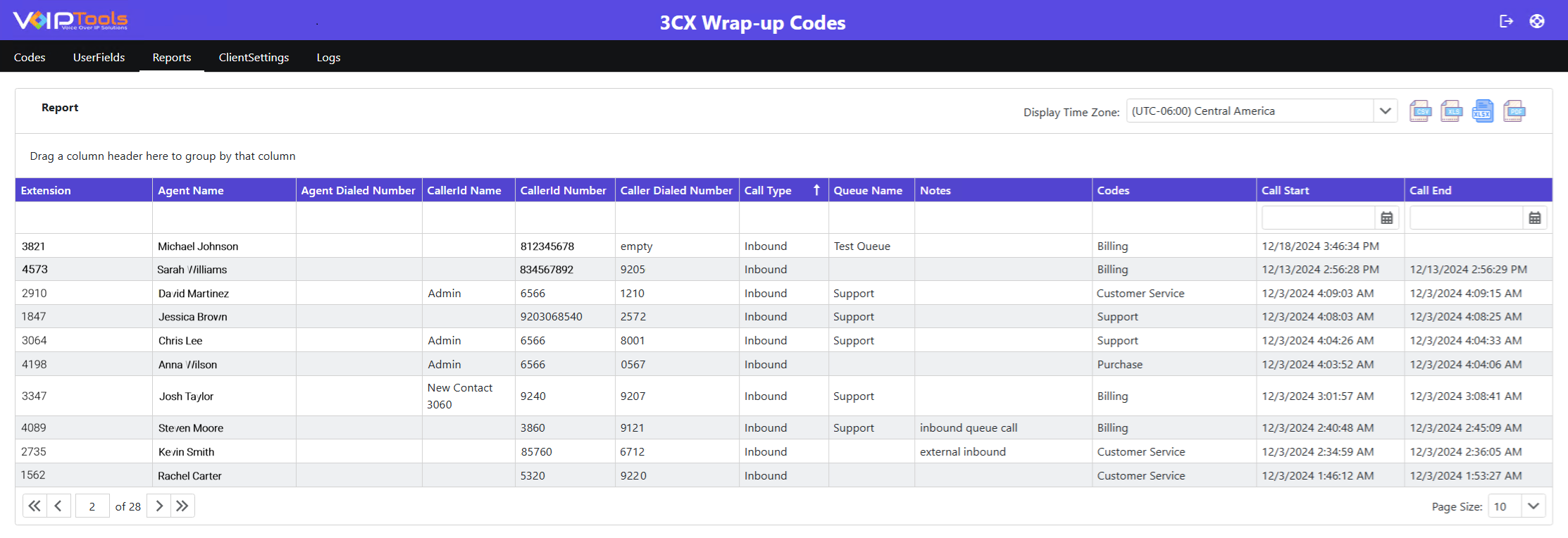
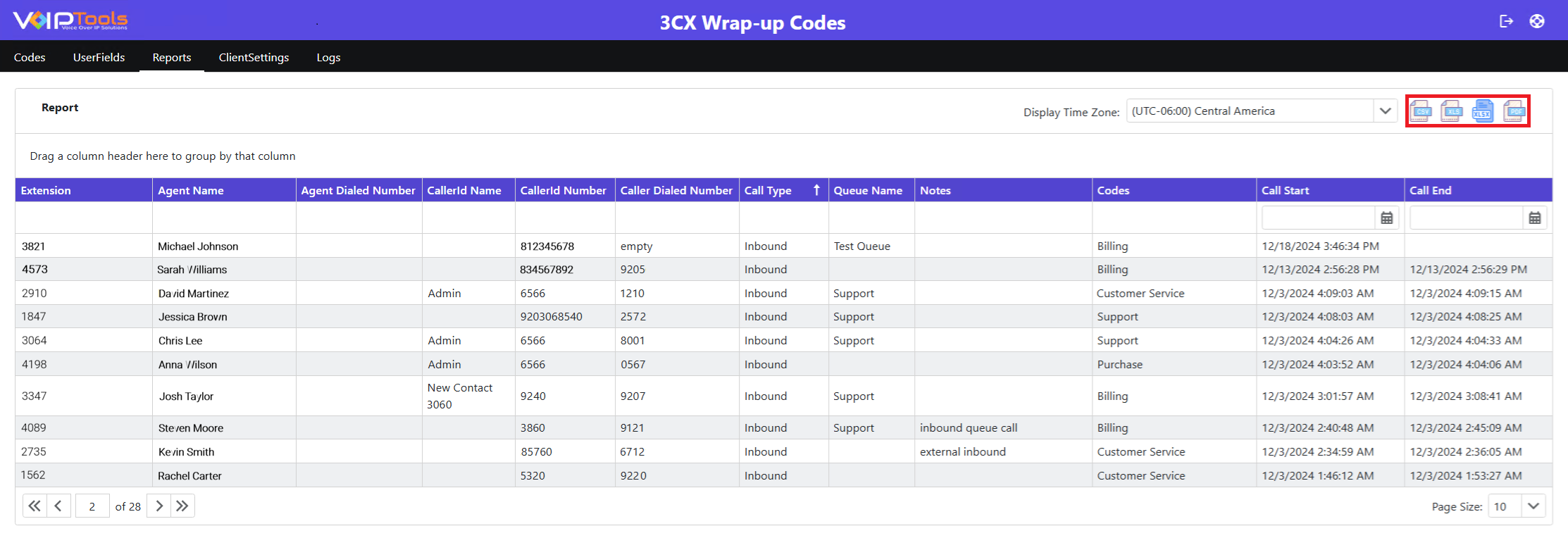
The Reports screen displays all the call logs related to the logged-in agent. As a manager, you can export the data in various formats including pdf, xls, xlsx, rtf or csv.
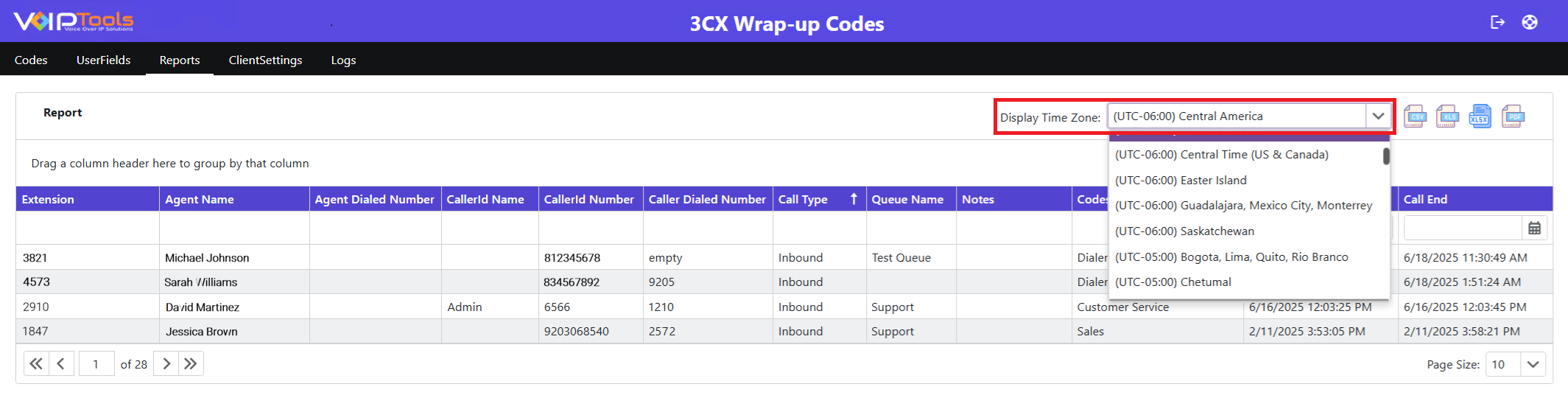
The Display Time Zone dropdown enhances your experience by generating reports in your preferred time zone. This ensures accurate, relevant data aligned with your local time, reduces confusion from time zone differences, and streamlines workflows.
To group columns, select the column header you want to organize the report by, then click and drag it into the area above the column headers labeled for grouping. This action clusters related data together, making the report easier to read and analyze. Grouping reduces clutter, improves navigation, and helps highlight relationships between data points, allowing for more focused and efficient analysis.
In the column header, point to the column header using which you want to group by and display the report, and then drag the column to the space above the column header.
Click the Expand button to expand the tabs and view the data.
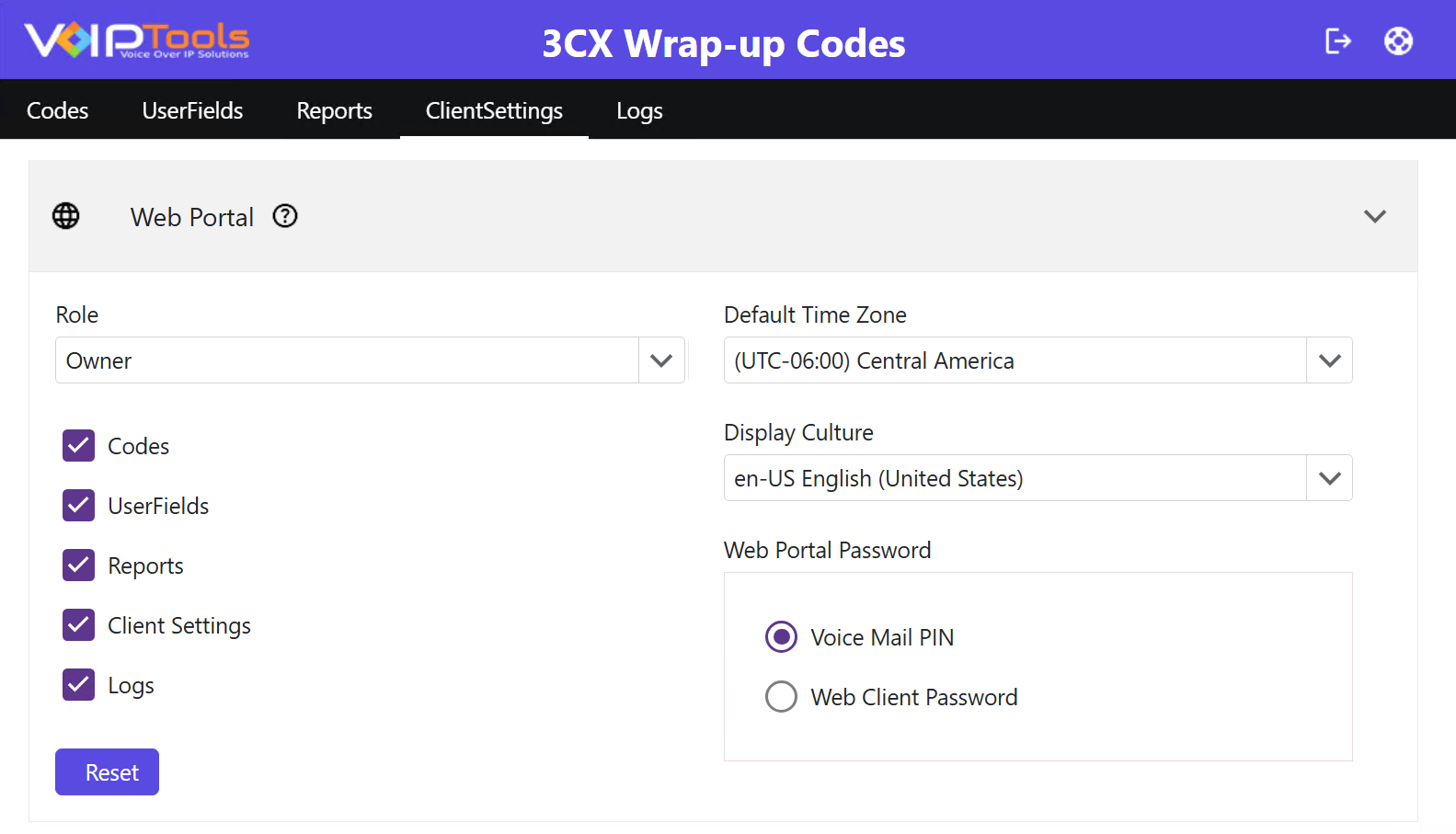
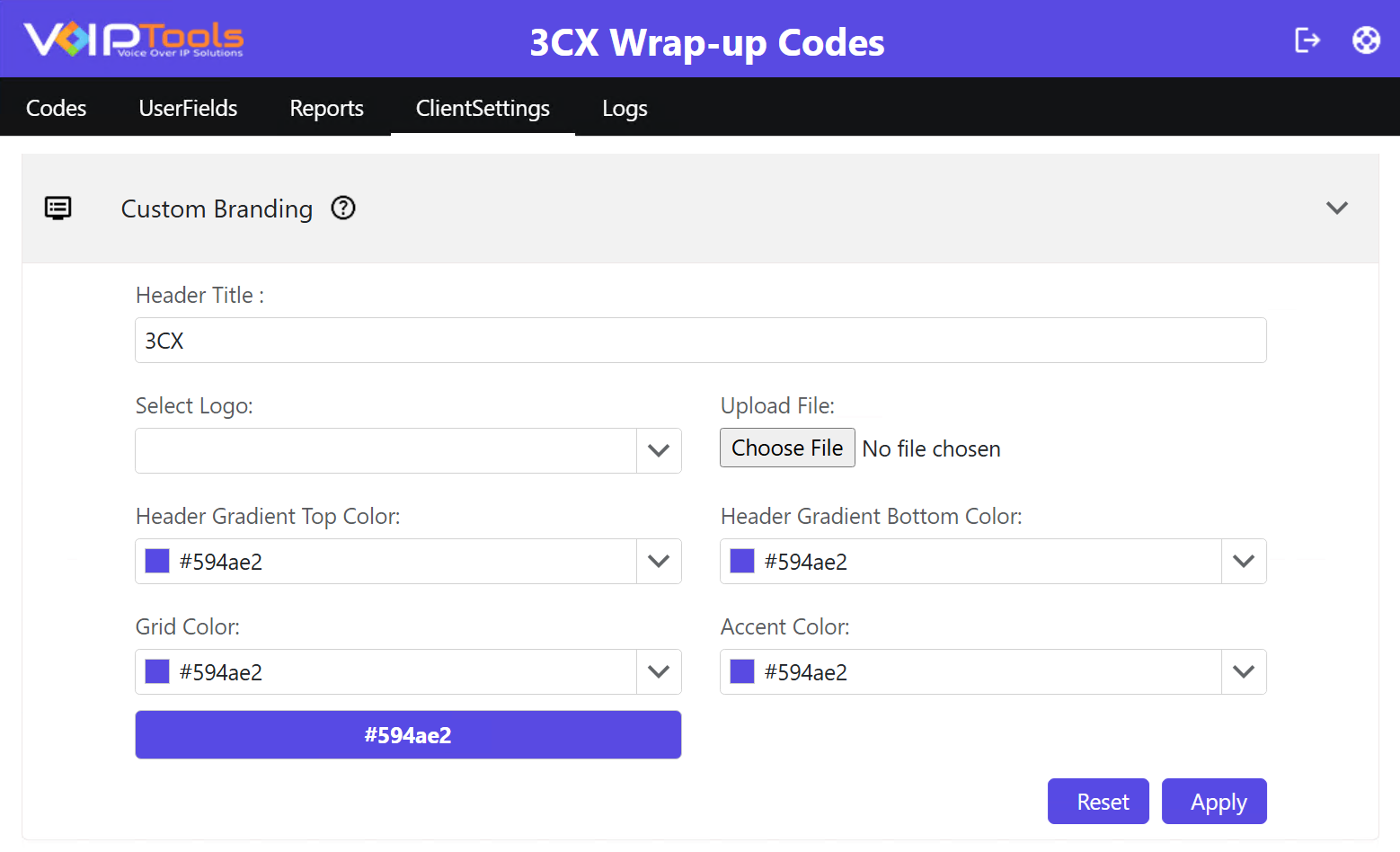
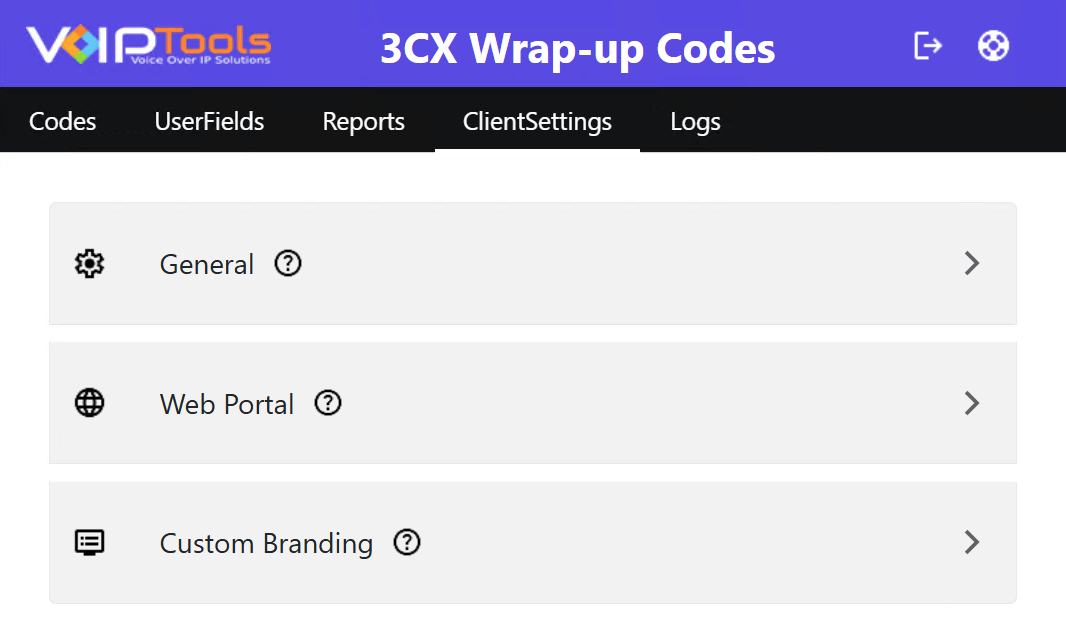
The ClientSettings Menu provides a comprehensive interface for configuring system-wide options including general settings, web portal authentication, and custom branding for the 3CX Wrap-up Codes application.
Configure Power Dialer integration, call type and call flow monitoring preferences.
Web Portal Tab
Set user roles and role-based permissions, timezone, culture settings, and authentication method (Voice Mail PIN or Web Client Password) used when users log in to the web portal.
Custom Branding Tab
Customize the portal’s visual appearance including the header title, logo, gradient colors, grid color, and accent color.
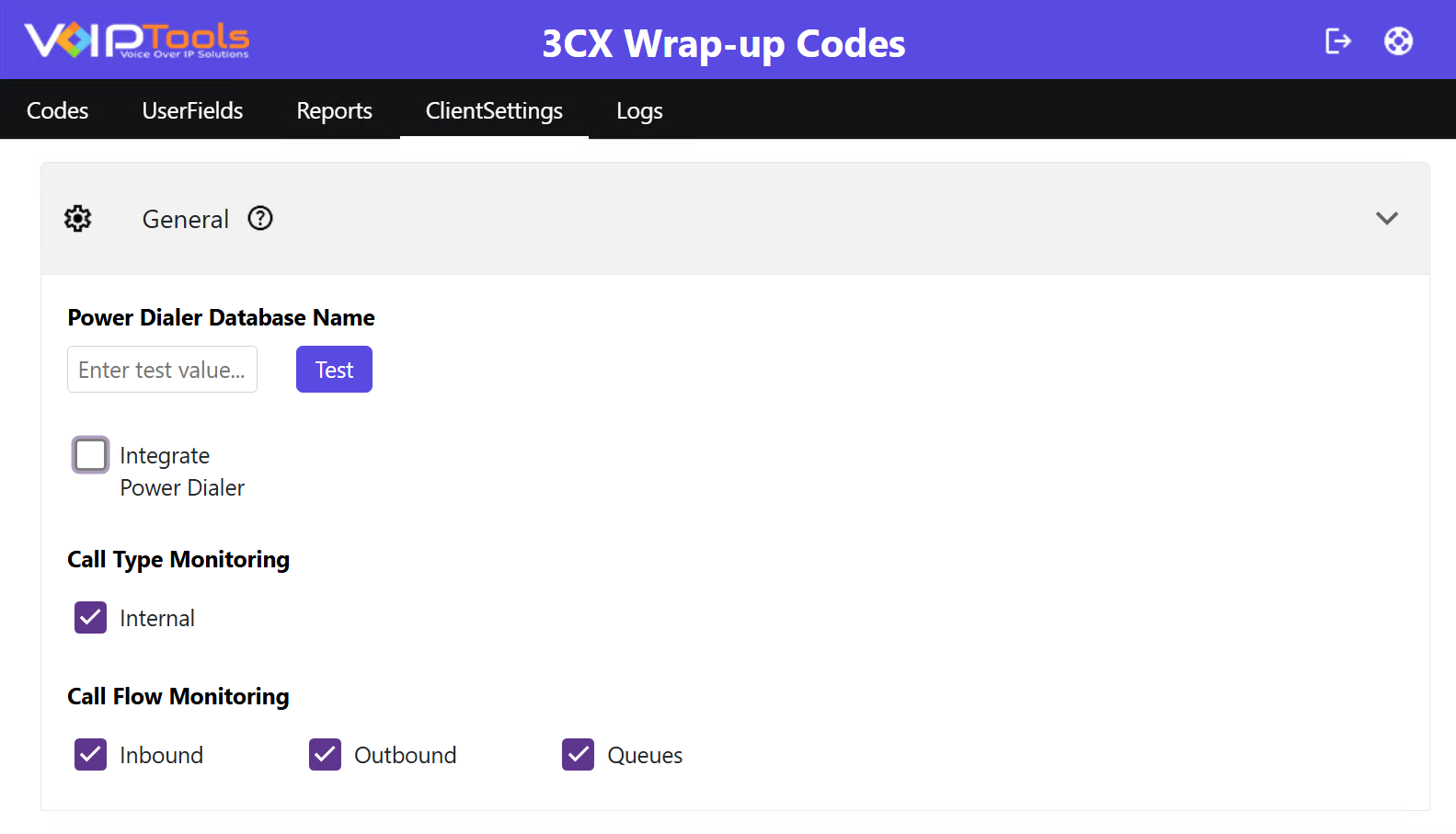
Enter the name of the Power Dialer database to connect it with the Wrap-Up Codes database. Both databases must be installed on the same server.
Test Button: Click Test after entering the database name to verify the connection.
Success: The system enables the Integrate Power Dialer checkbox automatically.
Failure: A warning appears — install the Power Dialer database on your server and try again.
Note: The Integrate Power Dialer checkbox stays disabled until the connection test passes.
Call Type Monitoring Select which call types appear on the monitoring dashboard.
Option
What It Monitors
Internal
Calls between staff extensions. When disabled, it will stop monitoring.
Call Flow Monitoring Tracks how calls are routed and distributed across your system. Enable alongside Call Type Monitoring for a full view of all communication activity.
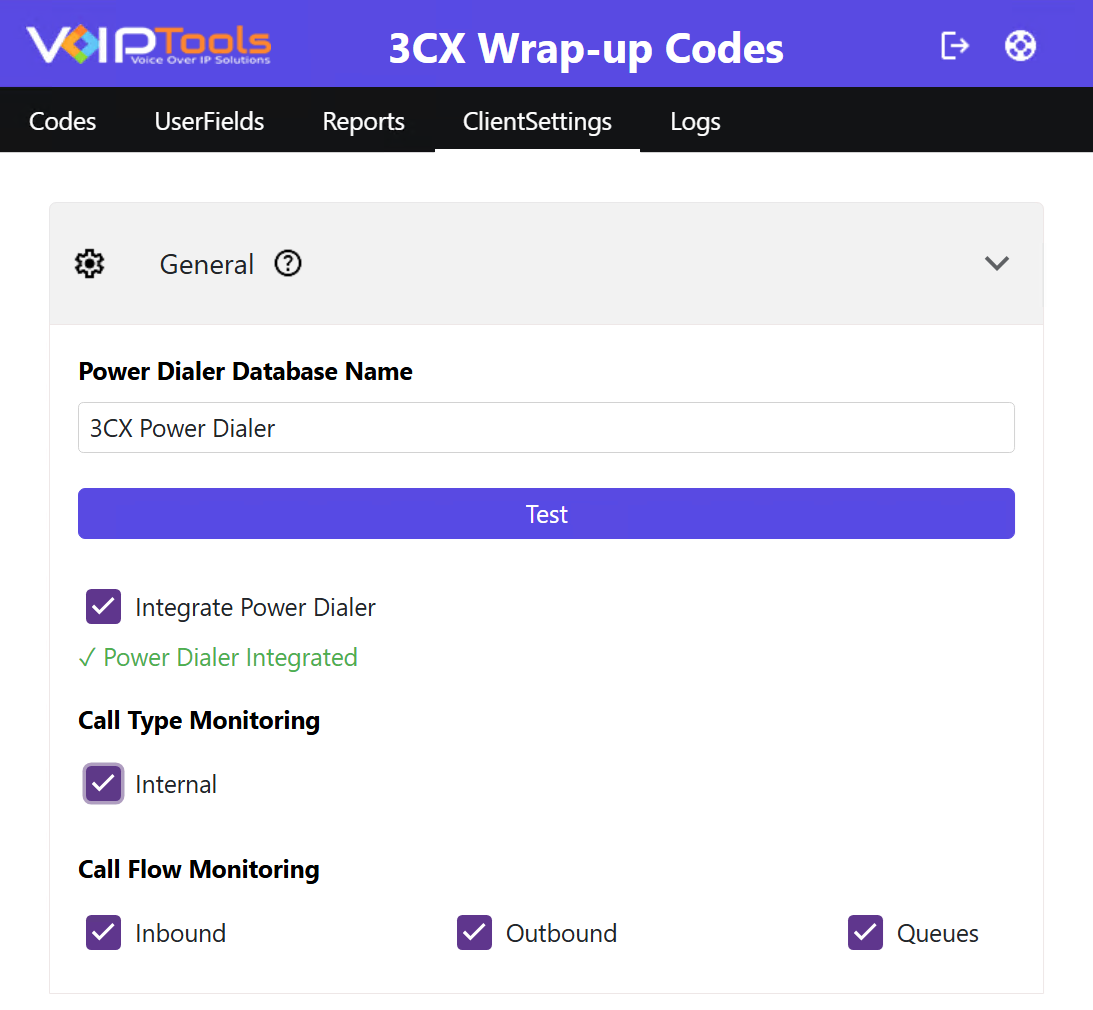
Power Dialer Database Name: Enter the name of the Power Dialer database to connect it with the Wrap-Up Codes database. Both databases must be installed on the same server.
Test Button: Click Test after entering the database name to verify the connection.
Success: The system enables the Integrate Power Dialer checkbox automatically.
Failure: A warning appears — install the Power Dialer database on your server and try again.
Figure 33: ClientSettings – General Tab: Integrate Power Dialer
NOTE: The Integrate Power Dialer checkbox stays disabled until the connection test passes.
Integrate Power Dialer: Click the Test button to enable a successful connection and cannot be toggled manually before that.
NOTE:
Relaunch the Wrap-up Code Client after making any changes to this setting.
If you choose to integrate Power Dialer with Wrapup Codes then, both applications should be present/installed on the same server
If you are not connected through office VPN network then, ensure the following:
Enable the 7750 port in the firewall where the server application is installed to avoid connection interruption between the client and server applications.
Enable the 8801 relay port in the firewall where the server application is installed so that the application recognizes whether the user answered the call or not.
Select user’s timezone from dropdown. Adjusts all timestamps/logs/reports to local time—key for multi-location teams. Changes take effect on next login.
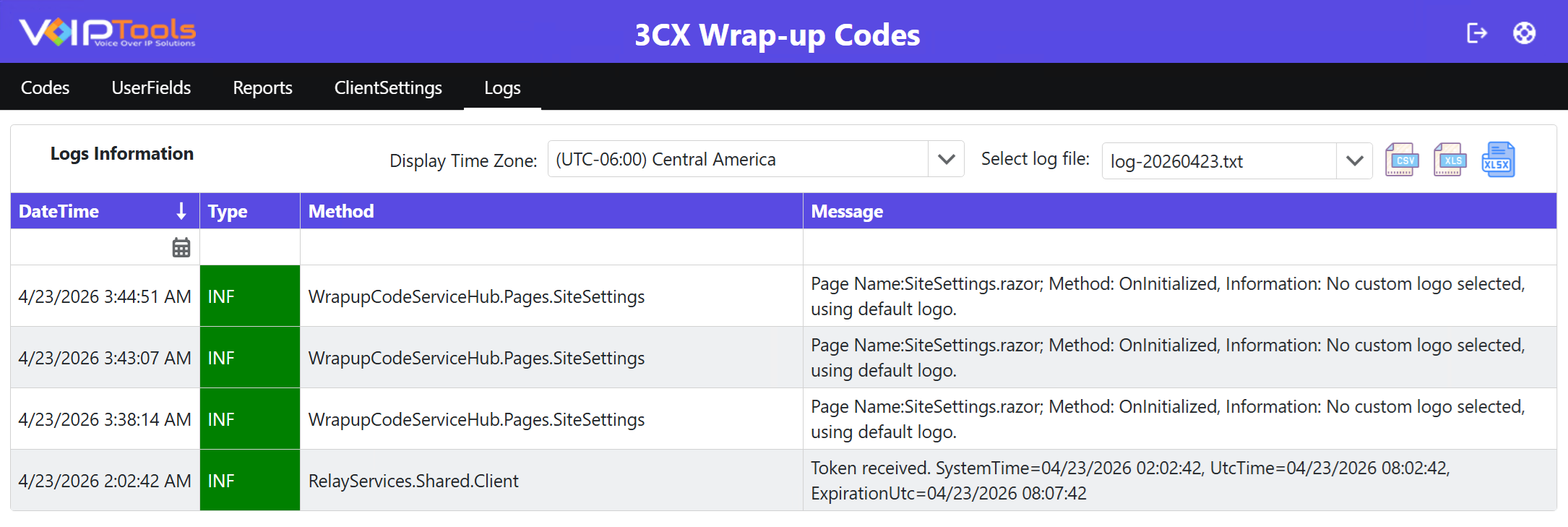
The Logs Menu lets you view the login and logout events of all the sessions along with ‘Date’ and ‘Time’ that is according to the time zone set in the ‘General’ tab.





NOTE:


 button to download your application.
 when the installation is completed.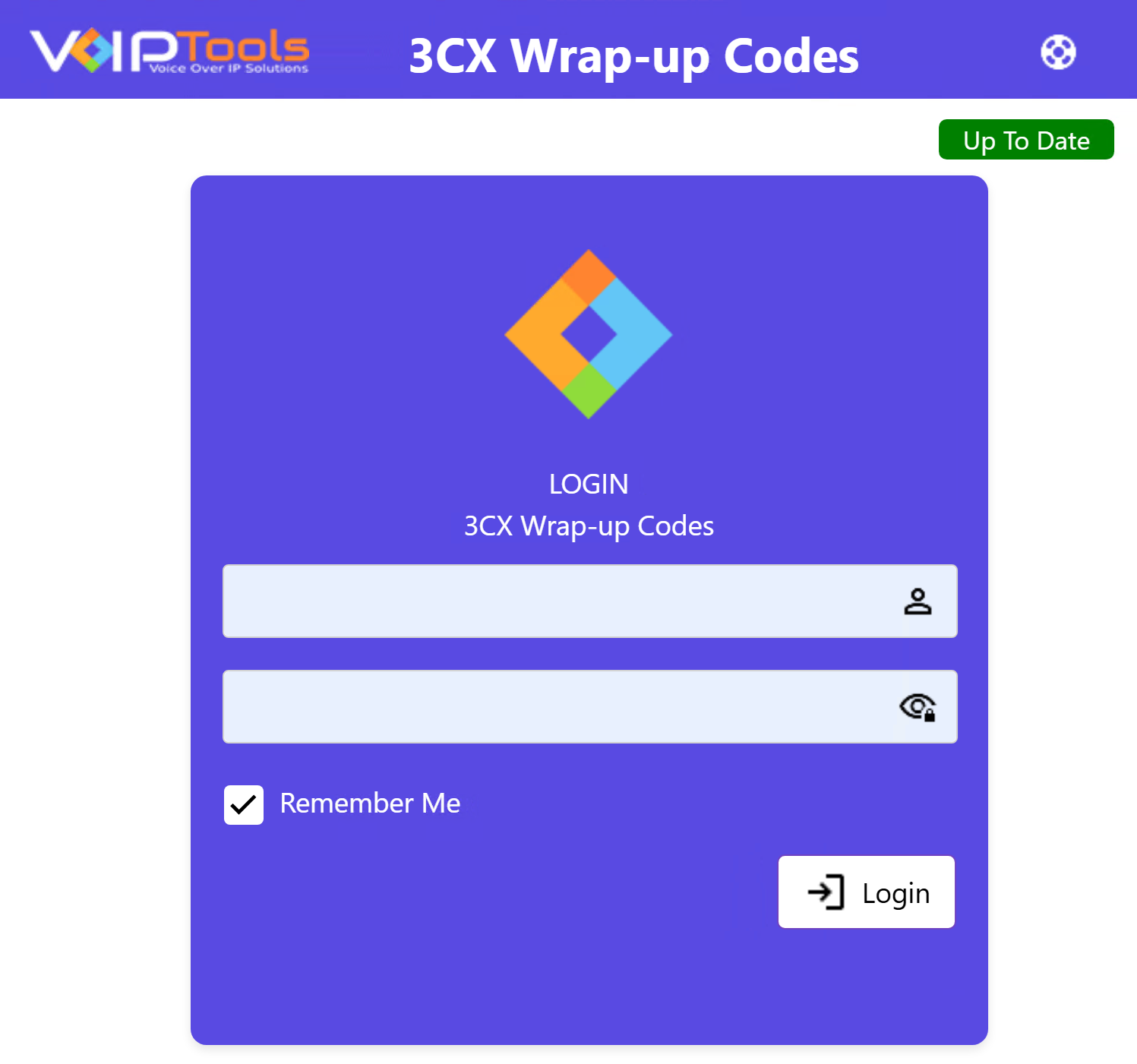
 Add button.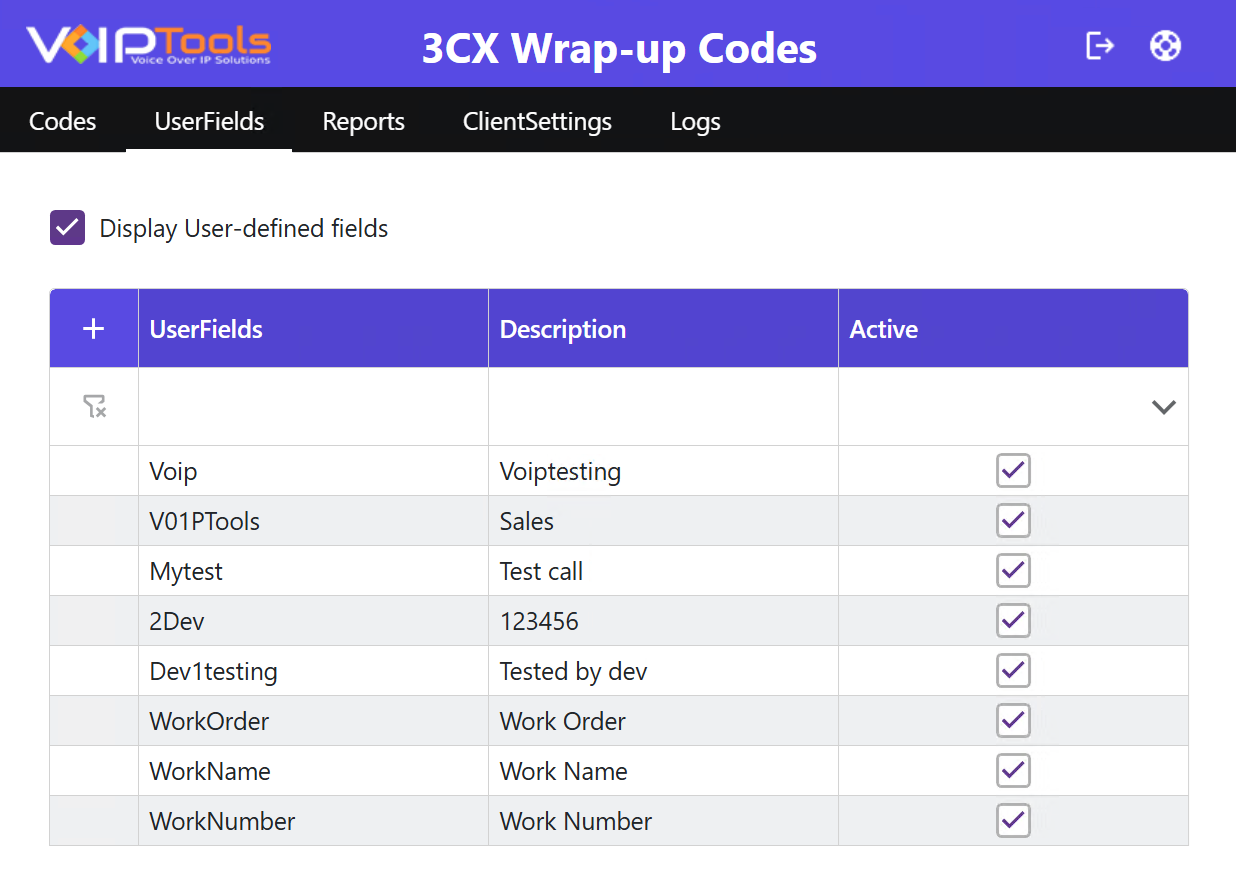
 button to expand the tabs and view the data.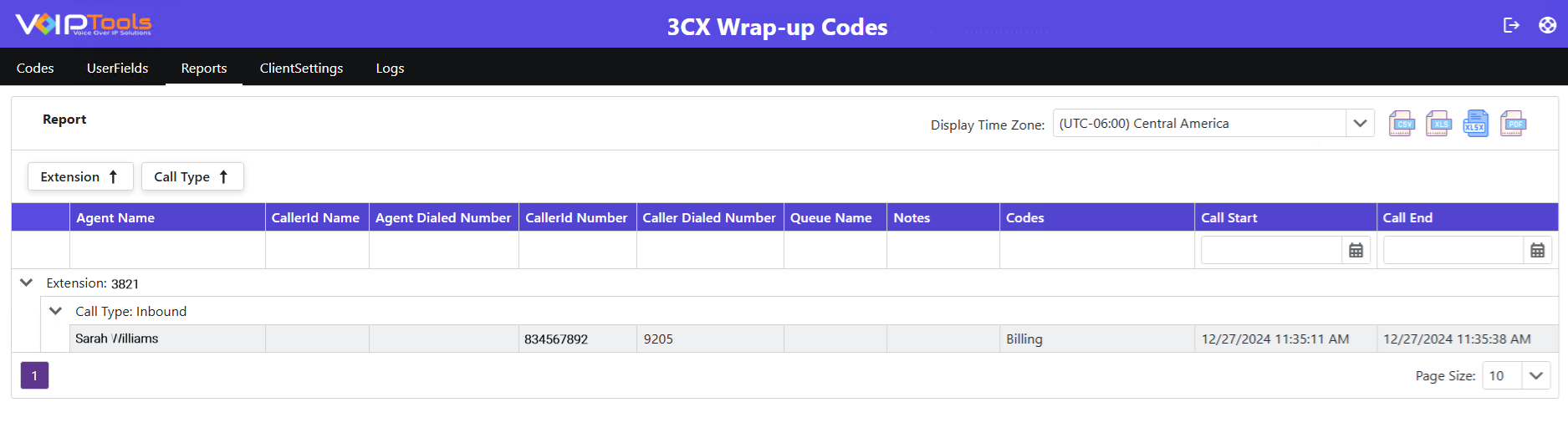
 sets a user’s access level in the Voicemail Manager web portal. Roles control visible pages and actions.