Skip to content
  • Support@VoIPTools.com
  • +1 801 642 4655
  • 24/7 Support
Menu
  • Home
  • Tools
  • Downloads/Manuals
  • Hosting
  • Partners
  • Webinars
  • Contact Us
  • Blog
  • My Account
Purchase
Demos
×
Menu
  • Home
  • Tools
  • Downloads/Manuals
  • Hosting
  • Partners
  • Webinars
  • Contact Us
  • Blog
  • My Account

Tools - V18

  • Audio Scheduler V18.0.39
  • Holiday Importer V18
  • 3CX Contacts Sync
  • 3CX Queue Notifier (Client) V18
  • Auto Voicemail V18
  • 3CX Barge Messages
  • Caller ID V18
  • Call Router V18
  • Competitive Wallboard V18
  • Custom Presence V18
  • Enhanced Billing Codes V18
  • Exporter V18
  • Hosted Billing V18
  • Monitor V18
  • On Call Manager V18
  • Emergency Notifier V18
  • Power Dialer V18
  • Profile Manager V18
  • Queue Notifier (Server) V18
  • Queues Wallboard V18
  • Reception Console V18
  • Recording Beep V18
  • Do Not Call V18
  • Recording Manager V18
  • Auto Call Back V18
  • Auto Self ID V18
  • Auto Logout V18
  • Auto Call Back V18
  • Surveyor V18
  • Audio Scheduler V18
  • Agent Greeting V18
  • Active Directory Sync V18
  • Survey Creator V18
  • Voicemail Manager V18
  • Wrapup Codes V18 (Server)
  • Click-to-Call V18
  • Holiday Importer V18
  • Wrapup Codes V18 (client)

Tools - V20

  • Emergency Notifier V20
  • Emergency Notifier Alert V20
  • Power Dialer V20 – Copy
  • On Call Manager V20.0.2 – Copy
  • Recording Manager V20
  • Caller ID V20
  • Auto Call Back V20
  • Active Directory Sync V20
  • Voicemail Manager V20
  • Survey Creator V20
  • Surveyor V20
  • Queues Wallboard V20
  • Audio Scheduler V20
  • Wrapup Codes V20 (Server)
  • Wrapup Codes V20 (client)
  • Holiday Importer V20
  • Auto Logout V20
  • Enhanced Billing Codes V20
  • Power Dialer V20
  • Voicemail Manager V20
  • Monitor V20
  • Reception Console V20
  • Wrapup Codes Client V20
  • WrapUp Codes Server V20
  • Profile Manager V20
  • Hosted Billing V20
  • Exporter V20
  • Competitive Wallboard V20
  • 3CX CONTACTS SYNC V20
  • Auto Voicemail V20
  • Emergency Notifier V20-original
  • On Call Manager V20.0.2
  • Queue Notifier V20
  • Call Router V20
  • Custom Presence V20
  • Auto Self ID V20

3CX Relay

  • VoIPTools Relay V20.7.26 (Linux)
  • VoIPTools Relay V20.6.26 (Linux)
  • VoIPTools Relay V20.6.26 (Windows)
  • VoIPTools Relay V20.7.26 (Windows)
  • VoIPTools Relay V20.0.23 (Linux)
  • Relay V18 (Windows) – Latest Relay 18.9.56
  • Relay V18 (Linux) – Latest Relay 18.9.56
View Categories
  • Home
  • Docs
  • Tools - V20
  • Emergency Notifier V20

Emergency Notifier V20

38 min read


Introduction #

Enhance Emergency Response and Safety with 3CX Emergency Notifier: Take Control of Your Notifications

Take control of emergency communications with 3CX Emergency Notifier. Easily manage alerts, recipients, and delivery methods like email, SMS, and phone calls, while helping responders quickly locate emergencies.

Getting started is simple. Log in using your voicemail PIN or web app password, review your extension details, and run a quick test to ensure everything works. In just minutes, you’ll have a reliable system that notifies the right people when it matters most. 3CX Emergency Notifier provides confidence, clarity, and peace of mind during critical moments.

Why choose 3CX Emergency Notifier? #

EFFORTLESS EMERGENCY COMMUNICATION

Quickly notify the right people through email, SMS, or phone calls to ensure fast and reliable communication during critical moments.

REAL-TIME PRECISION Receive precise location details during emergencies, including floor level, nearby areas, or specific zones, helping responders act faster and more accurately.
SEAMLESS DISPATCH

Guide responders directly to the correct location using accurate mapping and extension data for faster and more effective emergency response.

INSTANT EMERGENCY ALERT Trigger emergency alerts instantly with a single button press. Activate or deactivate alerts easily while maintaining full control through a simple and user friendly interface.
ENHANCED INSIGHTS Review detailed event logs to understand what happened, who was notified, and when. These insights help improve preparedness and future response planning.
ONE TIME INSTALLATION Get up and running quickly with a straightforward installation process. Manage everything from an intuitive web portal designed for ease of use and long term reliability.

Prerequisites #

Before you begin with the installation steps mentioned in this guide, you need to ensure that your computer meets the minimum requirements mentioned below for installing the 3CX Emergency Notifier.

PREREQUISITE PURPOSE
3CX Version V20 3CX Emergency Notifier is designed to work seamlessly with this version for enhanced features and performance.
Windows 10 or above / Windows Server 2012 or above These operating systems provide the necessary environment for the application to run efficiently.
IIS Features and Configuration – VoIPTools IIS is needed as a web server to host and manage web-based applications and services.
.NET Framework 4.7.2 (Web Installer) This framework provides essential components for running and developing applications.
VoIPTools Universal Updater This component is necessary for updates, ensuring the application remains current and functional.
Microsoft SQL Server 2016 or above (Including the free SQL Express edition) 3CX requires Microsoft SQL Server 2016 or later for database management.
Static IP for VoIPTools and 3CX servers This ensures reliable two-way communication between the 3CX server and the VoIPTools server. Dynamic IP addresses are not supported. For secure communication, HTTPS is recommended and requires a valid FQDN for SSL or TLS verification between the servers.
Port number 5600 opened on your device Port 5600 is used by 3CX for communication. Opening this port on the firewall allows data to send and receive properly between systems.

NOTE:

  • Since the add-on ‘3CX Emergency Notifier’ includes a CFD application, you will need to install either Pro or Enterprise version of 3CX
  • Windows 8 has a much better Text-To-Speech engine compared to Windows 7
  • When installing SQL Server, we recommend you install it in “Mixed Mode” to include SQL Authentication, and install SQL Management Studio
  • When installing IIS, be sure to install Basic Authentication, .Net Extensibility, and ASP.Net 4.X

Installation overview #

DOWNLOAD SOFTWARE Download the setup application from the VoIPTools website or you can find the download link in the Order Confirmation Email.
INSTALL PREREQUISITES You must install several prerequisites before installing the 3CX Emergency Notifier. The Advanced Installer identifies and installs these applications automatically. Click here to learn about the required prerequisites.
INSTALL 3CX EMERGENCY NOTIFIER

This guide walks you through installing 3CX Emergency Notifier. Start by extracting the downloaded ZIP file, then run EmergencyNotifierInstaller.exe to begin setup.

CHECK FOR DEFAULT DATA IN DATABASE SERVER To confirm the installation was successful, log into the database and check that the default data appears in the basic tables.
INSTALLING THE DESKTOP ALERT APPLICATION In addition to phone, email, and SMS alerts, you can also receive notifications on your desktop.
LOGIN TO THE WEB APPLICATION You can now log in to the web application using the extension number and the PIN.

Step-by-step Installation Procedure #

The following section guides you through a detailed walk-through of the installation process.

Step 1: Download Software #

Find the software download link in the Order Confirmation Email, or you can download the application by following the procedure,

  1. Open your browser and go to the VoIPTools official website or click here to get redirected to the website.
  2. Search for the Emergency Notifier Application and click the Download button to download your application.

Step 2: Install the Prerequisites #

Click on the software installer downloaded in Step 1. The installation wizard will automatically identify the prerequisites and assist you with each installation required for the 3CX Emergency Notifier. It includes .NET Framework (Web Installer), SQL Server Express (Web Installer), and SQL Server Management Studio.

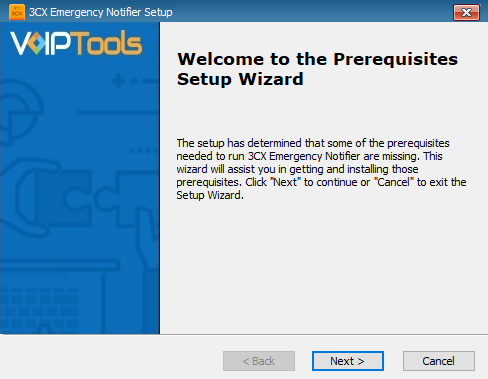
  1. Click the downloaded installer executable to launch the Prerequisites Setup Wizard and click Next.
Prerequisites Setup Wizard
Figure 1: Prerequisites Setup Wizard
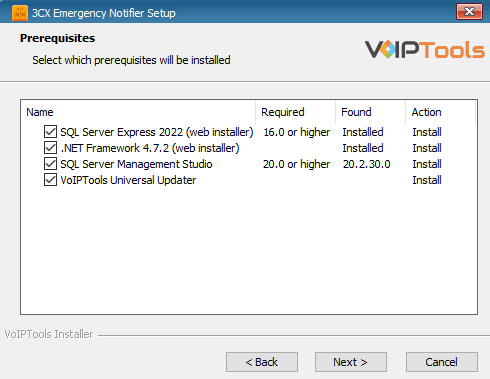
  1. In the Prerequisites window, install all the required prerequisites identified by the installer, or select/unselect the applications based on your requirements and click Next to continue.
Prerequisite Installation Selection
Figure 2: Prerequisite Installation Selection

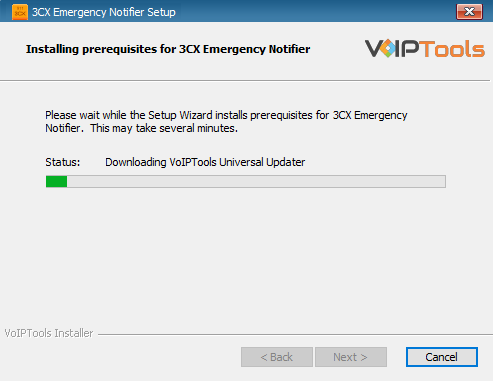
The installer will download and install the selected applications. This may take several minutes to complete.

Prerequisites Installation in Progress
Figure 3: Prerequisites Installation in Progress
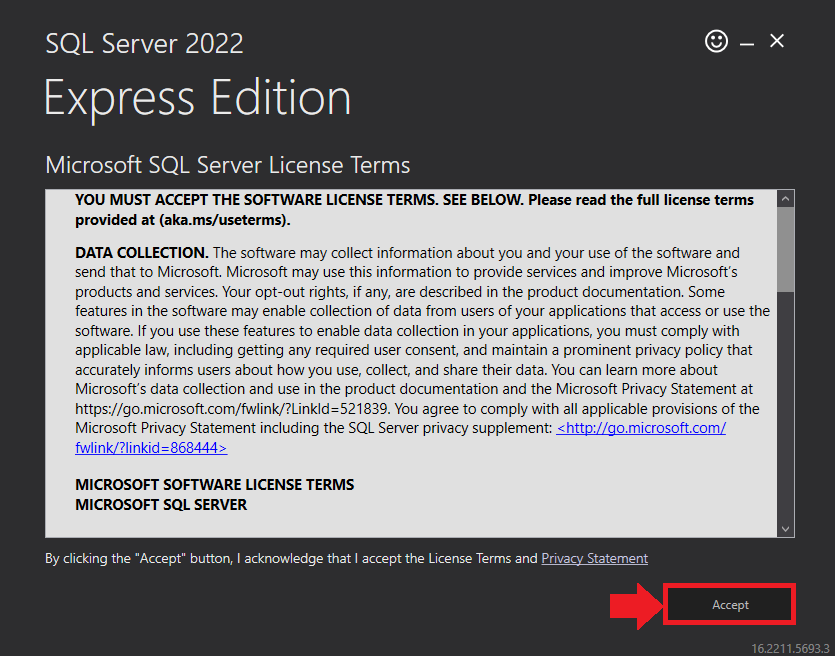
  1. In the Microsoft SQL Server License Terms, click Accept to acknowledge the license terms and continue.
    • This page appears if you do not have SQL Server Express preinstalled on your device.
SQL Server Express License Terms
Figure 4: SQL Server Express – Accept License Terms
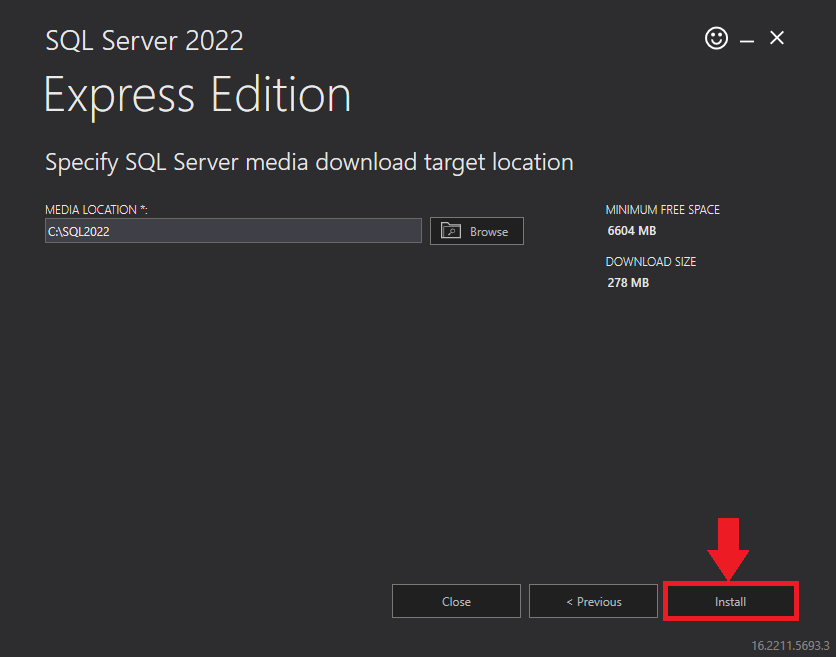
  1. View the SQL Server media target location in the Media Location field. If required, click Browse to change the location, then click Install to begin installation.
SQL Server Express Target Location
Figure 5: SQL Server Express – Target Location

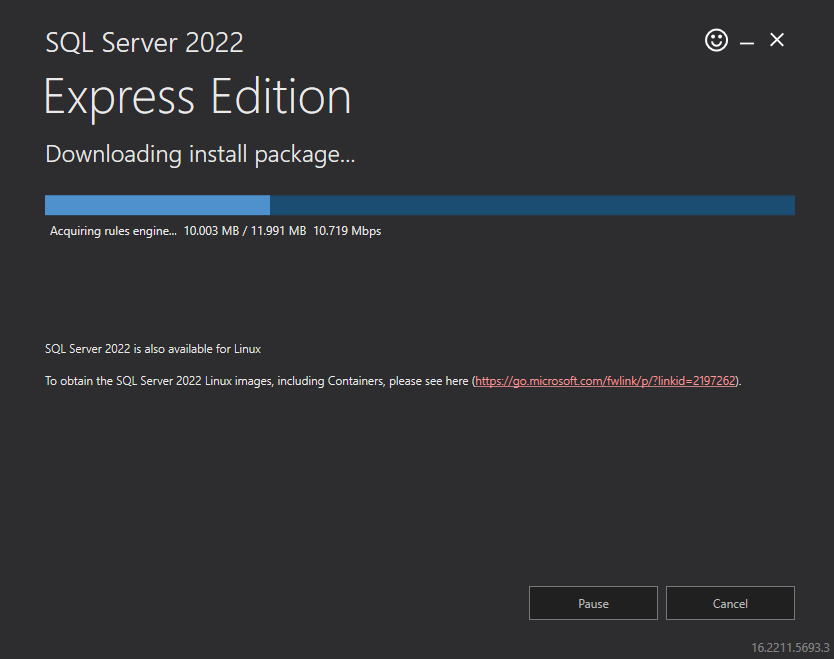
SQL Server installation is in progress. This may take several minutes to complete.

SQL Server Installation in Progress
Figure 6: SQL Server Installation in Progress
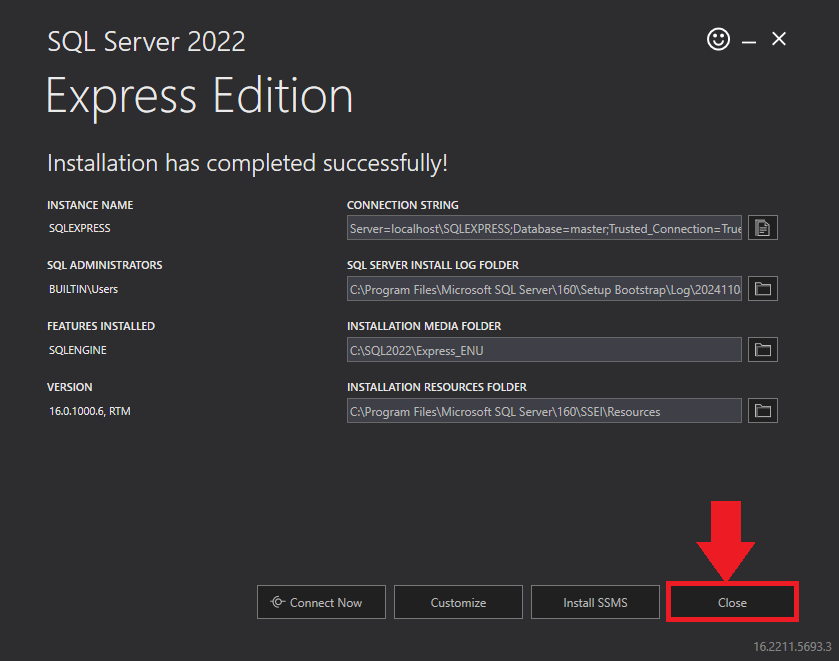
  1. Click the Close button once the prerequisites are installed.
SQL Server Express Installed Successfully
Figure 7: SQL Server Express – Installed Successfully
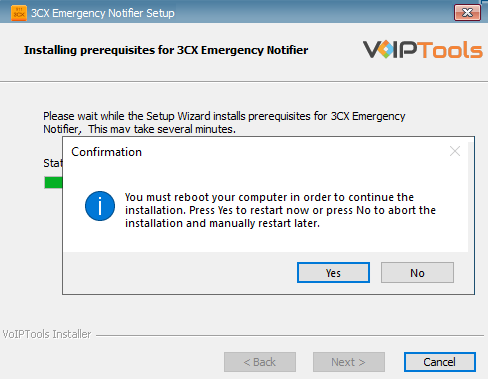
  1. Click Yes in the Confirmation Message Box to reboot the computer.
Restart Confirmation Message Box
Figure 8: Restart Confirmation Message Box

Step 3: Start the installation process #

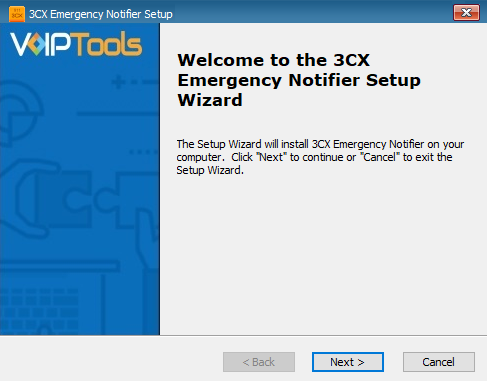
  1. Click Next on the 3CX Emergency Notifier Setup Wizard screen.
Figure 9: Installation Setup Wizard
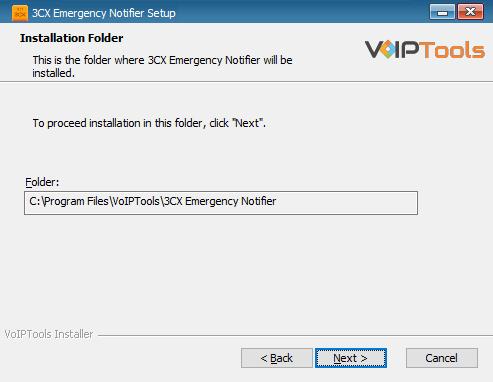
  1. On the Select Installation Folder window, the Folder field displays the path where the 3CX Emergency Notifier gets installed. Click Next to continue.
Figure 10: View Installation Folder

NOTE:

You cannot change the location path.

Step 4: Configure the Relay Services: #

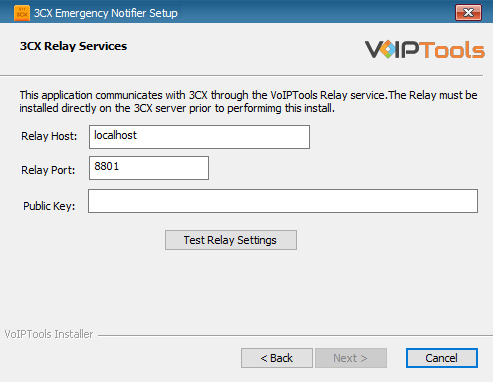
  1. In the 3CX Relay Services window, in the Relay Host field, enter the FQDN of your 3CX server.
  2. Enter 8801 in the Relay Port field.
  3. Enter the JWT public key you took from VoIPTools Relay services in the Public Key text area. Click here to know more.
Figure 11: Configure Relay services
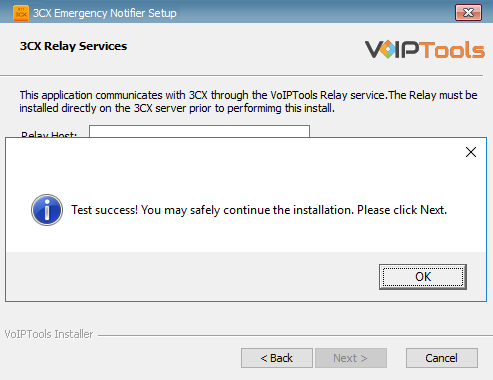
  1. Click the Test Relay Settings to confirm that the ‘3CX Emergency Notifier’ can communicate with the Relay services running on the 3CX server.
  2. If the ‘3CX Emergency Notifier’ is successfully able to communicate with the Relay services that run on the 3CX server, a Success message box appears. Click OK. If the test fails, you will not be able to continue until communication with the relay is established.
Figure 12: Test Relay Success


NOTE:

  • You must set the Relay Port to 8801.
  • If the Relay test fails, you cannot continue the installation until you establish communication with the Relay. If your Relay test failed then confirm the following conditions,
    • Confirm you have the correct firewall port open (default TCP 8801) on the 3CX server and the firewall protecting the 3CX server.
    • Confirm that you have entered the correct FQDN for the 3CX server.
    • Confirm that the 3CX Emergency Notifier and Relay use the same port and protocol.

Step 5: Configure the database #

When configuring the 3CX Emergency Notifier, select an existing Microsoft SQL Server instance in your environment.  The database server can be a remote SQL Server, or a local instance running on the VoIPTools server.

You can set up the SQL database using SQL Authentication or Windows Integrated Authentication.

SQL Authentication #

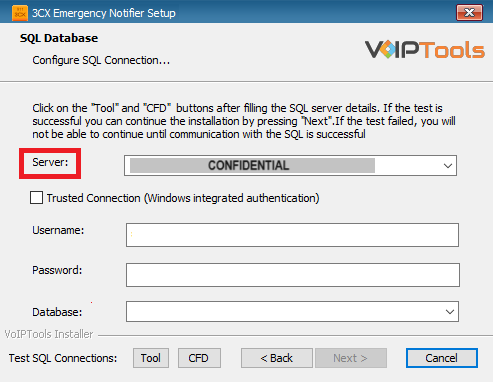
  1. Enter your server name in the Server field.
    •  If using the free SQL Express Edition, the default SQL Instance name is SQLExpress.
Figure 13: Configure Database – Server Field

NOTE:

  • If you want to use ‘SQL Authentication’, then install SQL Server in ‘Mixed‘ mode.
  • If SQL Server is installed on a server other than the server where 3CX Exporter is installed, you will need to configure SQL Server to allow remote connections.
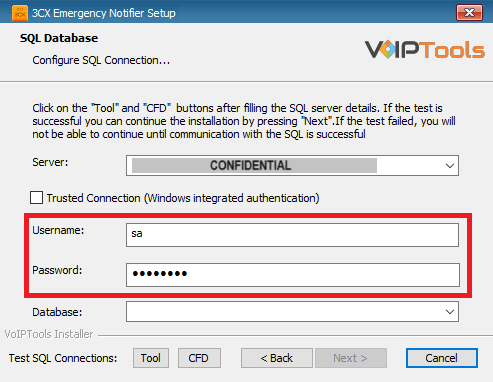
  1. Enter your credentials in the Username and Password fields.
Figure 14: Configure Database – Database Credentials

NOTE:

Make sure that you select a SQL Login that has sufficient permissions to alter the database and create SQL objects.

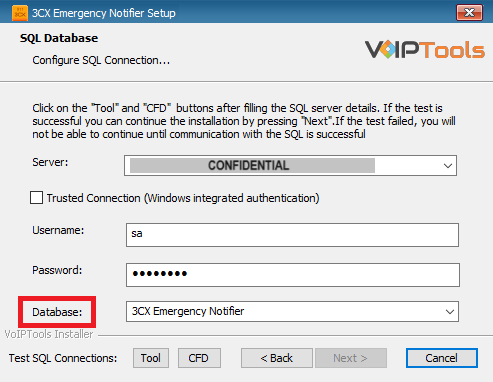
  1. Select or enter the 3CX Emergency Notifier in the Database dropdown.
Figure 15: Configure Database – Database Dropdown
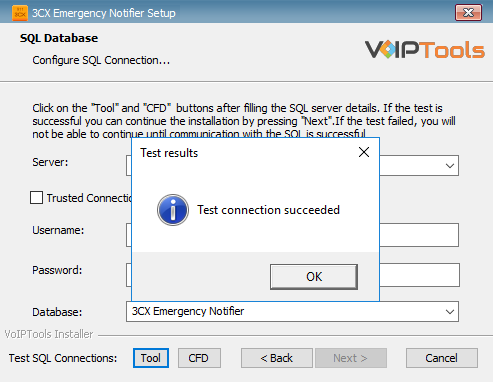
  1. In the Test SQL Connections section, click the Tool button to test the connection and click OK in the Test Results popup box.
Figure 16: TOOL Connection to Database Results
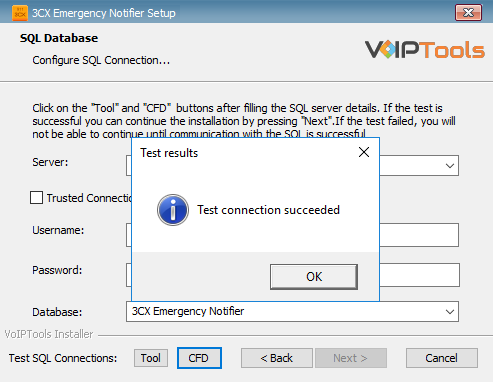
  1. Click the CFD button to test the CFD connection and click the OK button in the Test Results popup box.
Figure 17: CFD Connection to Database Results

Windows Integrated Authentication #

  1. To use Windows Integrated Authentication check the Trusted Connection (Windows integrated authentication) checkbox.
    •  The VoIPTools installer will create a local Windows user name as “VoIPToys” and give you sufficient rights to this user to create/update the SQL database.
  2. In the Test SQL Connection section, click the Tool button to test the connection.
  3. Click the Next button which gets enabled when the database connection is successful.

NOTE:

We encourage you to use SQL Authentication rather than Windows authentication.  Many of our tools leverage a Call Flow Designer (CFD) application running on the 3CX.  Frequently our CFD applications require access to a SQL database.  If the 3CX server and the database server are not in an Active Directory domain, Windows authentication will fail.  To use SQL authentication, your SQL Server must be configured to run in “Mixed Mode”.  If you installed SQL Server with one of our tools, we configure SQL in “Mixed Mode”.

Step 6: Installing 3CX Emergency Notifier #

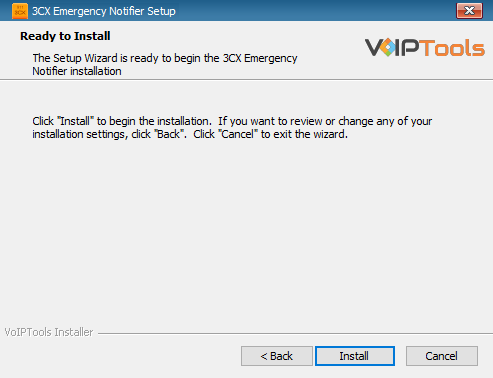
  1. Click Install in the Ready to Install window.
Figure 18: Ready to Install Window

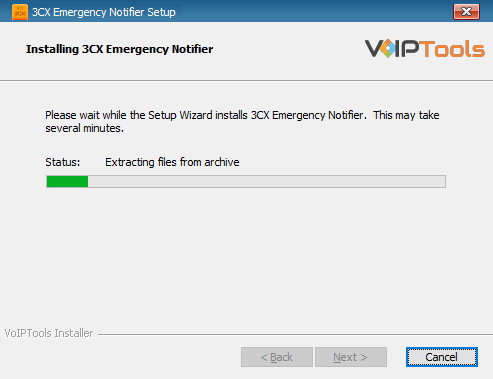
The application installation may take several minutes to complete.

Figure 19: Installing 3CX Emergency Notifier
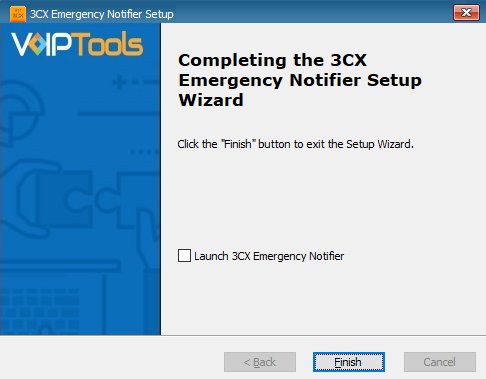
  1. Check the Launch 3CX Emergency Notifier checkbox and click Finish when the installation is complete.
Figure 20: Installation Completed Page

Step 8: Check for default data in the database server #

To verify if you have successfully installed the 3CX Emergency Notifier application, log into the database and check for default data in the basic tables.

  1. Log into the SQL database.
  2. In the Object Explorer accordion, expand Databases and then expand Tables
  3. From the tables list
    • Open dbo.EmergencyNumbers table to see the emergency contact number “911”
    • Open dbo.Messages table to see message type for the emergency number as Email, SMS and Email Subject.
    • Open dbo.NotificationSettings table to see the emergency contact number “911”
    • Open dbo.Settings table to see the default database settings.

Step 9: Installing the Desktop Alert Application #

In addition to sending emergency notifications by phone, email, and SMS text, you can also receive notifications on your desktop.

The following instructions outline how to install the desktop notification application:

NOTE:

  • Before you launch the application, you must ensure Microsoft .Net Framework 4.6.1 (x86 and x64) is installed in your device. If the above component is already installed, you can launch the application. Otherwise, follow the instructions as outlined below to install the component.
  • The Desktop Notifications application receives events and client software updates from the VoIPTools server.  You will need to configure your public facing and Windows firewalls to open ports 5600 TCP and 5610 TCP.
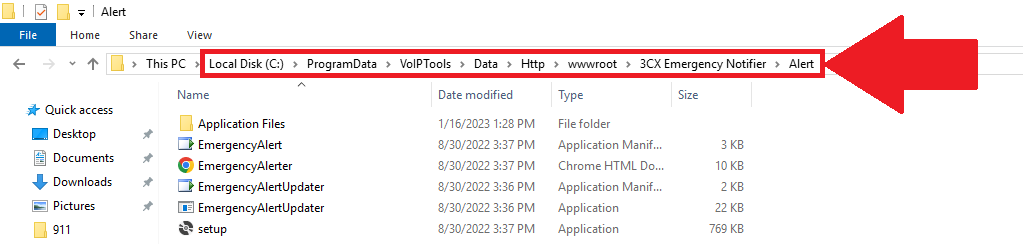
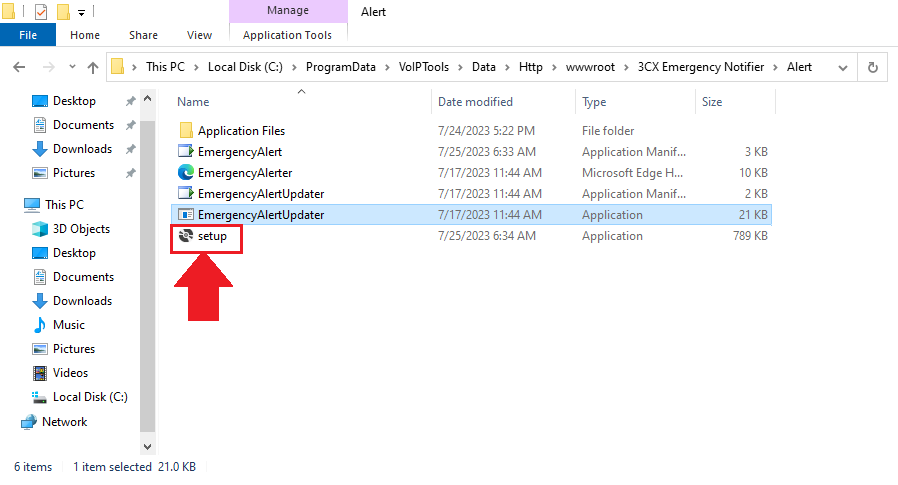
  1. In the File Explorer, navigate to C:\\ProgramData\VoIPTools\Data\Http\wwwroot\3CX Emergency Notifier\Alert
Figure 21: Navigate to ‘3CX Emergency Notifier Alert’
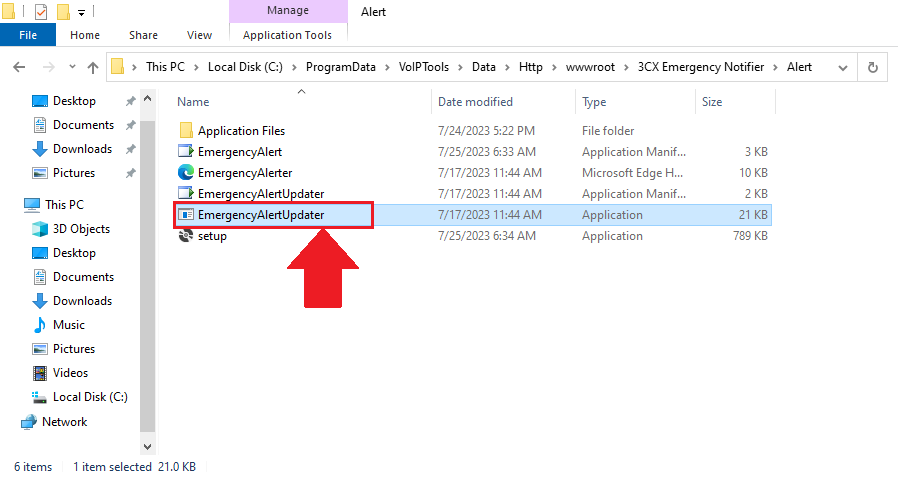
  1. Double-click EmergencyAlertUpdater to display Emergency Alert URLUpdate popup.
Figure 22: Emergency Notifier Setup
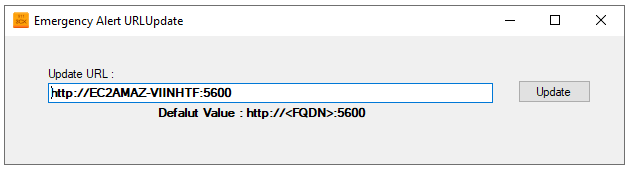
  1. In the Emergency Alert URLUpdate popup, enter your URL in the format http://localhost:5600/Alert/EmergencyAlerter.htm and click Update.
Figure 23: Update the URL

NOTE:

  • It is important that your FQDN resolve to an IP address that is accessible by your client workstations.  If, for example, your VoIPTools server is hosted in the cloud, the FQDN should resolve to the public IP address of your VoIPTools server.  It may be necessary to update your DNS, or you can update the workstation’s Host file to map the FQDN to an accessible IP address.
  • To access the folder, ‘3CX Emergency Notifier’ ensure that you have full admin rights.
  1. In the Emergency Alert Application Update URL popup, click OK.
Emergency Alert Application Update URL popup
Figure 24: URL to Install Prerequisites
  1. Double-click the Setup application.
Figure 25: Setup Application
  1. In the Application Install screen, click the Install button to start the installation.
Figure 26: Install Button

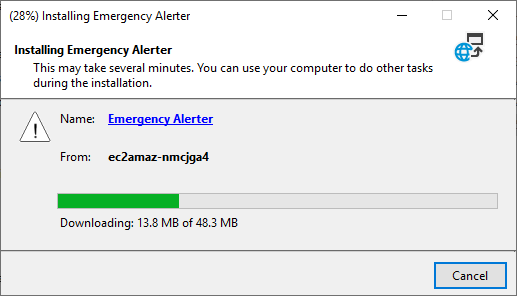
The application starts to install. This may take a few minutes to install.

Figure 27: Installation in Progress
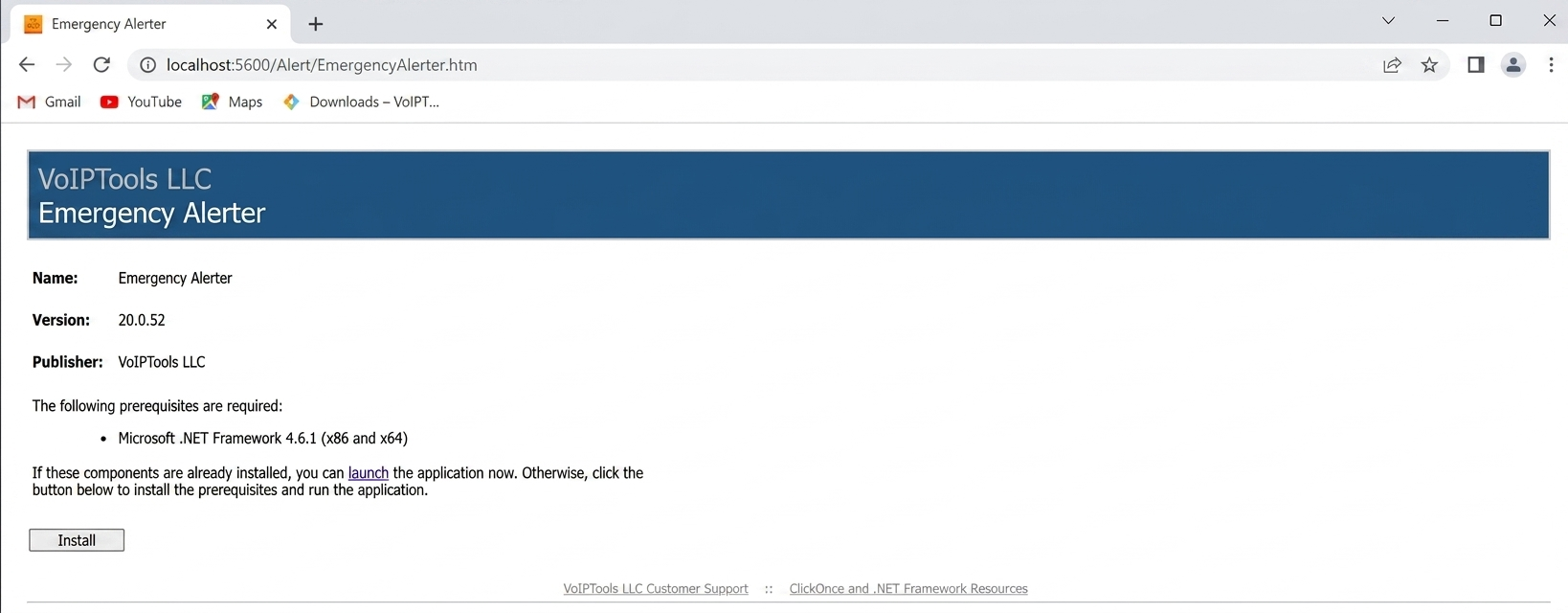
  1. Open the web browser and in the address bar enter the following URL,
 http://localhost:5600/Alert/EmergencyAlerter.htm

NOTE:

Replace with your local host value in the place of URL mentioned above.

The following web page appears:

Figure 28: Install Prerequisites
  1. Click Install to install the prerequisites.
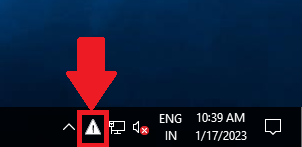
  2. On the taskbar and in the notification area, click the Show Hidden Icons  icon to display notification area overflow
Figure 29: Show Hidden Icons: Notification Area Overflow
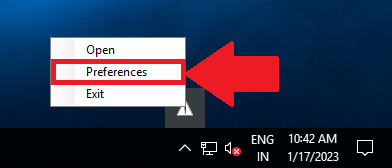
  1. In the notification area overflow, right-click on the  Emergency Alerts icon and in the right click menu, click Preferences.
Figure 30: Notification Area Overflow: Emergency Alerts – Preferences
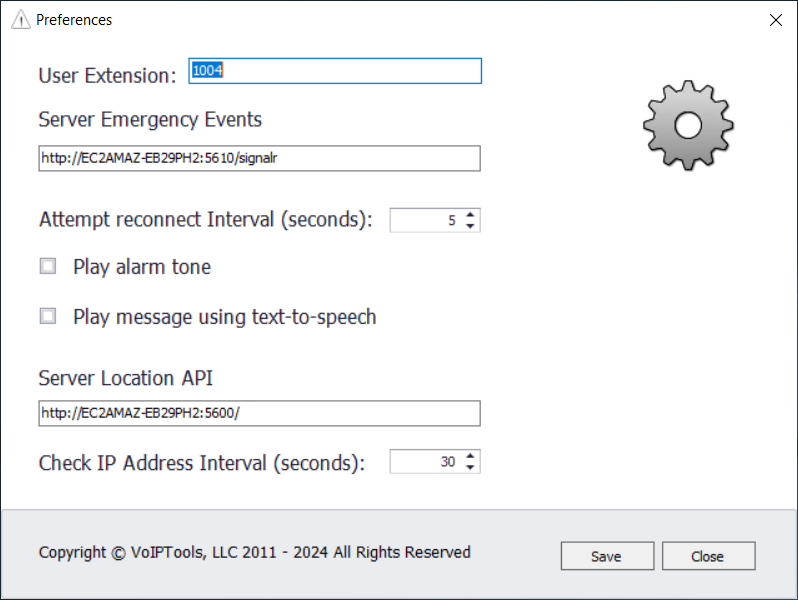
  1. In the Preferences screen and in the Server URL field, enter the URL:

NOTE:

  • In the URL mentioned above, replace it with your FQDN value.
  • You must enter /signalr at the end of the URL.
Figure 31: Server URL
  1. Click Save to save the url and then click Close to close the Preferences screen.
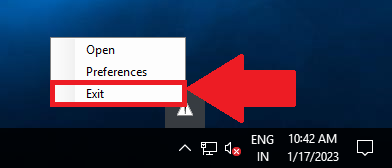
  2. In the notification area overflow, right-click on the Emergency Alerts icon and in the right click menu, click Exit to exit from the Emergency Alerts.
Figure 32: Notification Area Overflow: Emergency Alerts – Exit
  1. On the desktop, click the 3CX Emergency Notifier  icon to launch the application.

NOTE:

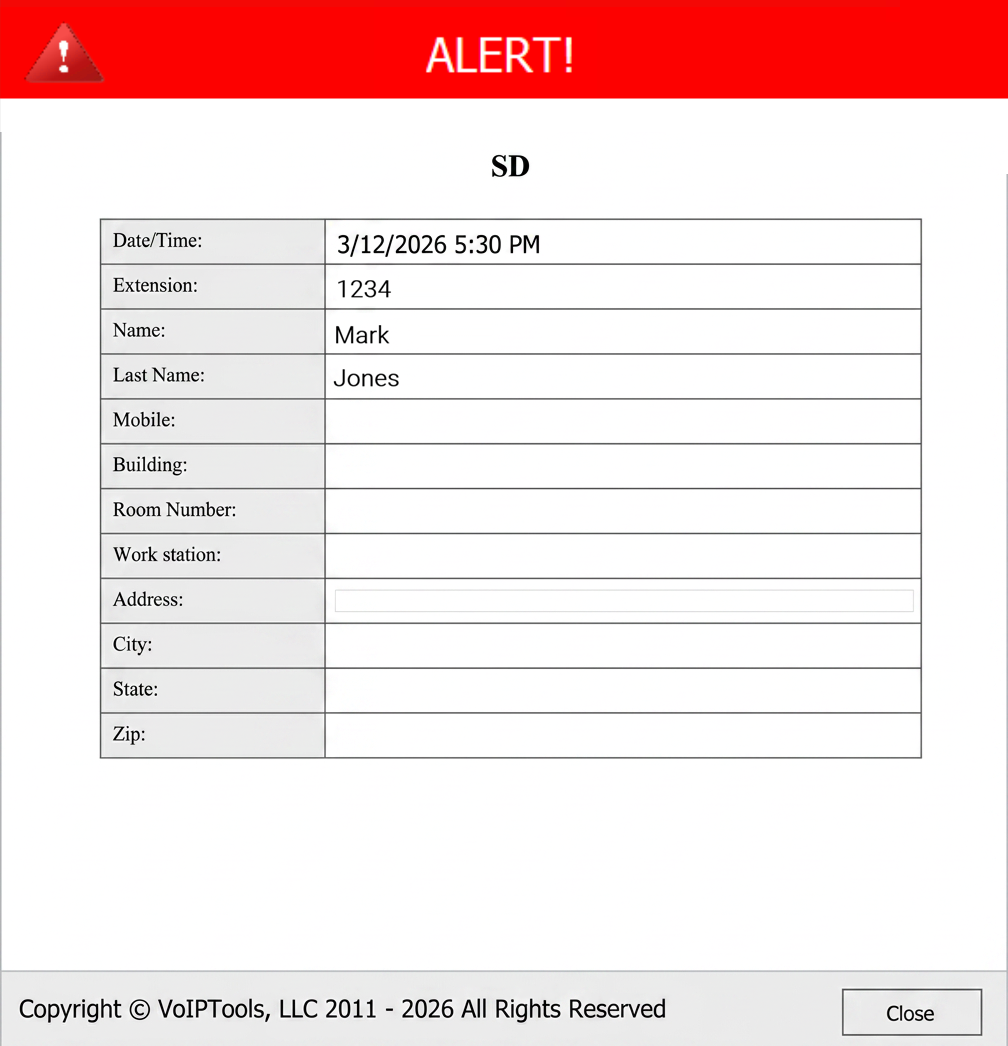
Emergency Notifier gives you an desktop alert whenever you recieve a call to the emergency number. The ALERT popup has the following details,

Figure 33: ALERT Popup

Step 10: Log In to the Web Application #

Follow the procedure to register your software,

  1. Click the 3CX Emergency Notifier desktop icon to launch the web application.
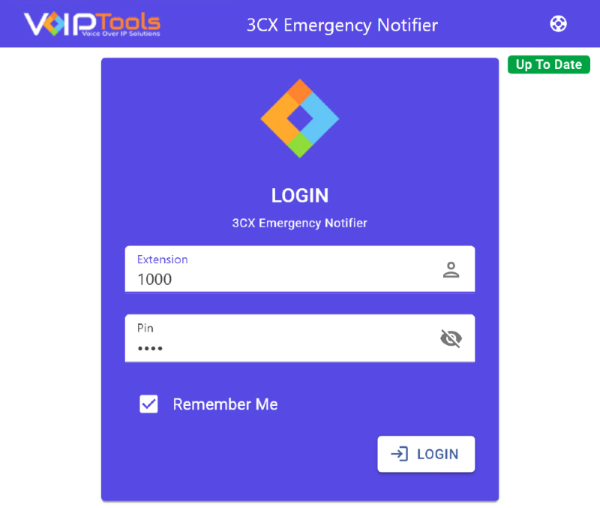
  2. On the Login page, do the following tasks,
    1. In the Extension field, enter your 3CX extension number.
    2. In the PIN field, enter your 3CX voicemail PIN.
    3. Click the Login button to log in to your account.
Figure 34: 3CX Emergency Notifier Web Portal Login

NOTE:

You can login only as a Manager in 3CX Emergency Notifier.

Web Portal #

To access the 3CX Emergency Notifier web portal, click the Web Portal button on the Configuration application, or click on the 3CX Emergency Notifier Web desktop icon created during the installation process.

Login Rights #

The 3CX Emergency Notifier is accessible only by the Manager extensions. This is done to enhance security by controlling access to sensitive information.

Figure 35: Login Rights

Settings menu #

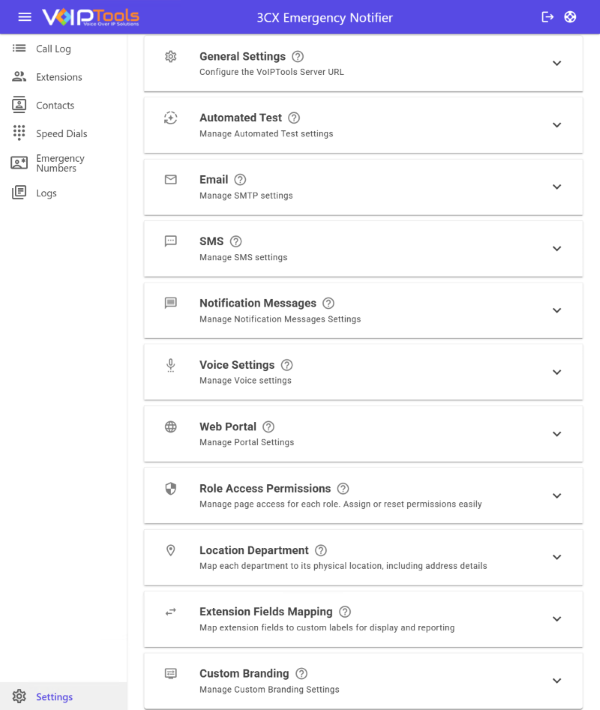
The Settings screen lets you register 3CX Emergency Notifier, configure general settings, email server, voice settings, and customize brand settings.

Figure 36: Settings Menu Overview

General Settings  #

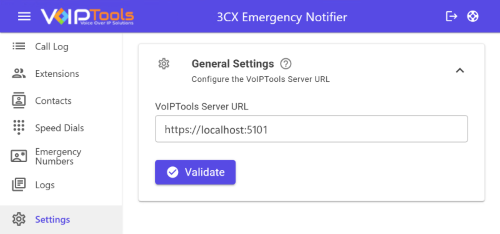
Use this section to set the VoIPTools Server URL, which allows 3CX Emergency Notifier to connect to the VoIPTools Server through the 3CX Call Flow Designer.


Figure 37: General Settings Tab Overview


    1. Enter the full address of your VoIPTools Server. The URL must include:
      • A Fully Qualified Domain Name (FQDN) or an IP address
      • The correct port number


  1. Validate Connection
    • Click Validate to confirm that the entered URL is reachable and correctly connected to the VoIPTools Server. Validation helps ensure the configuration is correct before saving.

Automated Test tab #

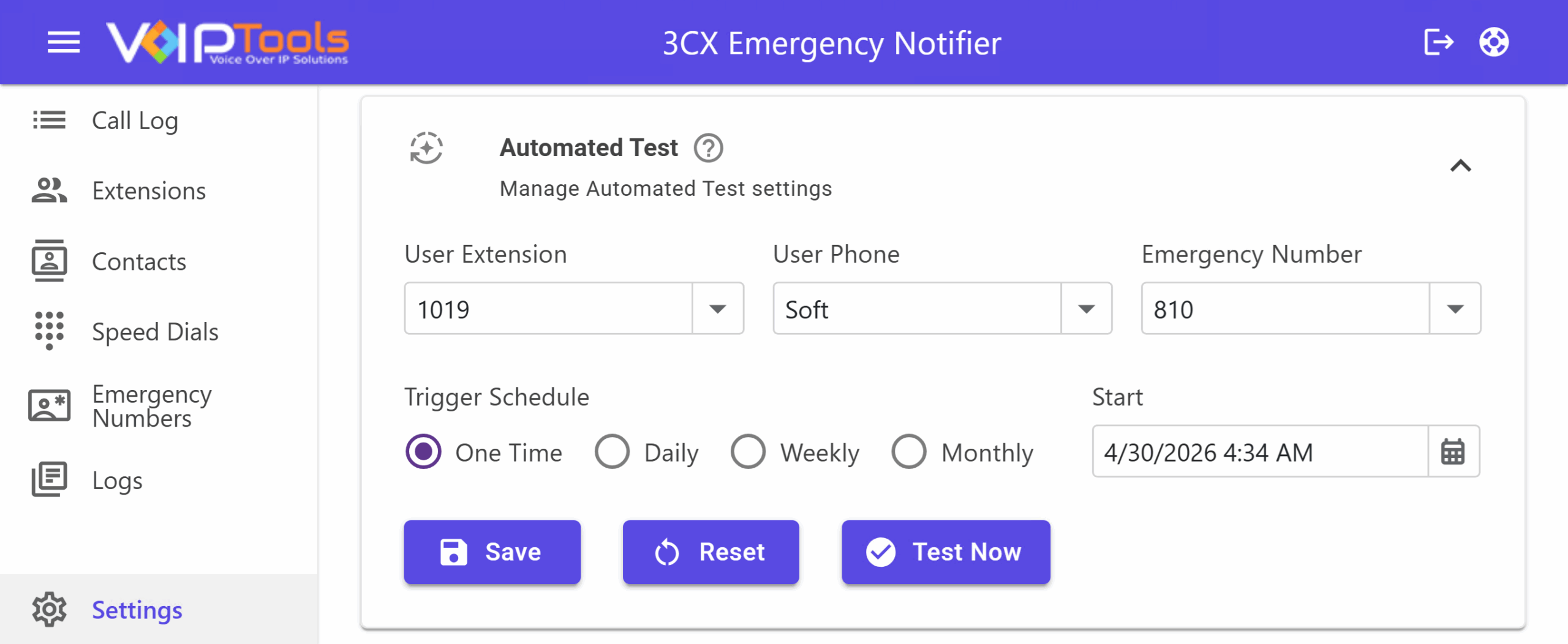
It is an inbuilt testing feature that lets you test the working of the 3CX Emergency Notifier.

Figure 38: Automated Test Overview
Configure Automated Test Settings: #

Follow the procedure to configure the automated test settings,

  1. In the User Extension field, enter the extension number having a registered functioning phone.

NOTE:

  • You must ensure the use of a physical phone to test the working of the 3CX Emergency Notifier
  • The User Extension must be a member of a dedicated test extension group.
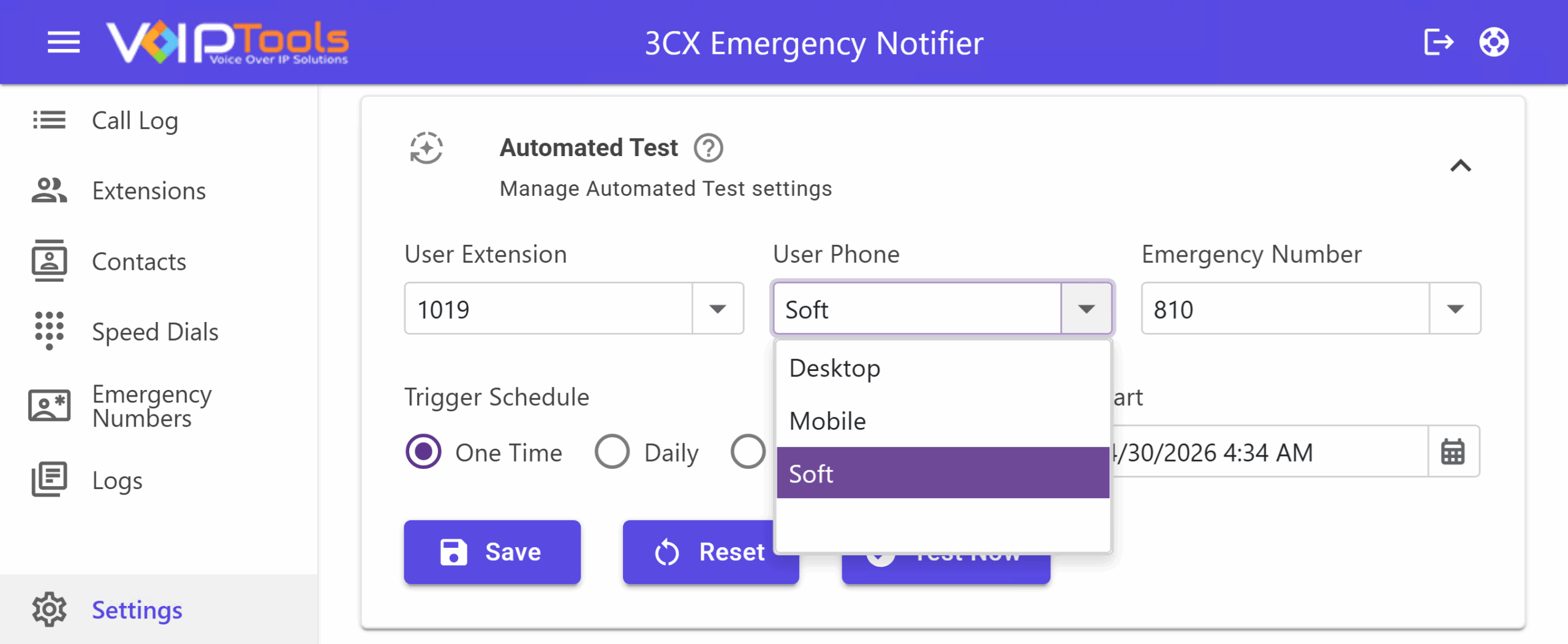
  1. In the User Phone list, select the type of phone that you have configured the User Extension.
Figure 39: User Phone Dropdown

NOTE:

Automated Test supports Desktop phone, soft phone, mobile phone and electron phone.

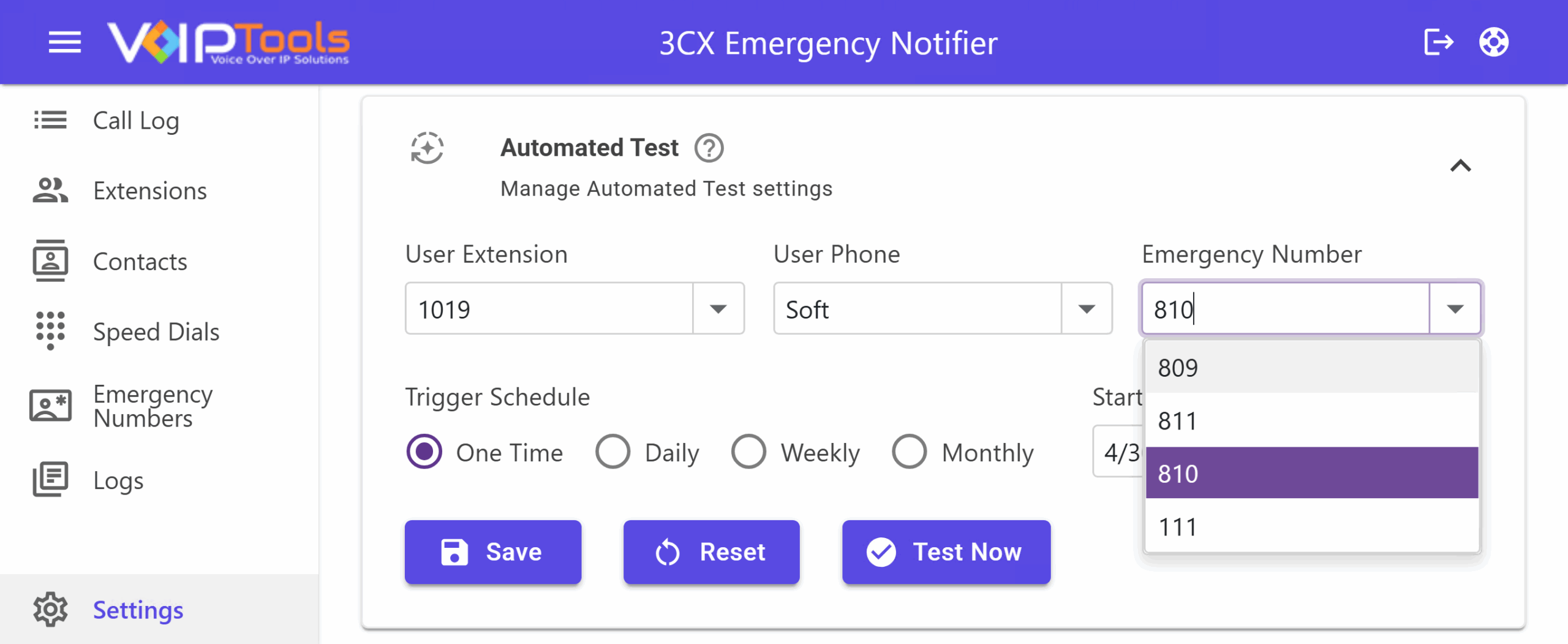
  1. In the Emergency Number field, enter the emergency number for Automated Test.
Figure 40: Emergency Number Dropdown

NOTE:

You must configure specific contacts to receive test notifications. Click here to know how to configure contacts to receive test notifications in the 3CX Console Management.

Schedule an Automated Test: #

You can schedule an automated test using the Task Scheduler. Follow the procedure to schedule an automated test,

  1. In your device, open the Task Scheduler application.
  2. In the Task Scheduler Library dropdown right-click the Microsoft folder.
  3. Click the Create Task option to create a schedule.
Figure 41: Create Task
  1. On the General tab, in the Name field, enter a name for the task.
Figure 42: General Tab
  1. In the Triggers tab click the New button to create a new trigger.
Figure 43: New Button
  1. In the Start field, set the date and time at which you want to start the automated test and click the OK button.
Figure 44: Start Schedule
  1. In the Action tab, click the New button.
Figure 45: Actions Tab
  1. In the Programme/Script field, click the Browse button enter the file location and click the OK button. The default file path is “C:\Program Files\VoIPTools\3CX Emergency Notifier\EmergencyNotifierTestIVR\EmergencyNotifierTestIVR.exe.”
Figure 46: Program Script

You can see the task added to the Task Scheduler.

Figure 47: Task Added

Email #

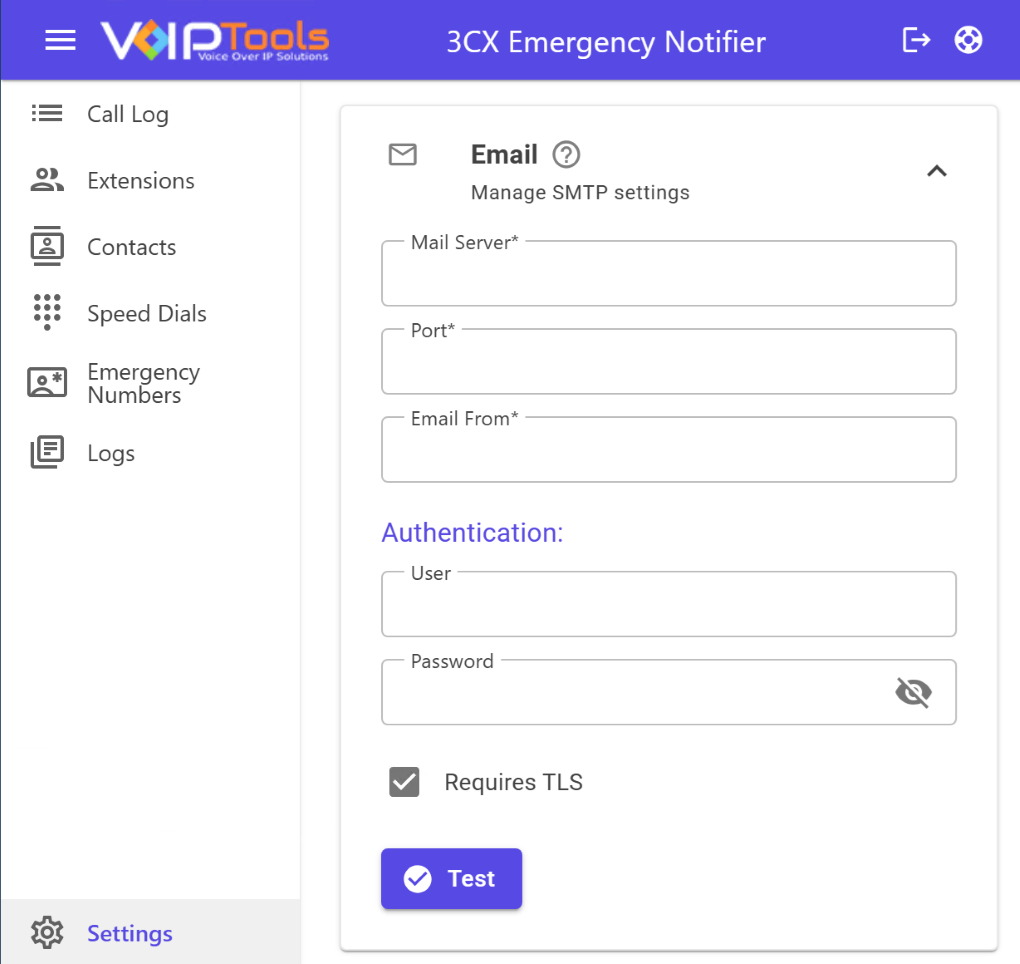
The Email tab lets you set up and configure the email server settings, including the server address, port number, authentication credentials, and reply email addresses. It aims to enable seamless communication between the 3CX Phone System and the designated email server for sending notifications.

Follow the procedure to configure the email server settings,

  1. In the Email tab, under the Email Server section, in the Server field, enter the IP address or Fully Qualified Domain Name (FQDN) of your email server.
    • Examples: 192.168.1.20 or mail.mydomain.com
  2. In the Port field, enter the SMTP Port number.
    • The default port number is 25.
  3. In the From Email: field, enter the reply email addresses for email and SMS notifications.
  4. In the Authentication section, enter Username and Password.
  5. Click the Test button to test if Email Server is able to communicate with 3CX Phone System.
  6. Click the Save  button to save the data.
Figure 48: Email Tab

SMS #

The SMS Settings section allows you to select the SMS delivery method used by 3CX Emergency Notifier. You can choose Email, Skyetel, or Twilio as the SIP carrier for sending SMS notifications. The available configuration fields will change based on the selected option.

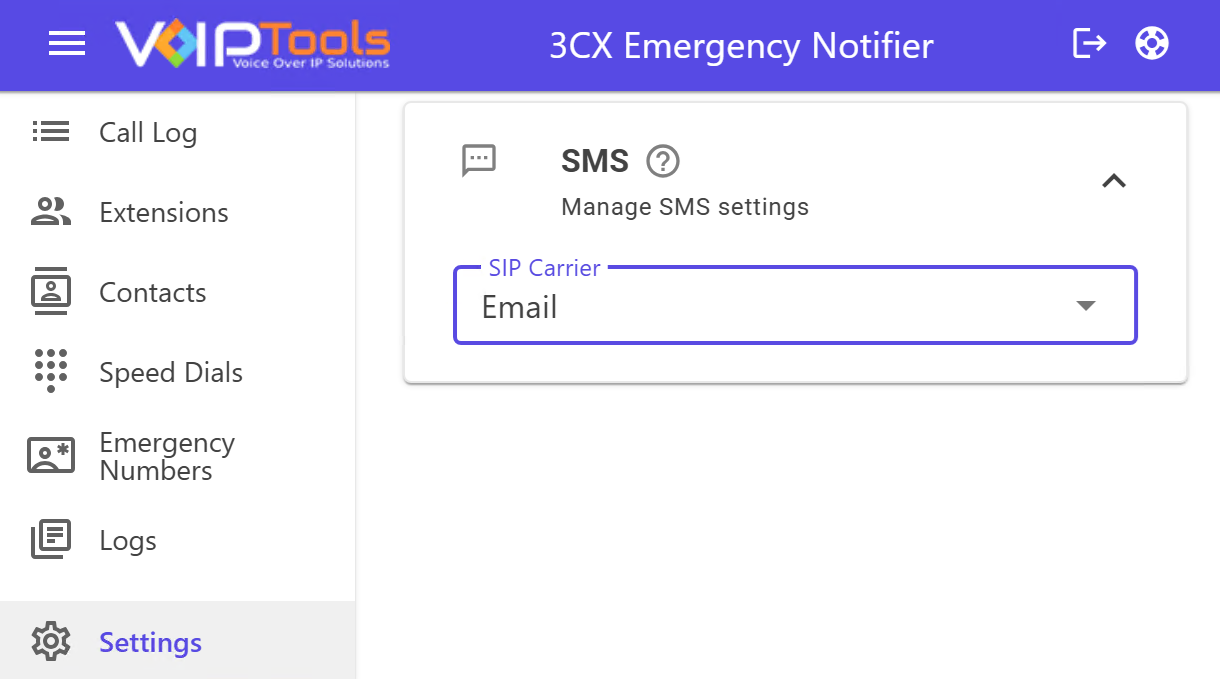
Email Option #

When Email is selected as the SIP carrier, SMS notifications are delivered to the email addresses of the configured recipients. No additional credentials are required for this option.

Figure 49: Email Option
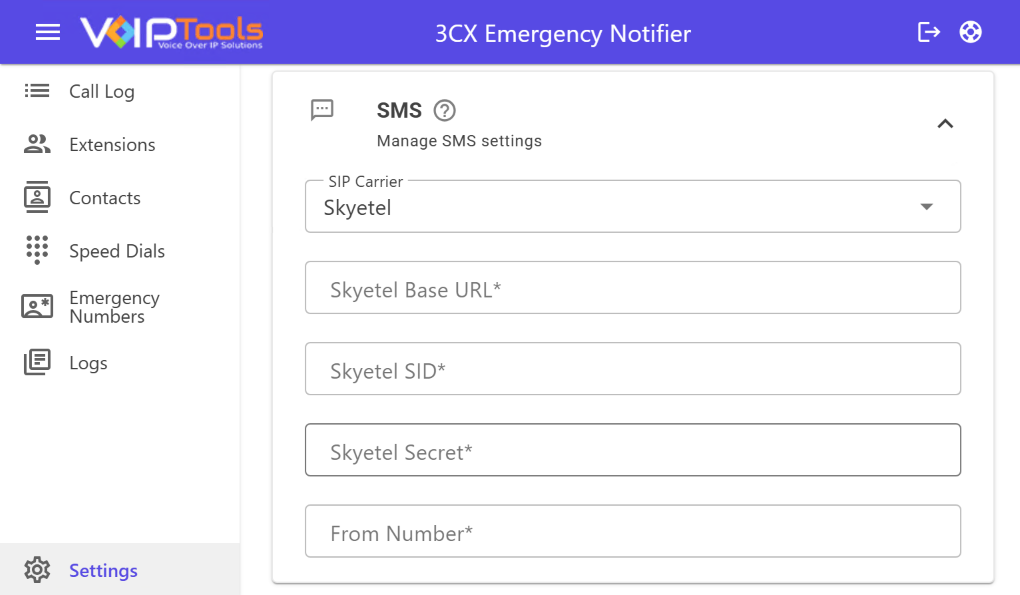
Skyetel Option #

When Skyetel is selected, SMS messages are sent using the Skyetel carrier service. To enable this option, the following required fields must be configured:

Skyetel Base URL – The primary service endpoint for Skyetel

Skyetel SID – The service identifier used for authentication

Skyetel Secret – The secure authentication key

From Number – The phone number displayed as the SMS sender

All fields must be completed and saved for SMS delivery to function correctly.

Figure 50: Email Tab
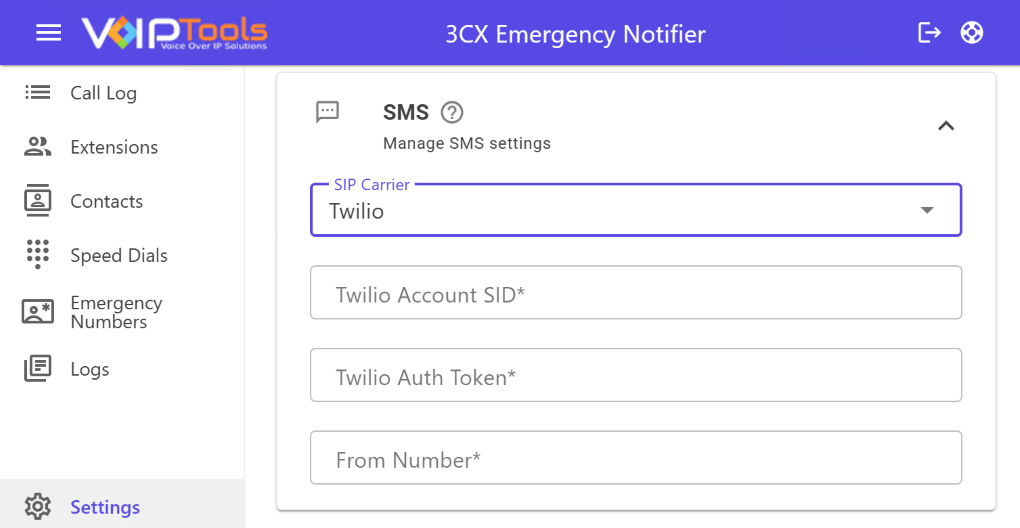
Twilio Option #

When Twilio is selected, SMS notifications are sent using your Twilio account. The following information is required:

Twilio Account SID

Twilio Auth Token

From Number – The phone number used to send SMS messages

Figure 51: Twilio Option

Ensure all credentials are valid before saving the configuration.

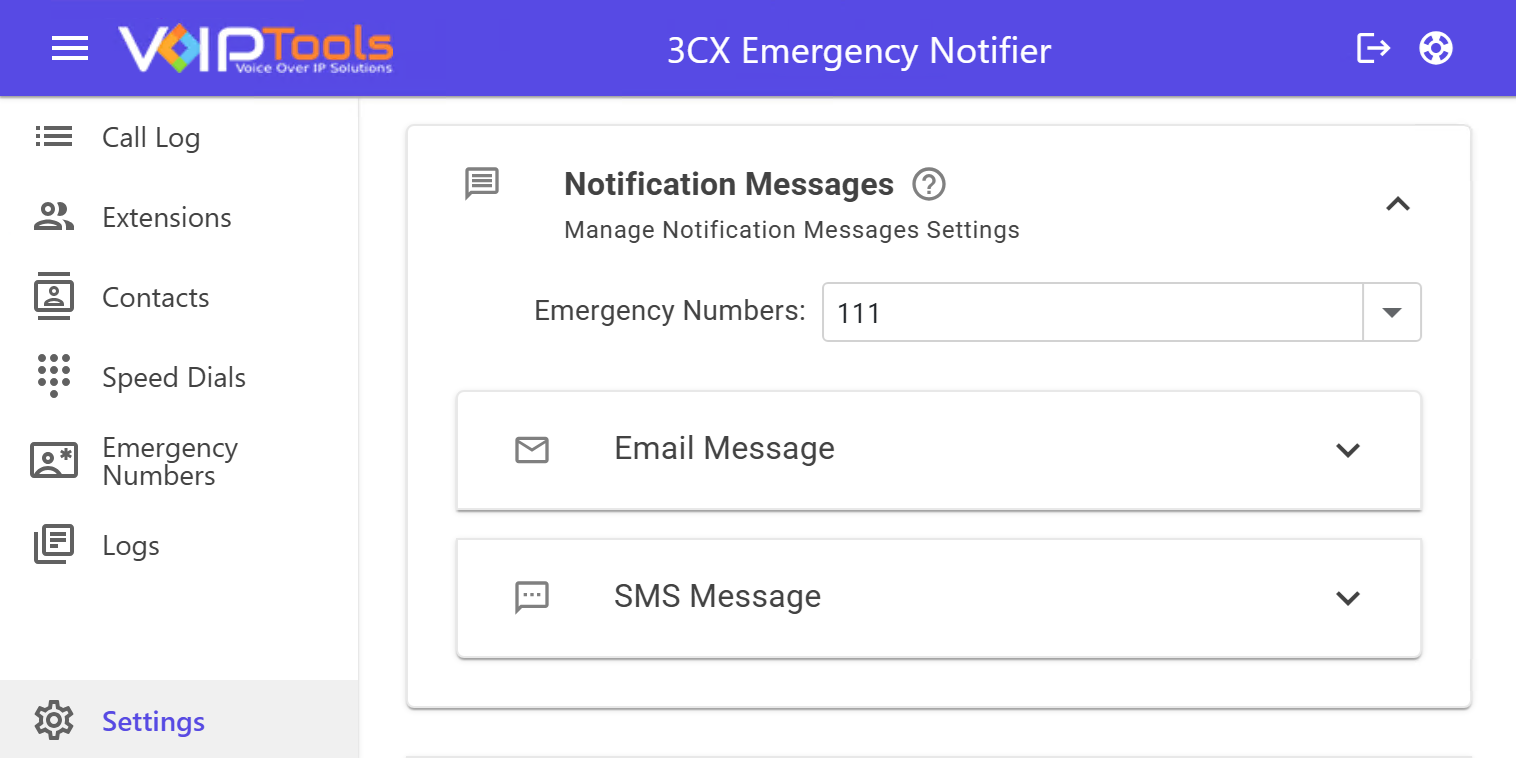
Notification Messages #

The Notification Messages section allows you to customize the alerts sent when an emergency number is dialed.

Figure 52: Notification Messages

Emergency Numbers #

Use the Emergency Numbers dropdown to select the specific number or extension you wish to configure. Settings and templates are saved separately for each selection.

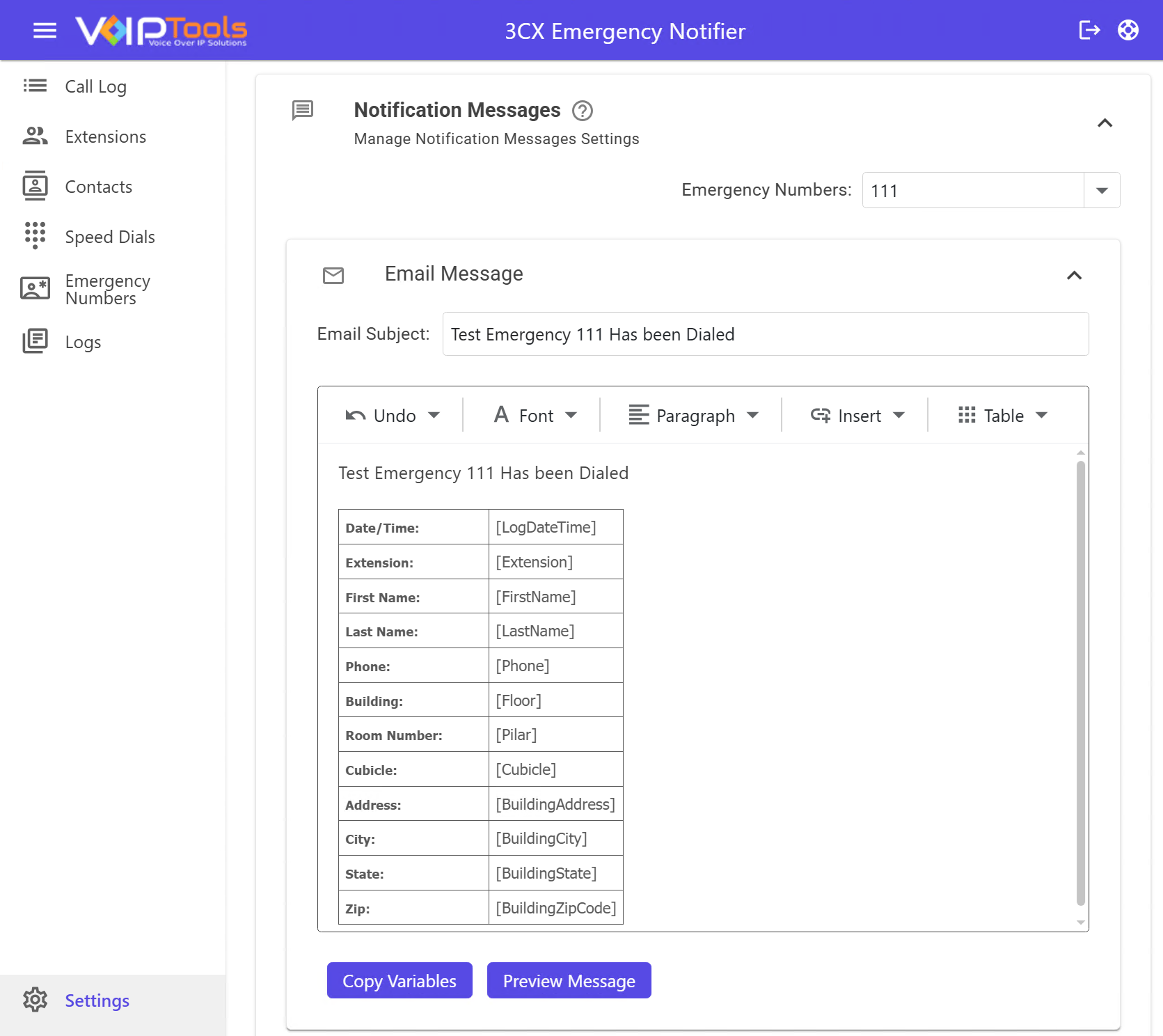
Email Configuration #

  • Email Subject: Enter the subject line for the notification email.

  • Email Body: Use the rich-text editor to draft and format your message.

  • Copy Variables: Open the variable dialog to select and copy placeholders into your text.

Figure 53: Notification Messages: Email Configuration

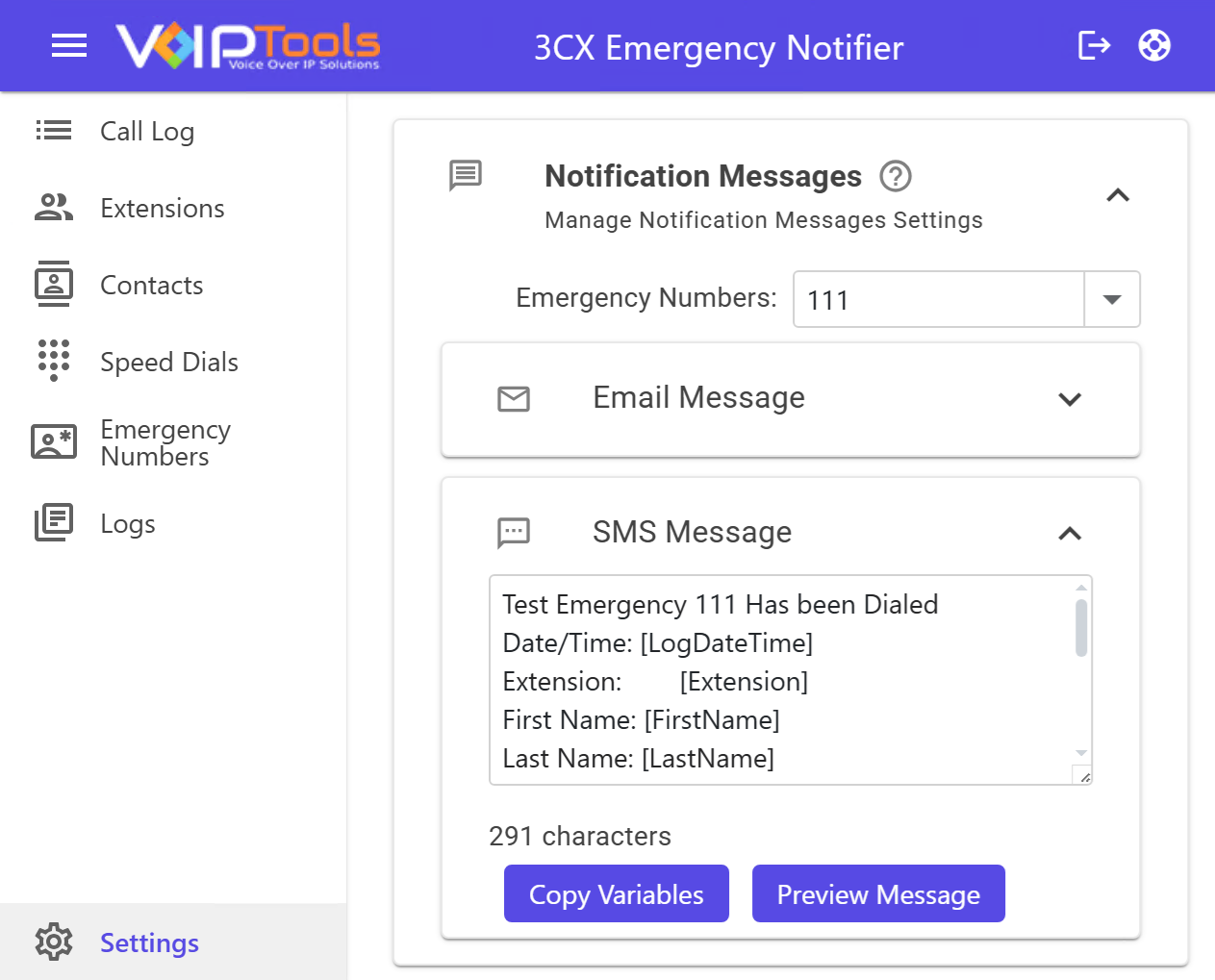
SMS Configuration #

  • SMS Body: Enter a plain-text message for mobile alerts.

  • Character Counter: Monitor the message length displayed below the editor. Be aware that variable data may increase the final character count.

Figure 54: Notification Messages: SMS Message Configuration

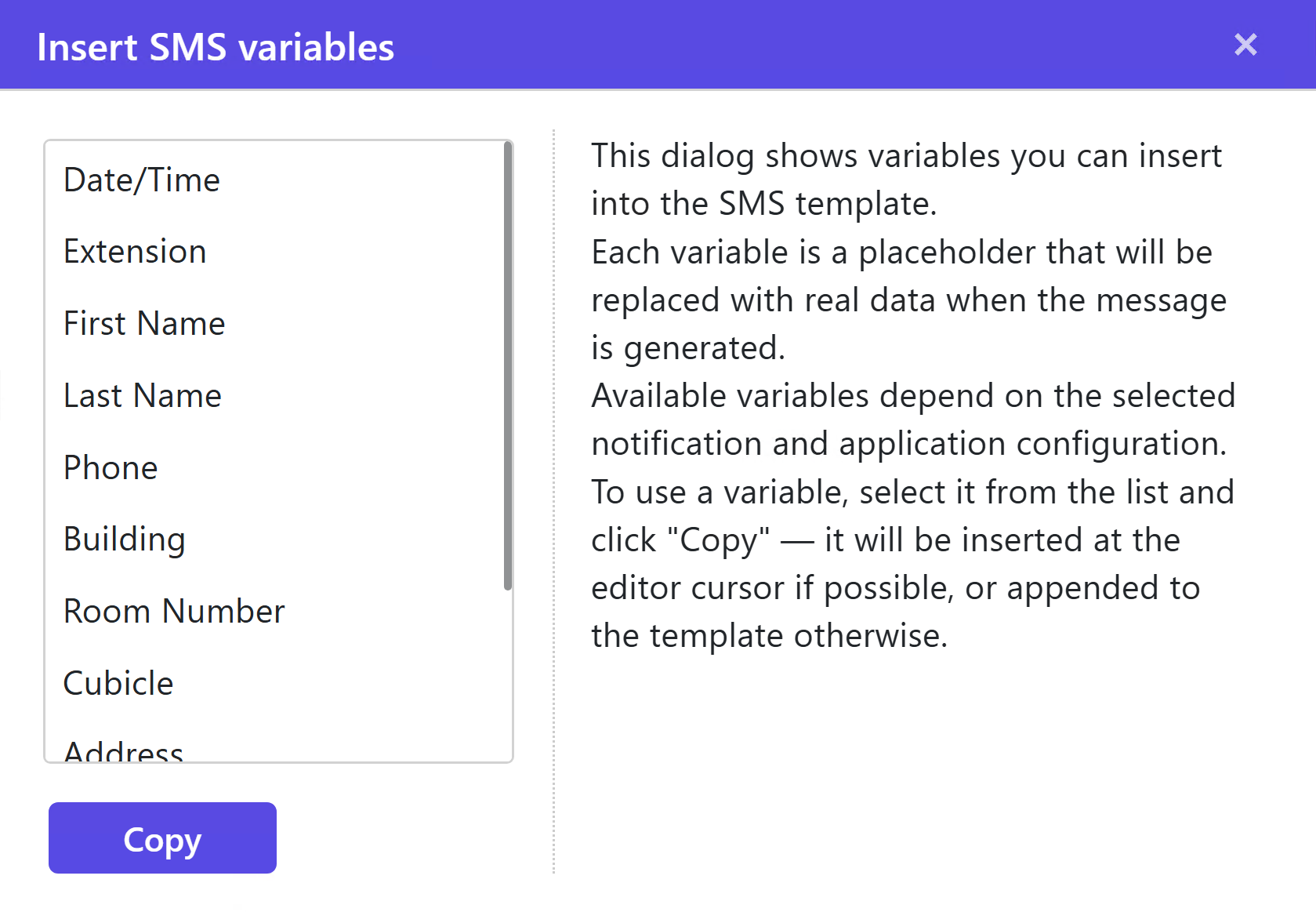
Using Variables #

Variables are placeholders (e.g., [Extension]) that are automatically replaced with real-time data when a notification is sent. You can type them manually using brackets or use the Copy Variables button.

Figure 55: Notification Messages: Variables Configuration

Voice Settings  #

The 3CX Emergency Notifier is capable of initiating phone calls to your designated contacts and delivering a pre-recorded or dynamically generated message. In the case of a dynamically generated message, it can include specific details about the extension from which the emergency call was made. To provide you with greater flexibility, the following settings enable you to customize certain characteristics of the voice utilized for the dynamic recording.

3CX Emergency Notifier has two TTS options,

  • Windows TTS
  • Amazon Poly
  • OpenAI
  • Azure OpenAI
Windows TTS #

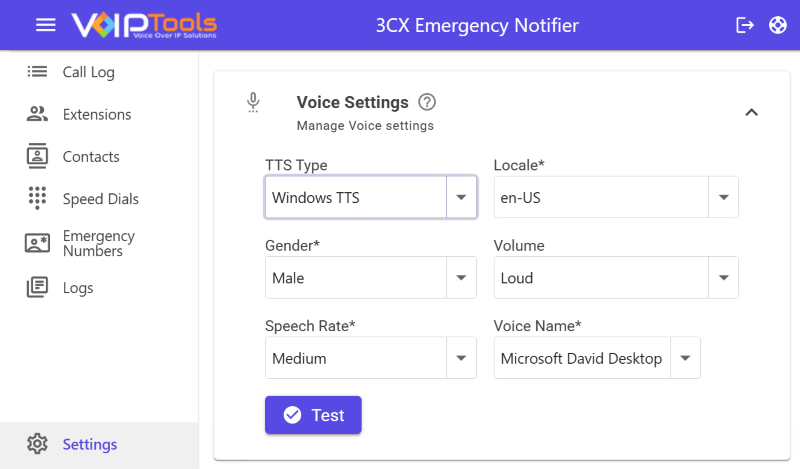
Select TTS Type: Windows TTS if you want to create dynamic play files by using the voices installed in your computer.

  1. Select the preferred culture in the Locale dropdown.
  2. From the Gender dropdown, select Male or Female so that the Emergency Notifier will play the .wav file in a male or female voice.
  3. From the Volume drop-down list, select the volume that you want to apply for your recording.
  4. From the  Speech Rate drop-down list, select the desired speech rate to adjust the speed of the speech.
  5. From the Voice Name drop-down list, select the voice that you want to use for dynamic recordings. This field displays all of the voices installed on the computer.
  6. Click the Test button to test your settings.
Figure 56: Voice Settings – Windows TTS
Amazon Polly #

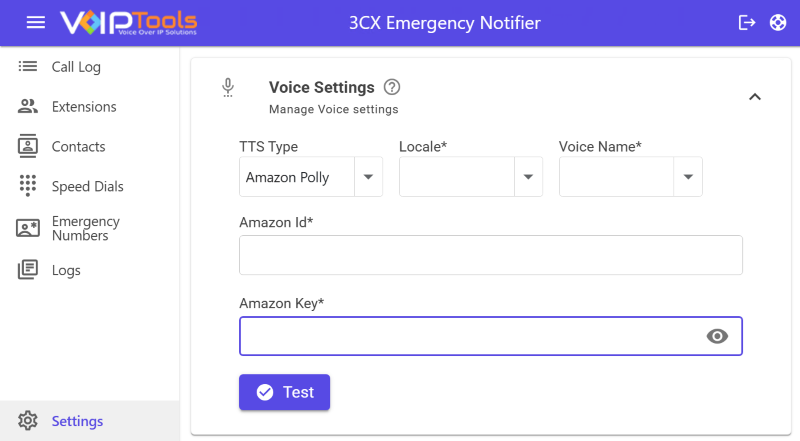
Select TTS Type as Amazon Polly if you want to create a self Identification Message (.wav file) using Amazon Web Services.

  1. Select the preferred culture in the Locale dropdown.
  2. In the Voice Name drop-down list, select the voice for dynamic recordings. Usually, this field displays all of the voices installed on the computer.
  3. In the Amazon Id and Amazon Key fields, enter valid details. To learn how to create an Amazon Web Services (AWS) account and generate an AWS access key ID and secret key ID, click here.
  4. Click the Test button to test your settings.
Figure 57: Voice Settings – Amazon Polly
OpenAI #

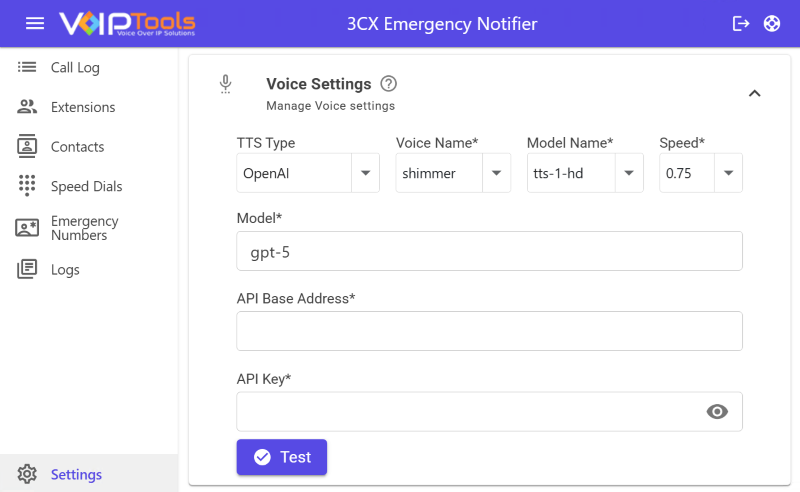
Select OpenAI to generate TTS using AI

  1. From the Voice Name drop-down list, select the voice that you want to use for dynamic recordings.
  2. From the Model Name dropdown, select AI model.
  3. From the Speed drop-down list, select the desired speech rate to adjust the speed of the speech.
  4. In the Model field, enter the model number of the AI.
  5. In the API Base Address field, enter the URL endpoint for the Open AI API .
  6. Enter the unique key for authentication requests to the Open AI API in the API Key field.
  7. Click the Test button to test your settings.
Figure 58: Voice Settings – OpenAI

NOTE:

The TTS functionality works only with the Emergency Number and it does not works with Speed Dial numbers.

Azure OpenAI #

#

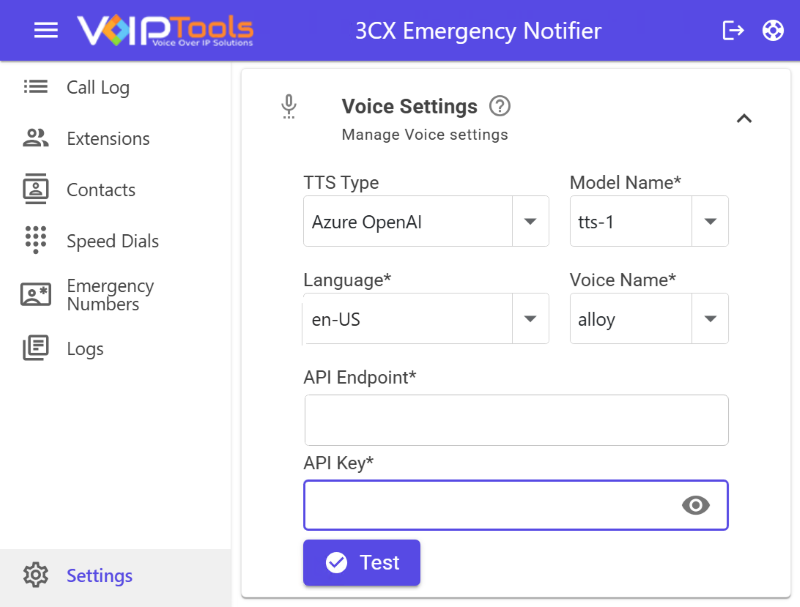
Select TTS Type as Azure OpenAI if you want to create a self Identification Message (.wav file) using Microsoft Azure OpenAI Services.

#

  1. In the Model Name drop-down list, select the deployed model (e.g., tts-1, tts-1-hd).
  2. Select the preferred Language (e.g., en-US) in the dropdown.
  3. In the Voice Name drop-down list, choose a supported Azure OpenAI voice
  4. In the API Endpoint and API Key fields, enter valid details from your Azure resource.
  5. Click the Test button to verify the provided settings and credentials.

#

Figure 59: Voice Settings – Azure OpenAI

Web Portal   #

#

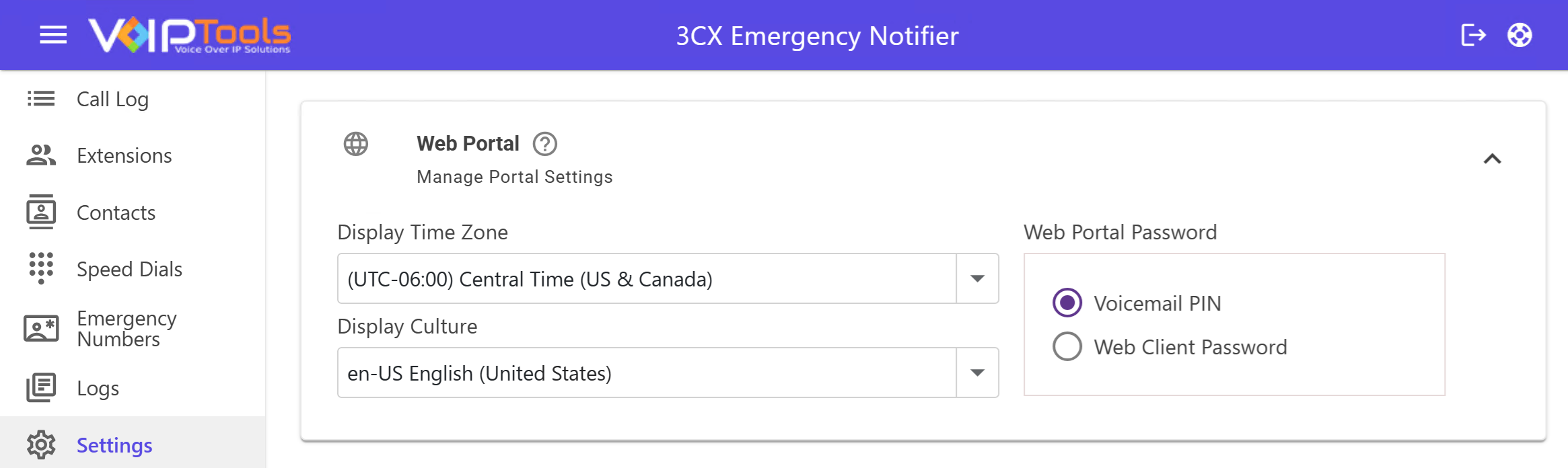
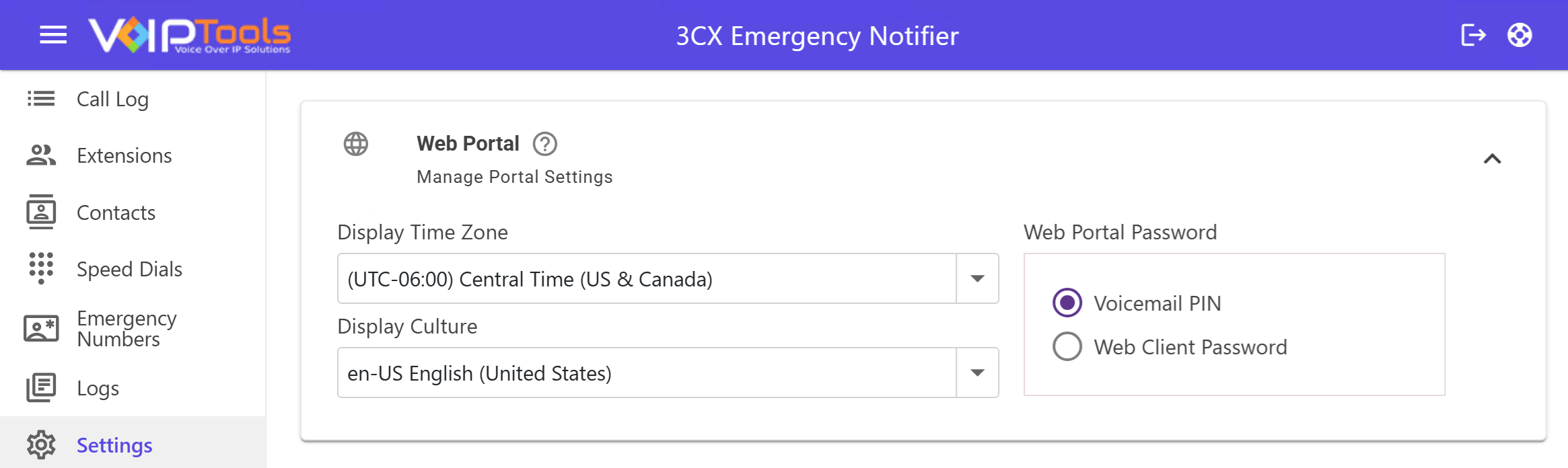
The Web Portal section lets you control how users log in and how information is displayed in the Emergency Notifier web interface. From here, you can choose the authentication method and set the preferred language and date format to match your organization’s needs.

Manage Portal Settings

  • Web Portal Password: Select the authentication method used to verify user credentials. You can choose either your Voicemail PIN or Web Client Password. The default setting is Voicemail PIN.

  • Display Culture: Use the dropdown menu to set the regional format for dates and on-screen information.

Figure 60: Web Portal Settings

Role Access Permissions    #

#

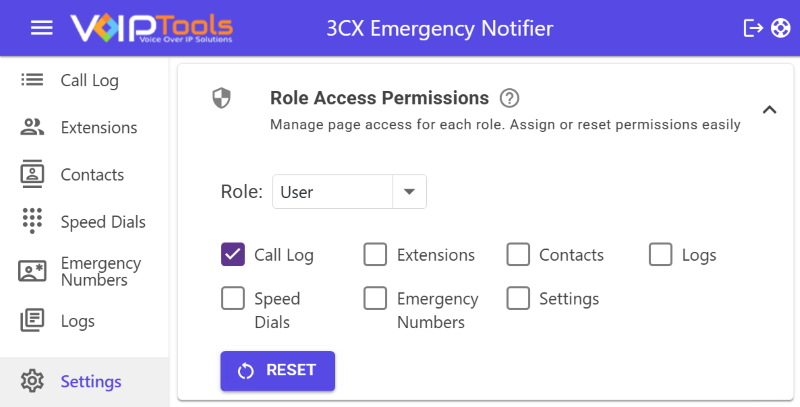
The Role Access Permissions section lets you control what each user role can see and manage within 3CX Emergency Notifier. From here, you can assign, modify, or reset page access to ensure users only have access to the features they need. Select a role to view its current permissions, then enable or disable access using the available options.

  • Role Selection: Select a specific role (e.g., Admin, User, or Agent) from the dropdown menu. The checkboxes will automatically update to show that role’s current permissions.

  • Permissions: Toggle the checkboxes to grant or restrict access to various system features, such as the Call Log, Extensions, Contacts, Logs, Speed Dials, Emergency Numbers, and Settings.

  • Reset Permissions: Click the RESET button to discard any unsaved changes and restore the original access settings for the selected role.

Figure 61: Role Access Permissions Settings

  #

Location Department    #

#

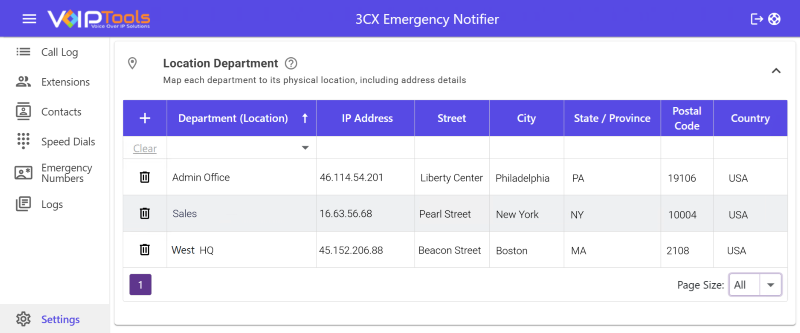
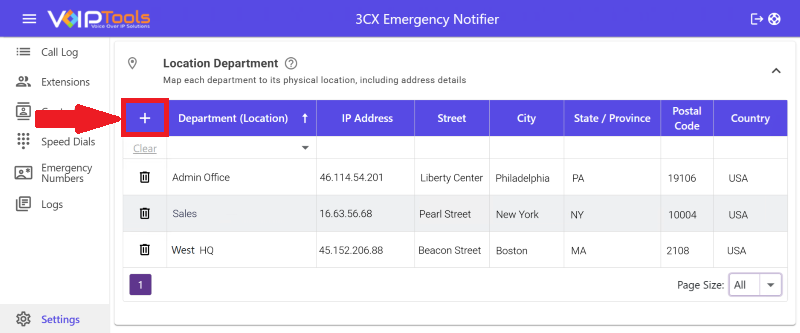
The Location Department section allows you to define and manage the physical locations assigned to each department. By mapping departments to IP addresses and address details, the system can accurately identify where an emergency originates and deliver location specific notifications. Use this page to add, update, or remove department location records as needed.

#

Figure 62: Location Department Settings

    #

    NOTE:

    To use the Locations feature you must run the Emergency Alerter application.

    #

    Location Details #

    • Department (Location): Select the department name you wish to associate with a specific physical location.
    • IP Address: Enter a network identifier for the location. Supported formats include:
      • IPv4 (single): 192.168.1.10
      • IPv4 range: 192.168.1.10–192.168.1.20
      • CIDR (IPv4/IPv6): 192.168.1.0/24 or 2001:db8::/64
      • IPv6 (single): 2001:db8::1
      • Note: CIDR must be the network base, and IPv4 ranges expand by the final octet.
    • Street: Enter the specific building or street address.
    • City: Specify the city where the department is located.
    • State / Province: Enter the relevant state or province.
    • Postal Code: Enter the ZIP or postal code.
    • Country: Specify the country for the location.

    Actions #

    • Add: Click the + icon in the header to add a new Department–Location mapping.
    • Edit: Update existing records by typing directly into the grid cells.
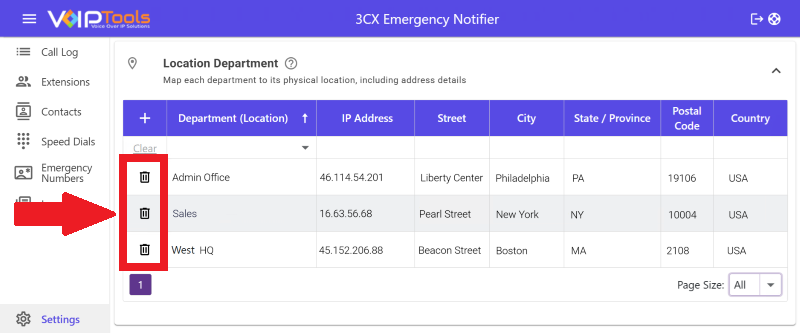
    • Delete: Click the trash icon next to a record to remove that mapping from the system.

      #

    Create a New Emergency Group #

    #

    Follow the steps to create a new locations group,

    #

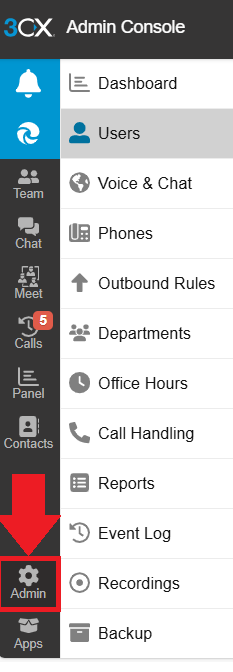
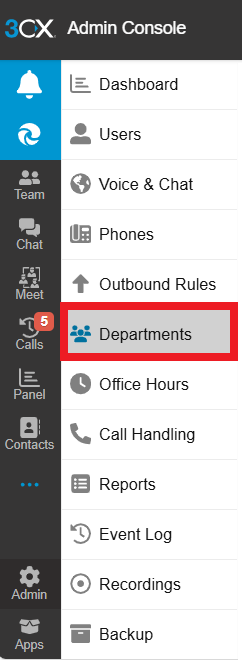
    1. On the 3CX Console Management in the left side bar, click the Admin menu.

    #

    Figure 63: 3CX Left Side Pane – Admin Menu


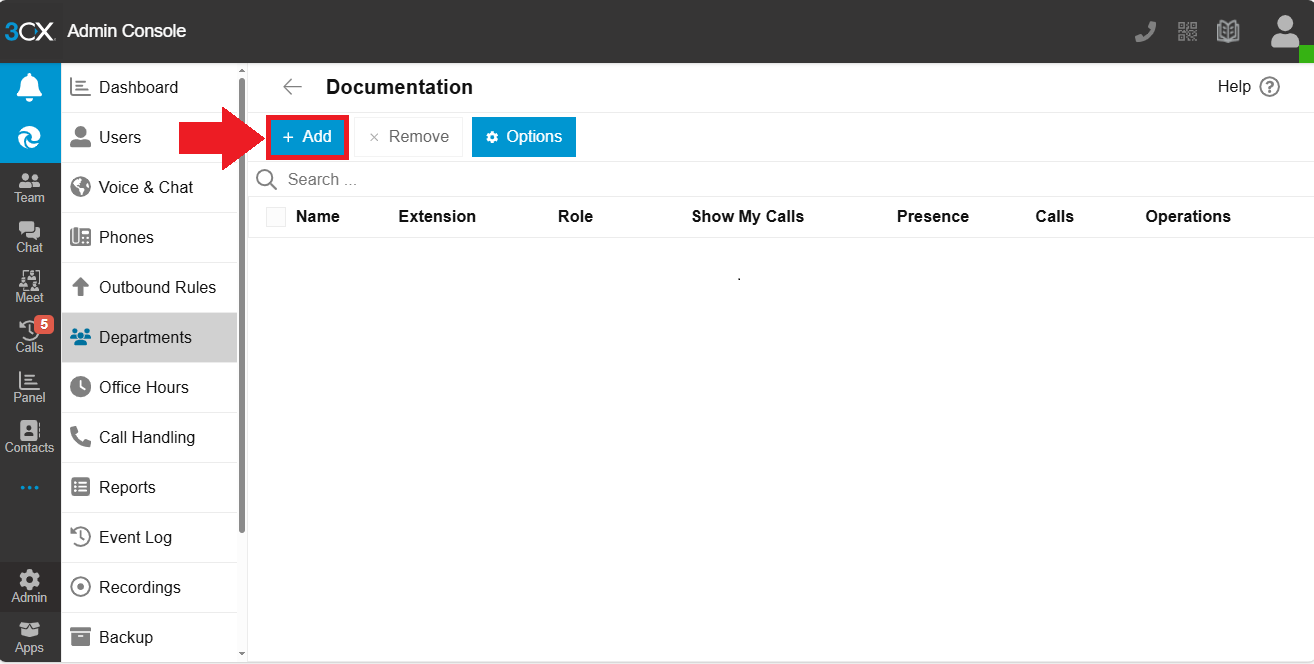
    1. In the Admins menu, click the Departments tab.

    #

    Figure 64: Departments Tab

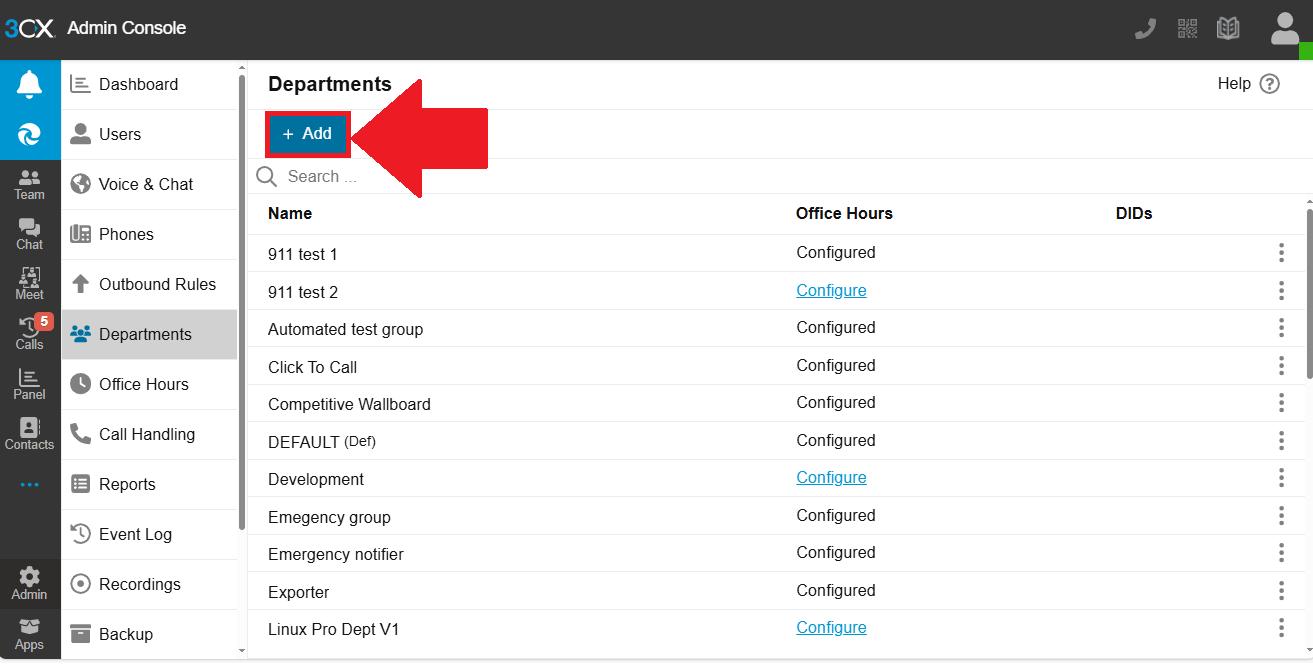
    #

    1. Click the Add button to add a new department.

    #

    Figure 65: Add Departments – Add Button

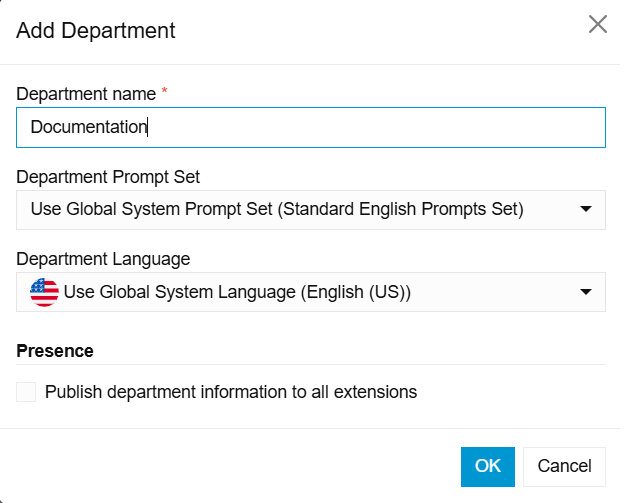
    #

    1. Enter the details of the new department in the Add Department popup.

    #

    Figure 66: Add Department – Department Details

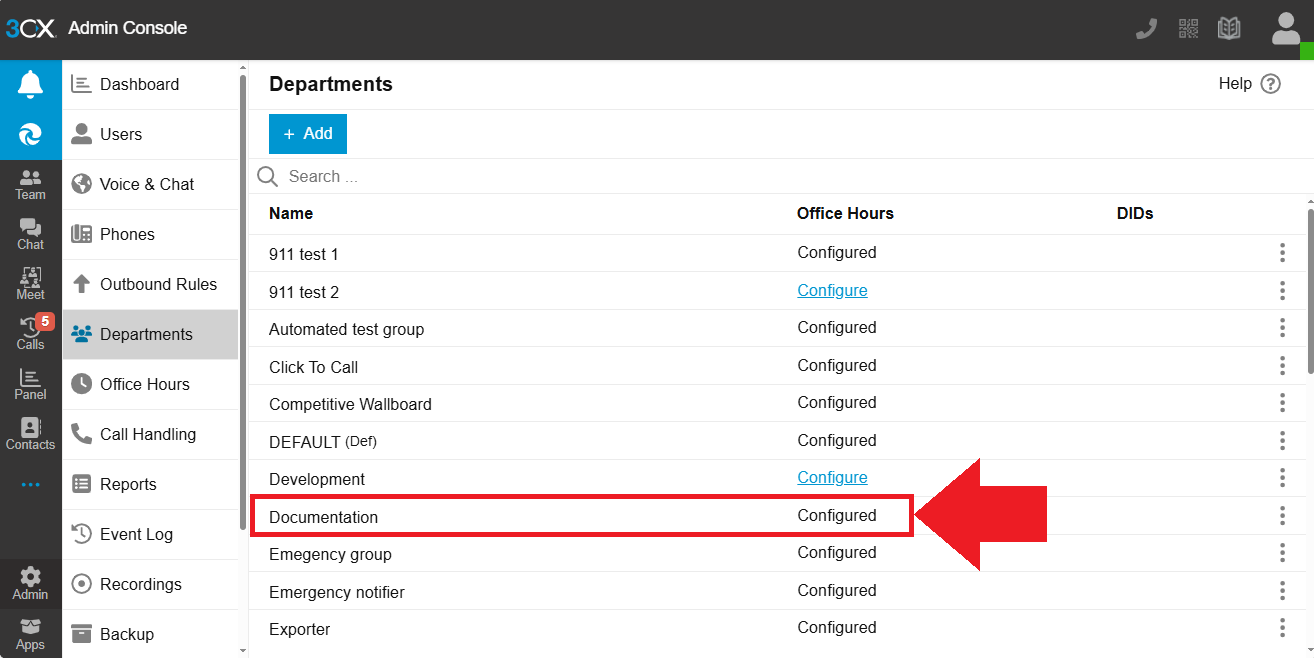
    #

    1. Click on the Department you created to add extensions to the department.

    #

    Figure 67: Department Created

    #

    1. Click the Add button to add extensions to the department.

    #

    Figure 68: Add Extension – Add Button

    #

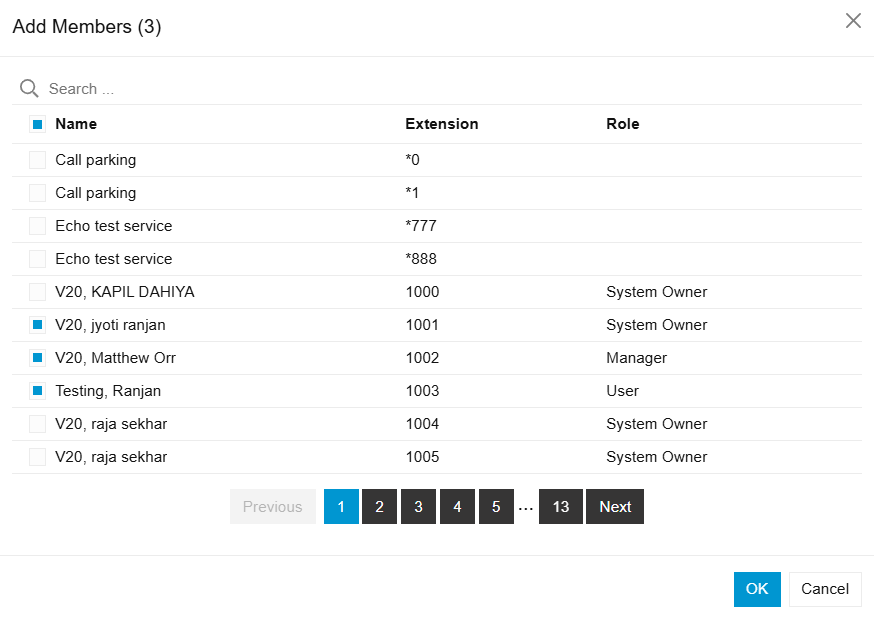
    1. Select the extensions for your departments in the Add Members popup.

    #

    Figure 69: Add Extension – Extension Selection

    #

    NOTE:

    An extension can be associated with only one group at a time. If you add the same extension to another group, it will not work.

    For instance, let’s consider an example: Extension 5555 is initially part of Building A. If you decide to add extension 5555 to Building B, the system will automatically transfer its location from Group A to Group B. This ensures that an extension is always linked to a single group, preventing duplication or conflicting assignments.

    #

    1. Click here to create a new emergency number and continue with the procedure.
    2. On the 3CX Emergency Notifier in the Locations screen, click the Add  button.

    #

    Figure 70: Locations Screen – Add Button

    #

    1. From the 3CX Emergency Group dropdown, select the group created in 3CX to add the IP address range.

    #

    #

    NOTE:

    ‘3CX Emergency Notifier’ retrieves the ‘Emergency Group’ details from ‘3CX Management Console’ and displays them in the ‘3CX Emergency Group’ dropdown list.

    #

    1. In the IP Address field, enter the IP Address range in either of the two supporting formats as mentioned in the example below:
      • Format 1: 192.168.5.0/24 which means that the IP range is from 192.168.5.0 to 192.168.5.24
      • Format 2: 192.168.5.0-192.168.5.24 which means that the IP range is from 192.168.5.0 to 192.168.5.24.

    #

    #

    Delete locations #

    #

    Follow the procedure to delete existing locations,

    #

    1. In the Locations screen, click the Delete button beside the 3CX Emergency Group column to delete the desired location.
    2. In the Delete Confirmation popup click OK to confirm your deletion.

    #

    Figure 71: Delete Location

    #

    Associate a single IP address with a different location within a subnet #

    #

    To associate a specific single IP address with a different location within a subnet, you must divide the IP address range and allocate them to their respective locations.

    #

    Assuming you have a subnet mask with the range 192.168.5.0 – 192.168.5.254 and you wish to associate the particular IP address 192.168.5.100 with a distinct location, follow these steps:

    #

    1. Establish a location for the IP address range 192.168.5.0 – 192.168.5.99.
    2. Create a separate location for the IP address 192.168.5.100.
    3. Generate another location for the IP address range 192.168.5.101 – 192.168.5.254.

    #

    By dividing the IP address range and allocating the specific addresses to their respective locations, you can effectively associate a particular IP address with a different location within the subnet.

    #

    NOTE:

    You can use the IP range available from 1 to 255

    #


    Extension Fields Mapping #

    #

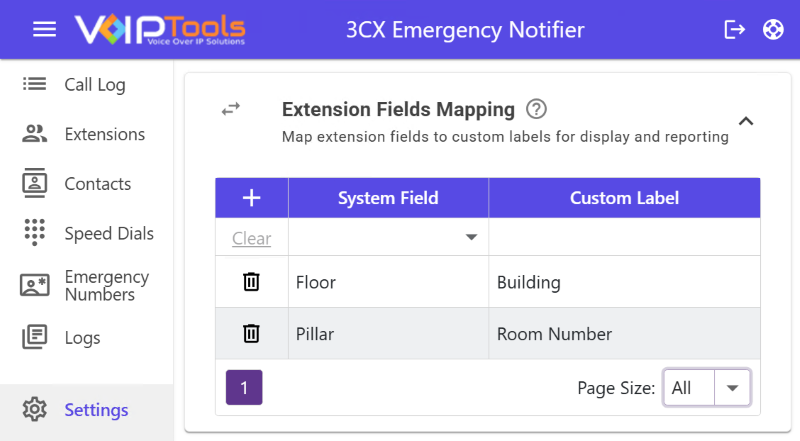
    The Extension Fields Mapping section allows you to rename system defined extension fields with custom labels for display and reporting. This helps match the terminology used in your organization while keeping the original system fields unchanged. Once configured, the custom labels appear throughout the application wherever extension information is shown, including grids and reports.

    #

    Figure 72: Location Department Settings

    Definitions #

    • System Field: The original, fixed name provided by the system (e.g., Floor, Pillar, or Cubicle). These names cannot be changed directly.
    • Custom Label: The new name you prefer to see displayed in place of the default system field.

    Actions #

    • Add (+): Click to insert a new row for field mapping.
    • Delete (Trash icon): Remove an existing mapping from the list.
    • Clear: Reset the selections in the current mapping row.

    Example Mappings #

    • Floor → Building
    • Pillar → Room Number

    Usage #

    Once defined, custom labels appear globally throughout the application, including the Extensions grid and all generated reports. 

    Custom Branding #

    The Custom Branding section allows you to personalize the appearance of the 3CX Emergency Notifier web interface. From here, you can update the header title, upload or select a custom logo, and adjust color settings to match your organization’s branding. Changes can be previewed, reset to default, or applied immediately across the application.

    #

    Figure 73: Custom Branding Settings

    Branding Elements #

    • Header Title: Specify the title displayed at the top of the application header.
    • Custom Logo:
      • Upload File: Click Choose File to upload a new logo from your local system.
      • Select Logo: Use the dropdown menu to choose from previously uploaded logos.
    • Colors:
      • Header Gradient Color: Customize the header by selecting the Top Color and Bottom Color via the color pickers to create a gradient effect.
      • Grid Color: Choose the background color for all grid headers across the application.
      • Accent Text Color: Select a color for header titles and other accent text throughout the system.

    Actions #

    • Reset: Click the Reset button (circular arrow icon) to discard changes and restore all branding elements to their default settings.
    • Apply: Click the Apply button (save icon) to save and immediately implement your custom logo and color selections.

    #

    #

    #

    Call Log  #

    #

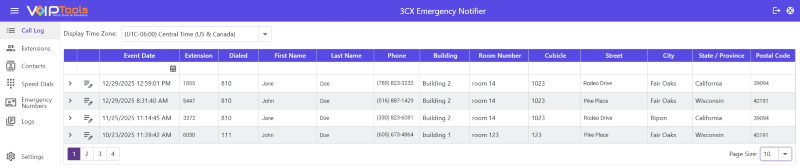
    The Call Log menu presents a comprehensive inventory of all event logs recorded from the moment you installed the 3CX Emergency Notifier. This valuable information encompasses the precise date and time of each event, along with essential details such as the event date, extension, dialed number, first name, last name, phone number, building, room number, cubicle, street, city, state/province, and postal code.

    #

    Figure 74: Call Log Screen

    You can also click the Expand Expand Icon button to view the persons contacted by the extension.

    Figure 75: Call Log – Expand

    #

      #

    Extensions Screen #

    #

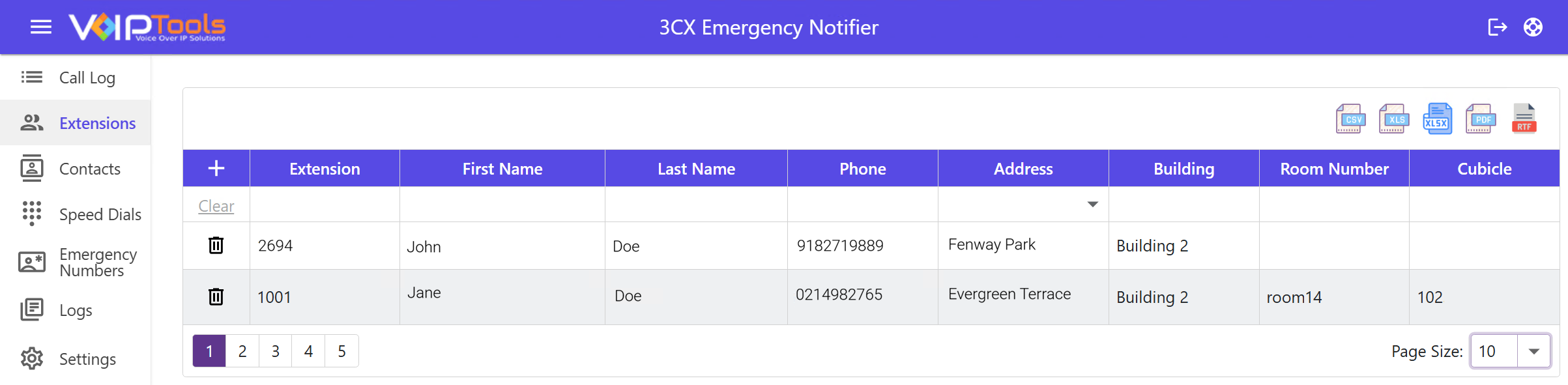
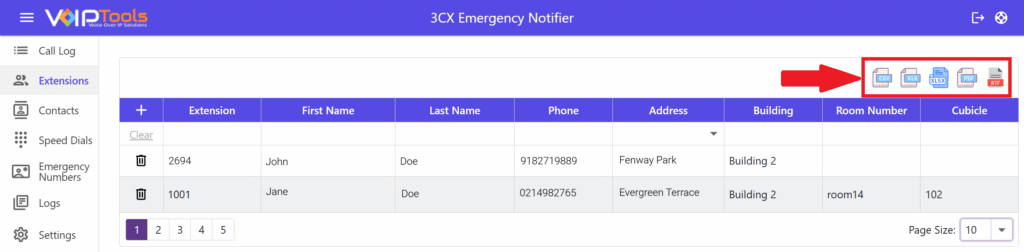
    In the Extensions section displays a list of all user extensions configured in 3CX Emergency Notifier. From this page, you can view and manage extension details such as extension, first name, last name, phone, address, building, room number, and cubicle. Keeping this information accurate ensures emergency alerts include precise user and location details for faster and more effective response.

    #

    In the Extension screen, you can do the following tasks:

    • Add a new extension.
    • Delete an existing extension.
    • Export extensions to your local device.

      #

      Figure 76: Extensions Menu

    #

    Add New Extension #

    #

    Follow the procedure to add a new extension,

    #

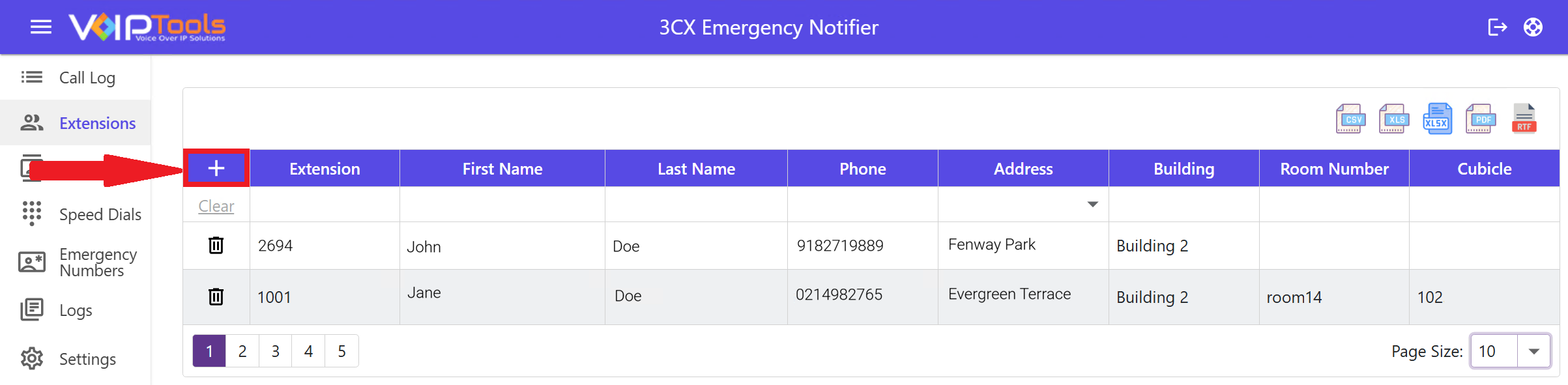
    1. In the Extensions screen, click the Add   button to add a new extension.

    #

    Figure 77: Extensions – Add Button

    #

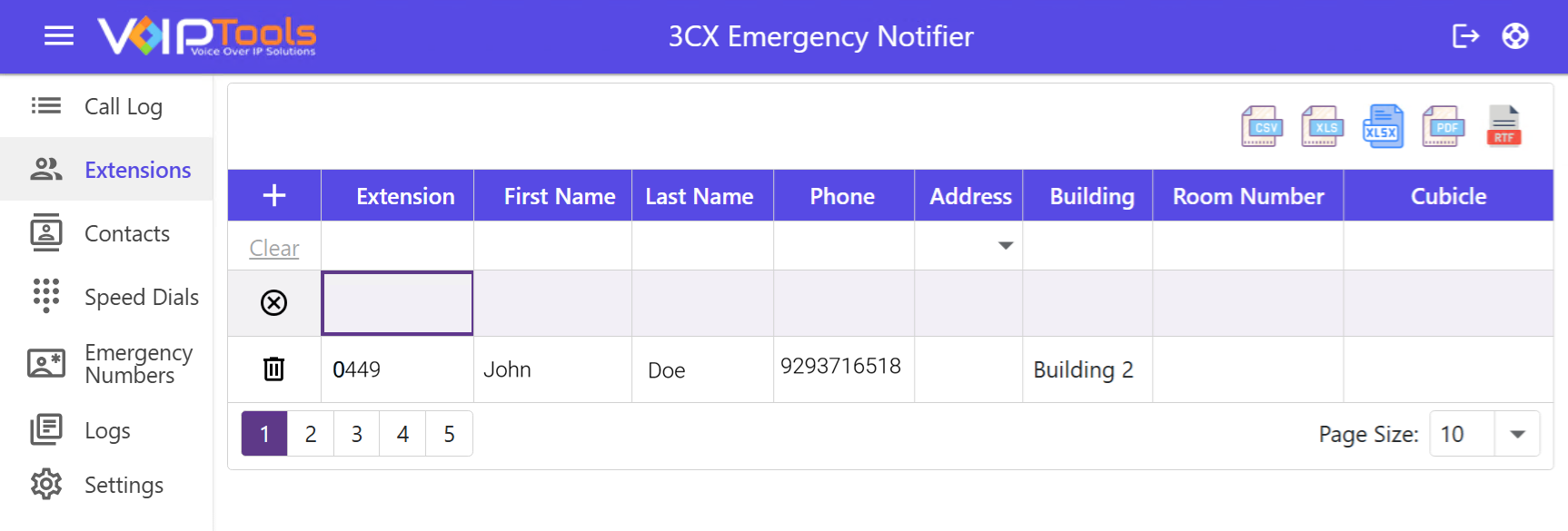
    1. In the Extension field, enter a valid extension number.
    2. In the First and Last fields, enter the first and last name of the contact respectively.
    3. Enter valid Mobile, Floor, Pillar, Cubicle, Address, City, State/ Province and Zip Code details for the new extension.
    4. Click Add Icon Save to save the extension.

    #

    Figure 78: Extensions – Adding Extension

    #

    NOTE:

    You can create multiple extensions (batch edits) before you save the data.

    #

    Delete an existing extension #

    #

    Follow the procedure to delete an extension,

    #

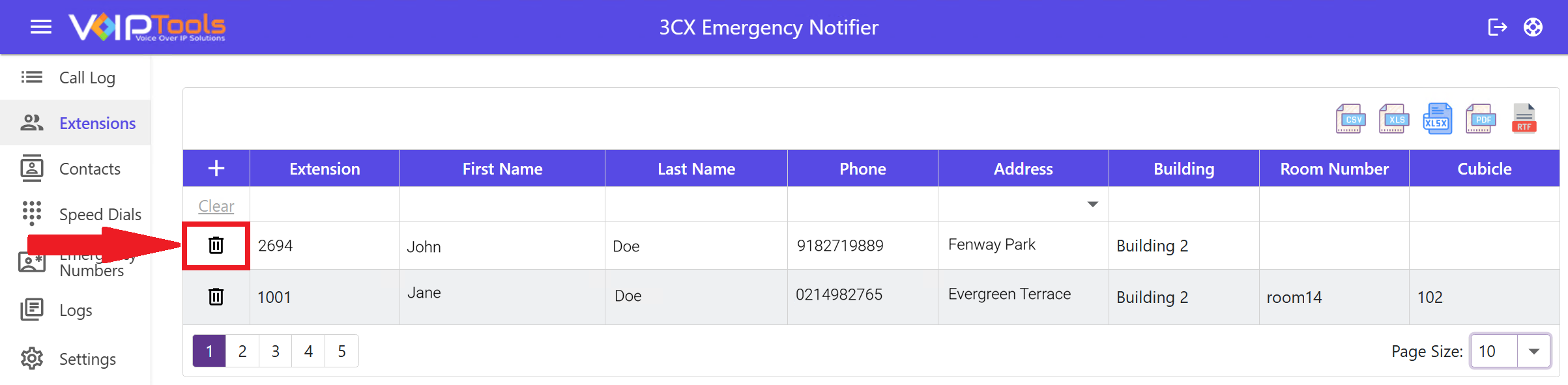
    1. Click the Delete button beside the extension you want to delete.

    #

    Figure 79: Extensions – Delete Extension

    #

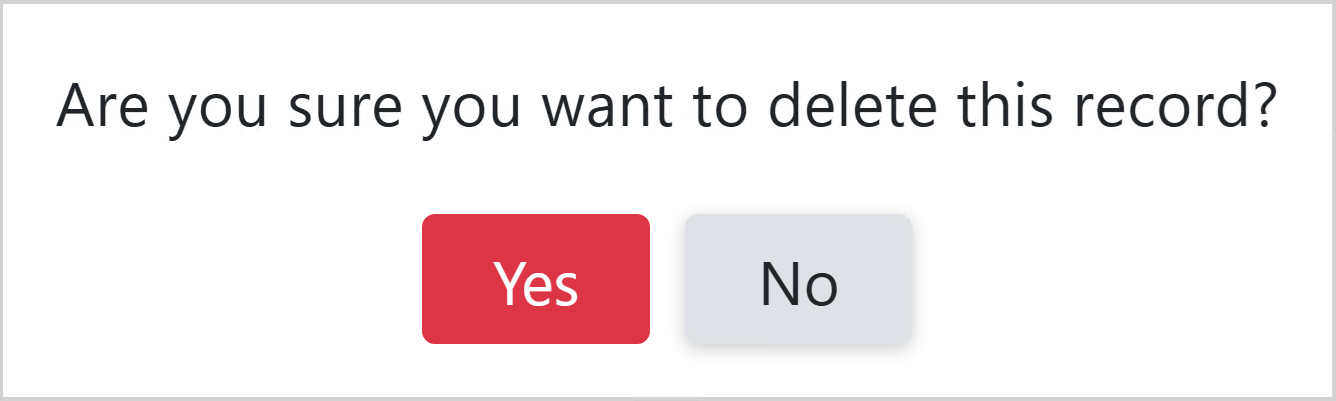
    1. In the Confirmation popup, click OK to confirm your deletion and the Save button to save your changes.

    #

    Figure 80: Extensions – Delete Confirmation

    #

    Export contacts #

    #

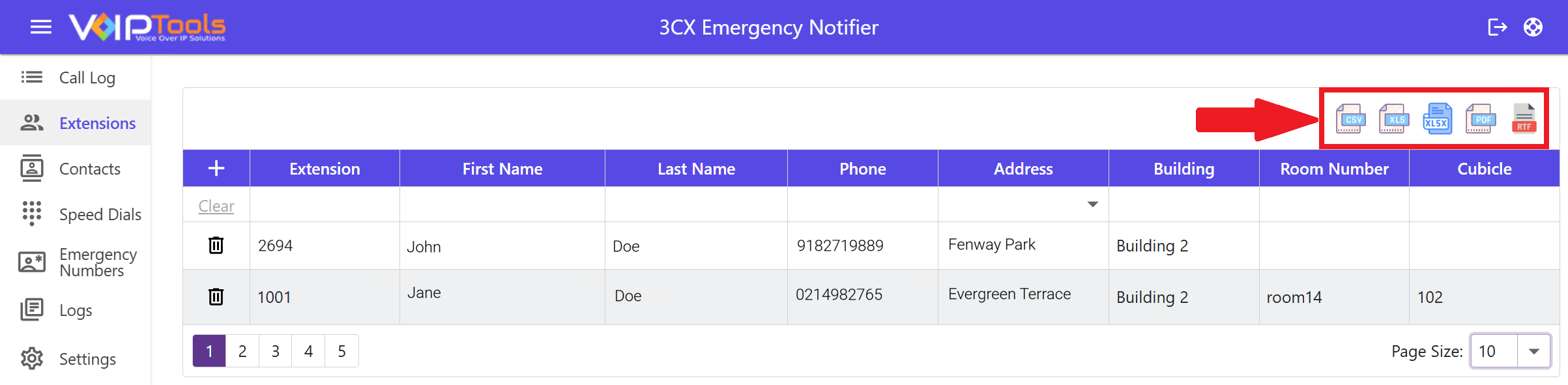
    You can export the contacts to your local device in the following formats

    #

    • PDF format
    • XLS/XLSX format
    • RTF format
    • CSV format

    #

    Figure 81: Export Options

    #

    Sample PDF format #

    #

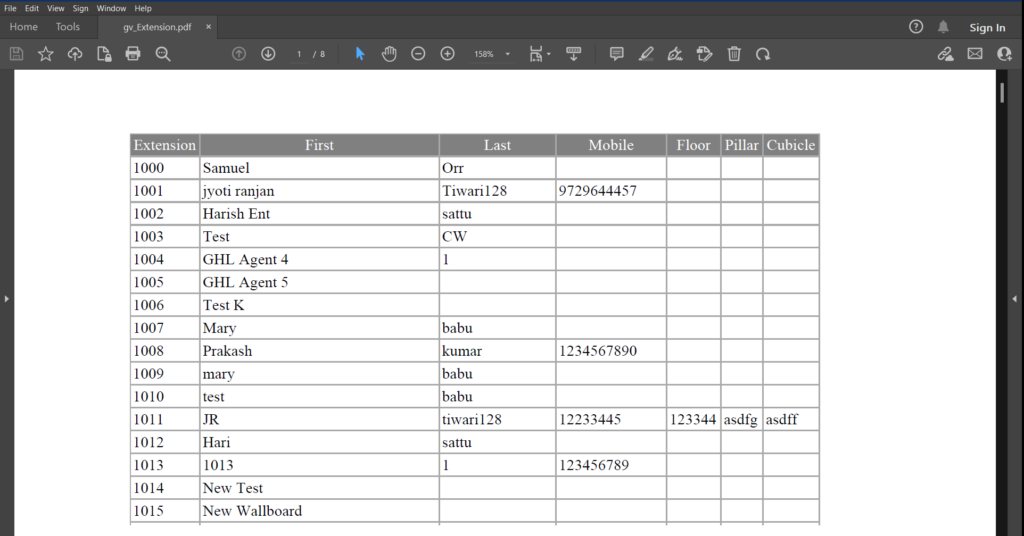
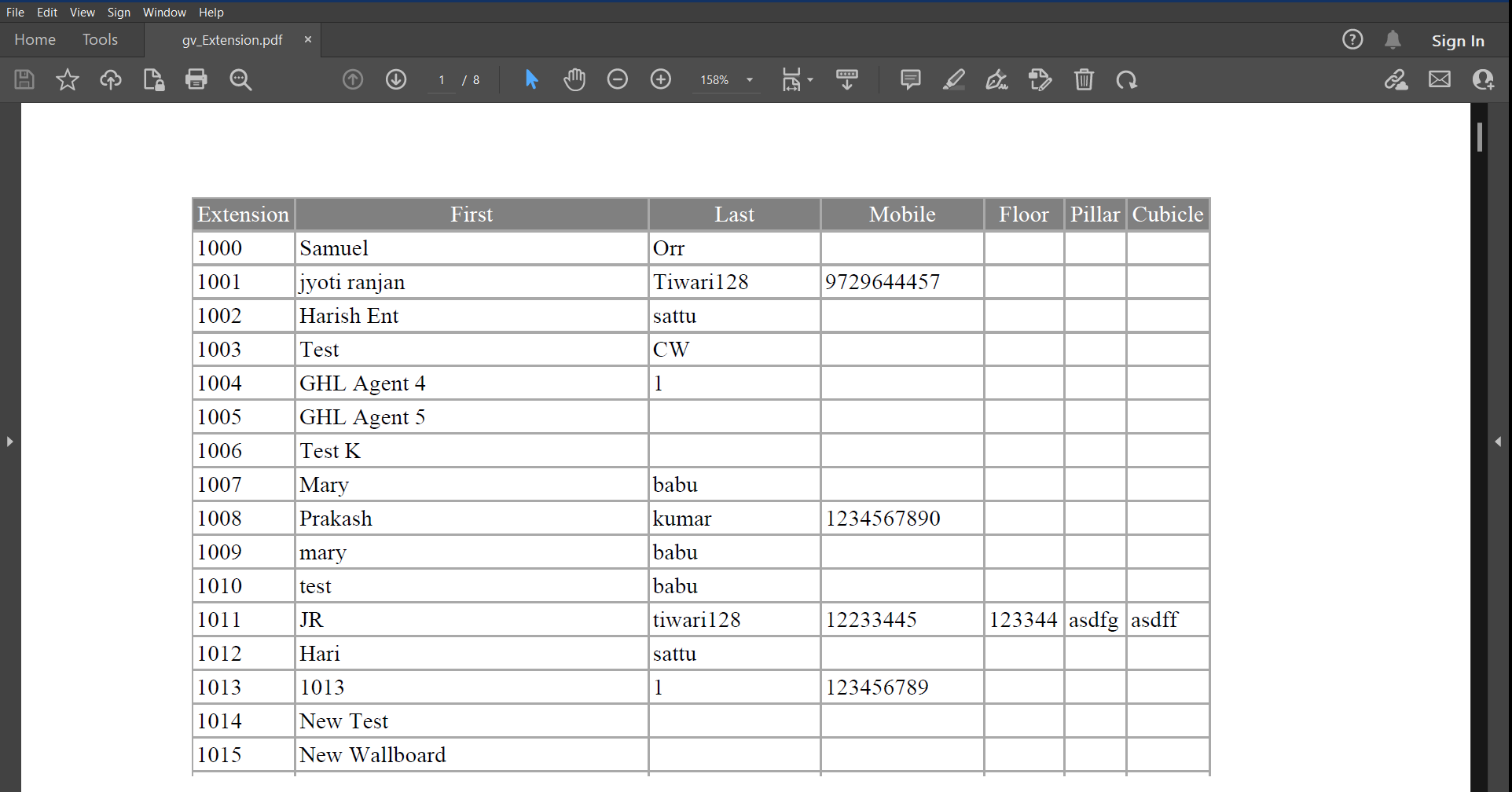
    The following image represents a sample PDF exported from 3CX Emergency Notifier,

    #

    Figure 82: Sample PDF Export

    #

    Sample XLS/XLSX format: #

    #

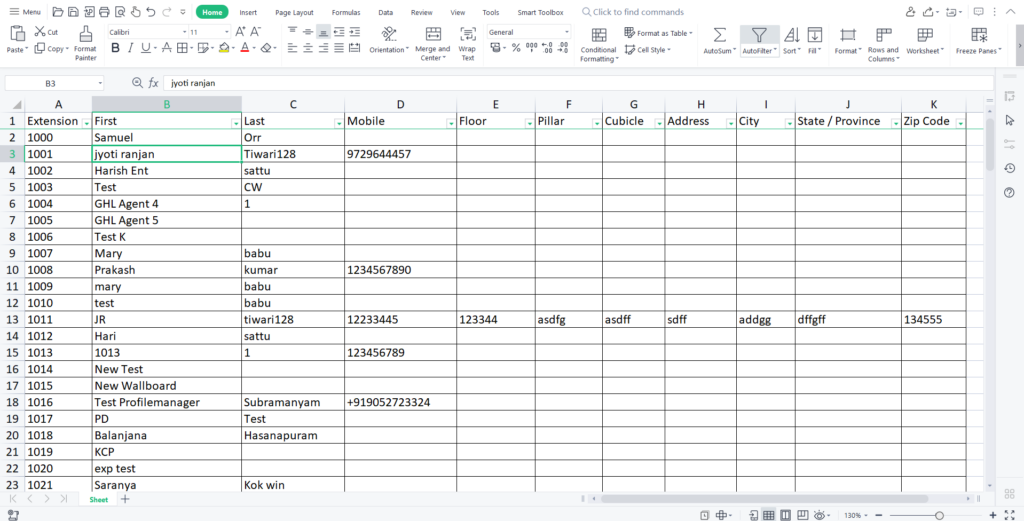
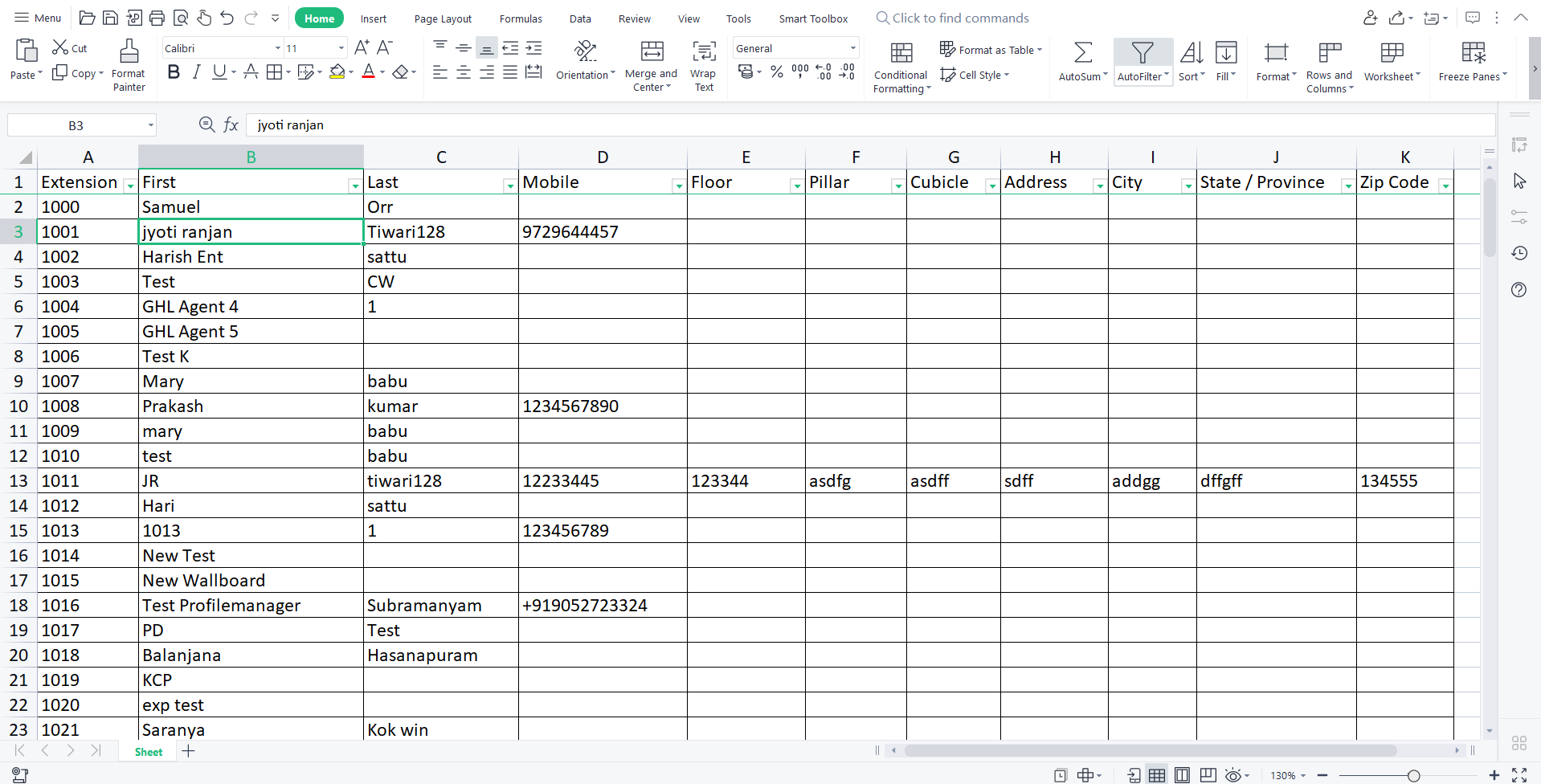
    The following image represents a sample XLS/XLSX exported from 3CX Emergency Notifier,

    #

    Figure 83: Sample XLS/XLSX Format

    #

    Sample RTF format #

    #

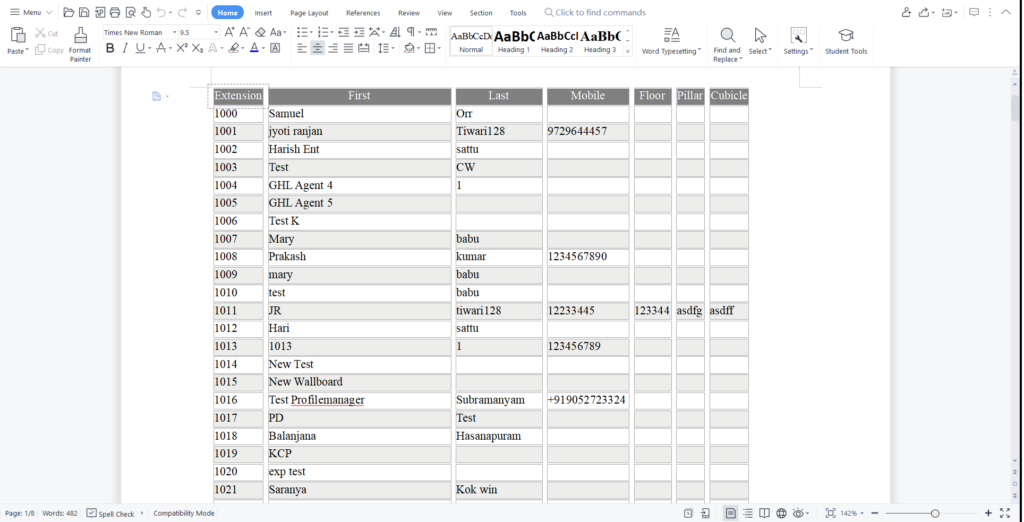
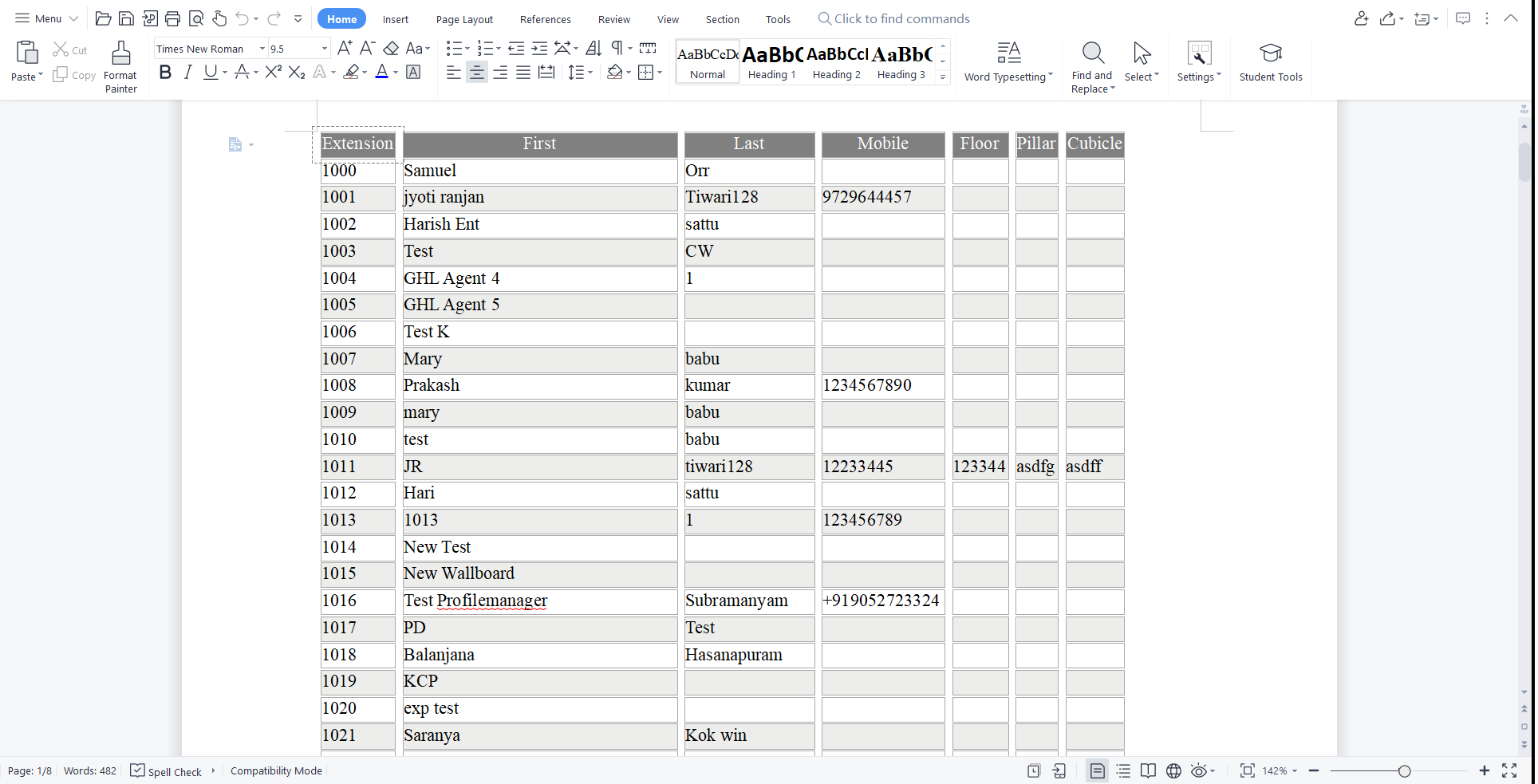
    The following image represents a sample RTF exported from 3CX ‘Emergency Notifier

    #

    Figure 84: Sample RTF Format

    #

    Contacts Screen #

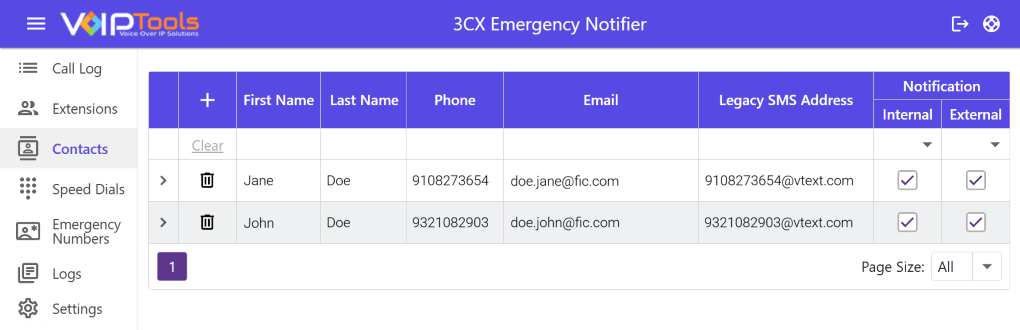
    #

    The purpose of this feature is to enable you, as the user, to add and save new contacts or delete existing contacts. This feature empowers you to enter multiple contact details, including First Name, Last Name, Phone Number, Email Address, and SMS Address. Furthermore, you have the option to include extension groups for each contact.

    #

    Figure 85: Contacts Menu

    #

      #

    #

    Contacts Screen – Column Definition #

    #

    Column Title Purpose of the Column
    First Name The first name of the contact person.
    Last Name The last name or surname of the contact person.
    Phone The phone number of the contact person.
    Email The email address of the contact person.
    Legacy SMS Address The address or phone number used for sending SMS (text message) notifications to the contact
    Notifications – Internal A checkbox indicating whether the contact should receive internal notifications.
    Notifications – External A checkbox indicating whether the contact should receive external notifications.

    #

    Add New Contact #

    #

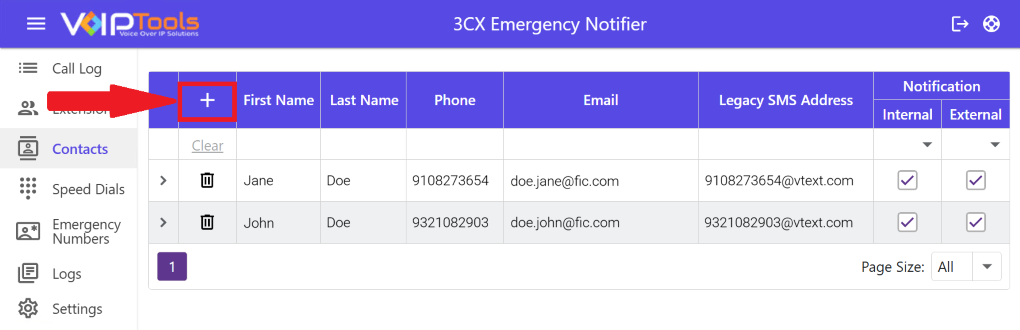
    1. In the Contacts screen, click Add Add Icon to add a new contact.

    #

    Figure 86: Contacts Screen – Add Button

    #

    1. In the First Name field, enter the First Name of the contact.
    2. In the Last Name field, enter the Last Name of the contact.
    3. In the Phone field, enter the Phone Number of the contact.
    4. In the Email field, enter the valid Email Address of the contact.
    5. In the Legacy SMS Address field, enter the valid SMS Address of the contact.
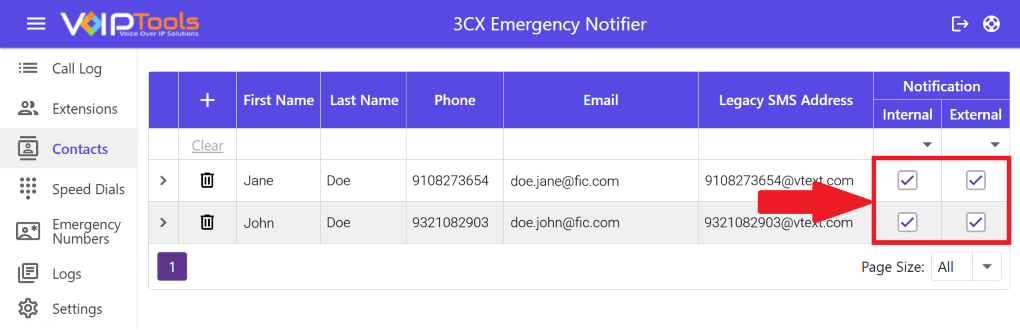
    6. In the Notifications column,
      • Select the Internal checkbox to receive internal notifications.
      • Select the External checkbox to receive external notifications.

    #

    #

    Figure 87: Notifications Box

    #

    #

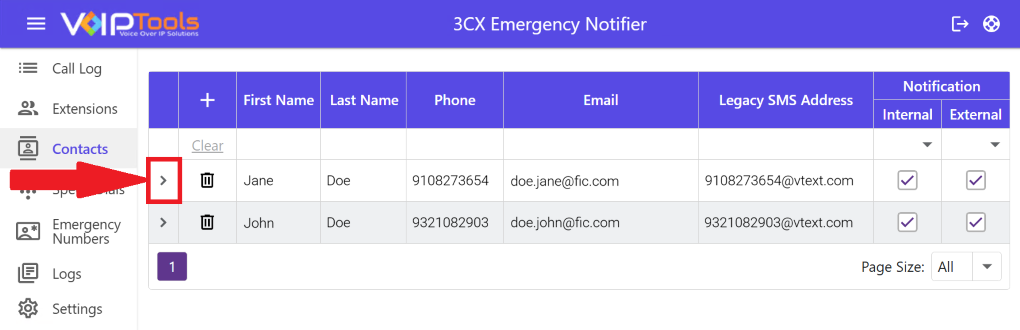
    1. Click the Expand button to add extension groups.

    #

    Figure 88: Expand Button

    #

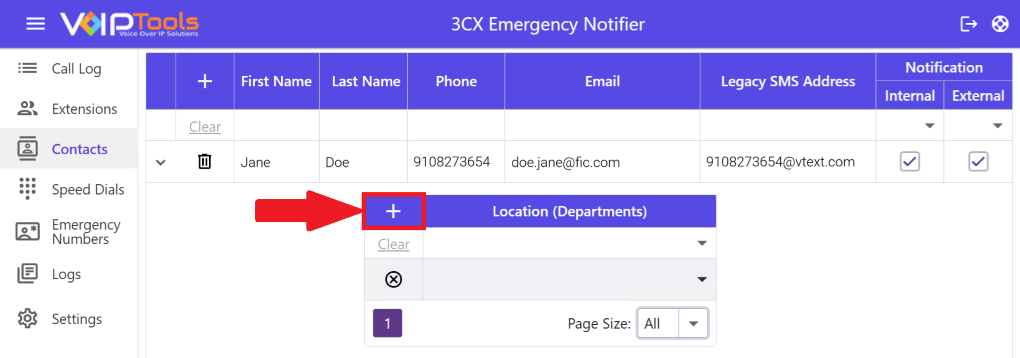
    1. In the Location (Departments) box, click Add Add Icon to add a new location or department.

    #

    Figure 89: Location (Departments) 

    #

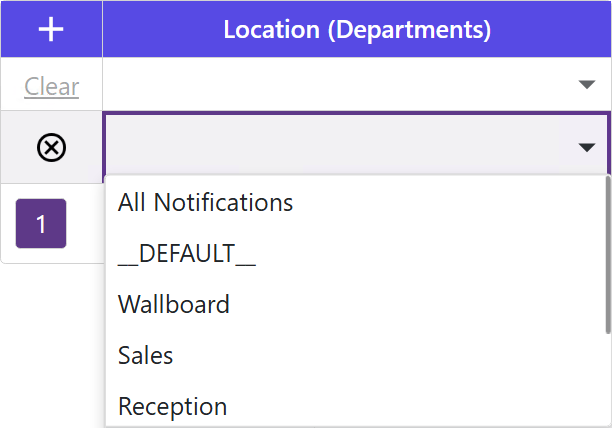
    1. Select the desired group from the dropdown.

    #

    Figure 90: Location (Departments) Dropdown

    #

    NOTE:

    Group managers receive notifications for speed dial and emergency number calls made by their group members, but not for calls made by members of other groups. This system ensures confidentiality and efficient notifications.

    #

    NOTE:

    You can create multiple contacts (batch edits) before you save the data.

    #

    Delete an existing contact #

    #

    Follow the procedure to delete an existing contact,

    #

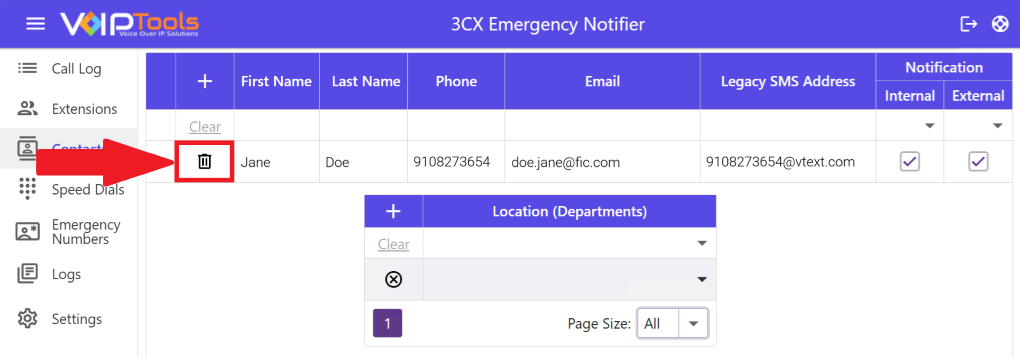
    1. Click the Delete button beside the contact you want to delete.

    #

    Figure 91: Contacts Screen – Delete Button

    #

    1. In the Delete Confirmation popup, click Yes to confirm your deletion.

    #

    Figure 92: Contacts Screen – Delete Confirmation Box

    #

    Speed Dials Screen #

    #

    When you receive a call within a ‘Speed Dial’ group, you will immediately be notified via both email and SMS, allowing for flexible communication options. To specify your preferred notification type for the speed dial group, simply indicate your choice by selecting the corresponding check boxes for email and/or SMS.

    #

    You have access to two manually created CFD extensions, each with its unique identification number: the ‘Voice App Extension’ and the ‘Alarm Extension.’ The ‘Voice App Extension’ has been seamlessly integrated into the phone system to ensure a smooth connection between incoming calls and their respective contacts. Once a contact answers the call, the ‘Voice App Extension’ internally activates the corresponding ‘Alarm Extension,’ which in turn triggers the playback of a customized audio file specifically tailored to the contacted individual.

    #

    NOTE:

    Only the ‘Voice App Extension’ is accessible to you as a customer, while the ‘Alarm Extension’ remains strictly confidential.

    #

    This screen lets you do the following tasks,

    #

    • Create a speed dial
    • Add contacts to the speed dial
    • Delete the existing speed dials
    • Remove existing contacts in the speed dial.

    #

    NOTE:

    The speed dial only functions when you select an audio file for sending SMS.

    #

    Create Speed Dial #

    #

    Follow the procedure to create a new speed dial,

    #

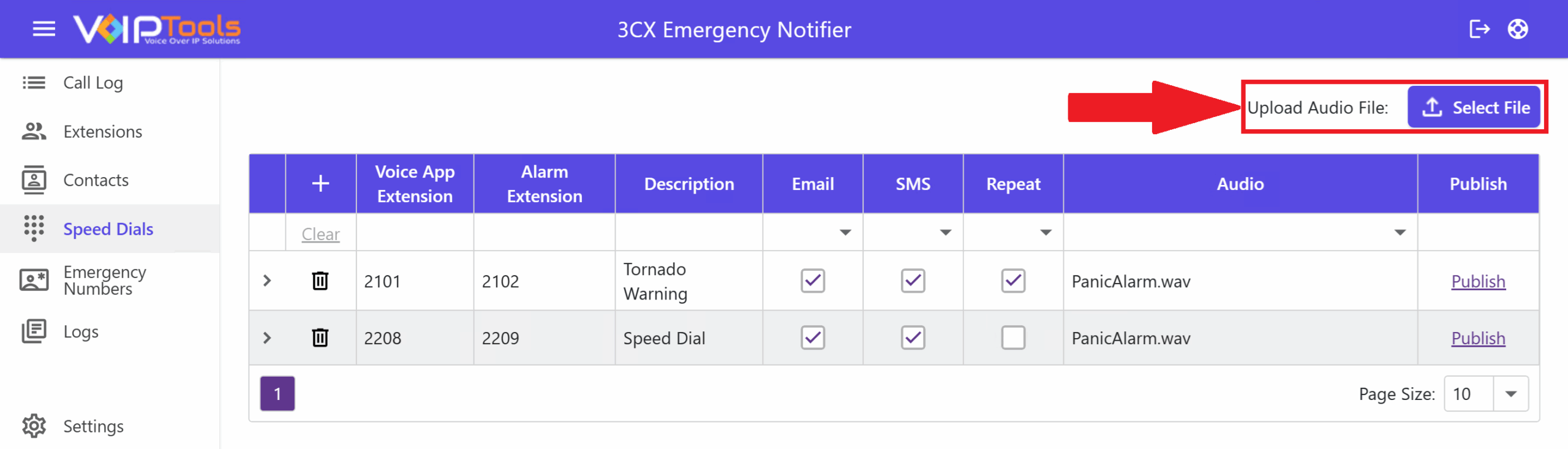
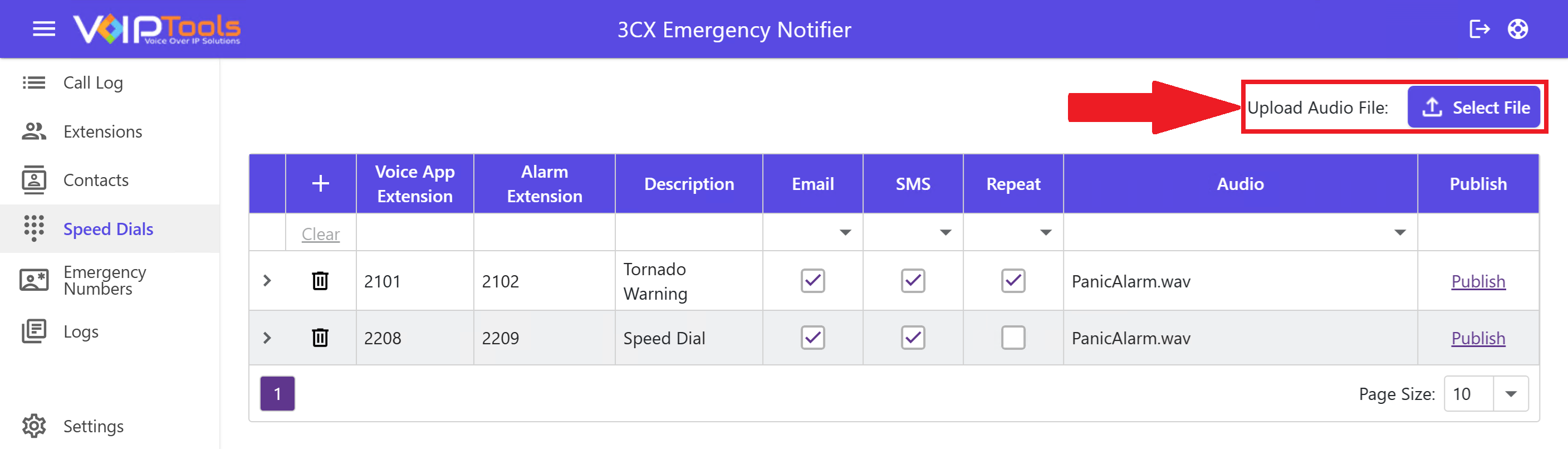
    1. Click the Select File to upload a new audio file.

    #

    NOTE:

    You can upload only .WAV audio file type. Click the link to access 3CX’s audio file conversion feature to convert your audio files into .WAV format.

    #

    Figure 93: Upload Audio File: Select File

    #

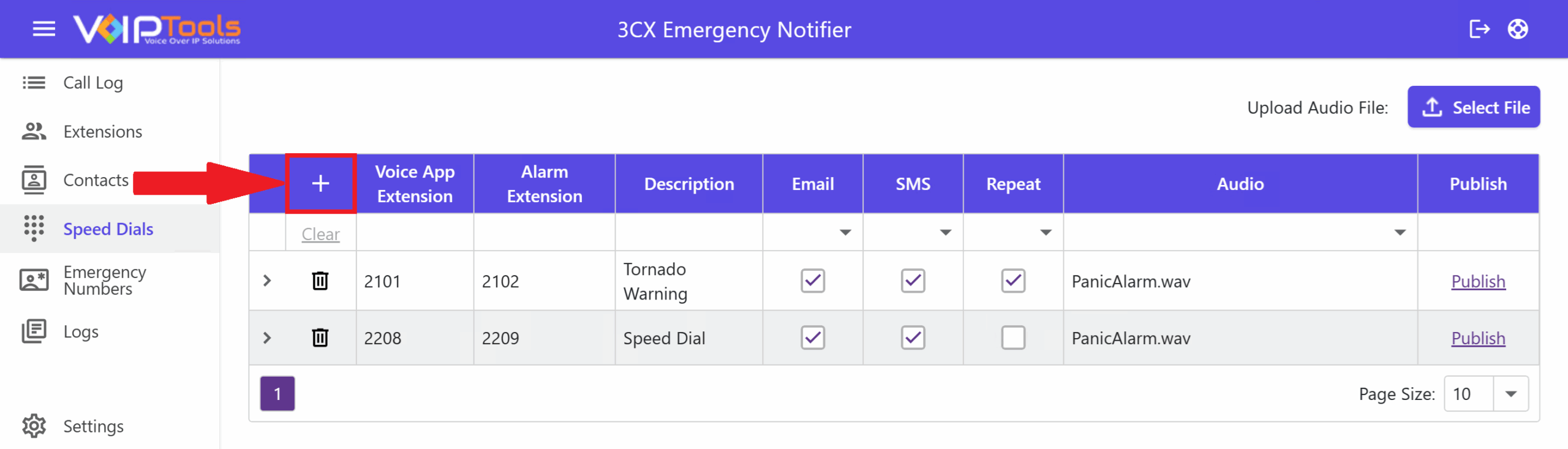
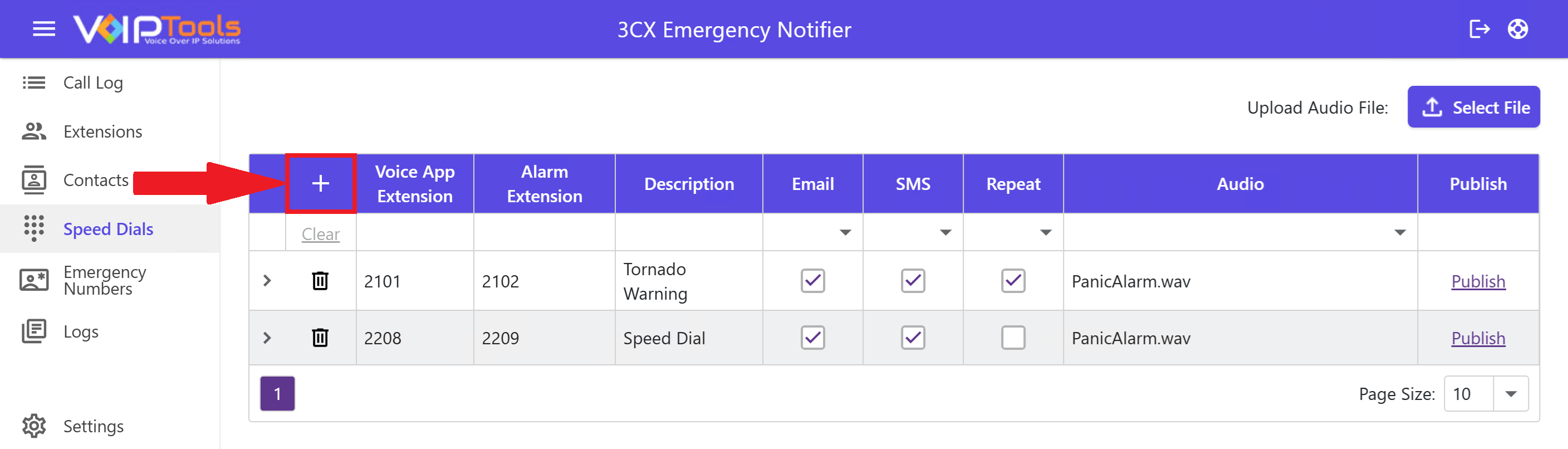
    1. To add a new speed dial, click the Add Add Icon.

    #

    Figure 94: Create Speed Dial – Add Button

    #

    1. Enter a valid voice app extension and an alarm extension in the Voice App Extension field and Alarm Extension fields respectively
    2. In the Description field, enter the description for the speed dial call.
    3. Check the Email and SMS checkboxes to apply the notification type for the speed dial call

    #

    NOTE:

    You must ensure that there is not restrictions on outbound rules on groups and extensions to make external calls.

    #

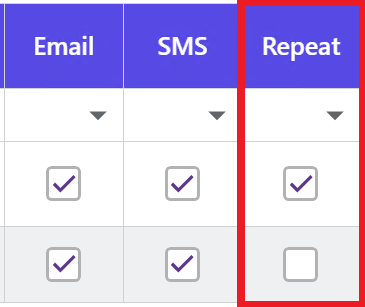
    1. Check the Repeat check box if you want to repeatedly play the ‘Audio’ file for the speed dial call

    #

    Figure 95: Create speed dial – Speed Dial Details Added

    #

    1. From the Audio drop-down, select the uploaded audio file. This file will play as the alarm for the speed dial call.
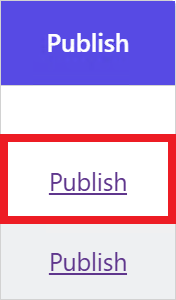
    2. Click the Publish link to create ‘Voice App Extension’ and ‘Alarm Extension’ in the PBX system

    #

    Figure 96: Publish Audio File

    #

    NOTE:

    Once you publish the speed dial, ‘Voice App Extension’ and ‘Alarm Extension’ will be created in the PBX system with the name same as that of ‘Description’ you mentioned for the speed dial, extended by the terms ‘Notification’ and ‘Alarm’ for ‘Voice App Extension’ and ‘Alarm Extension’ respectively.

    #

    Add New Contact to Speed Dial #

    #

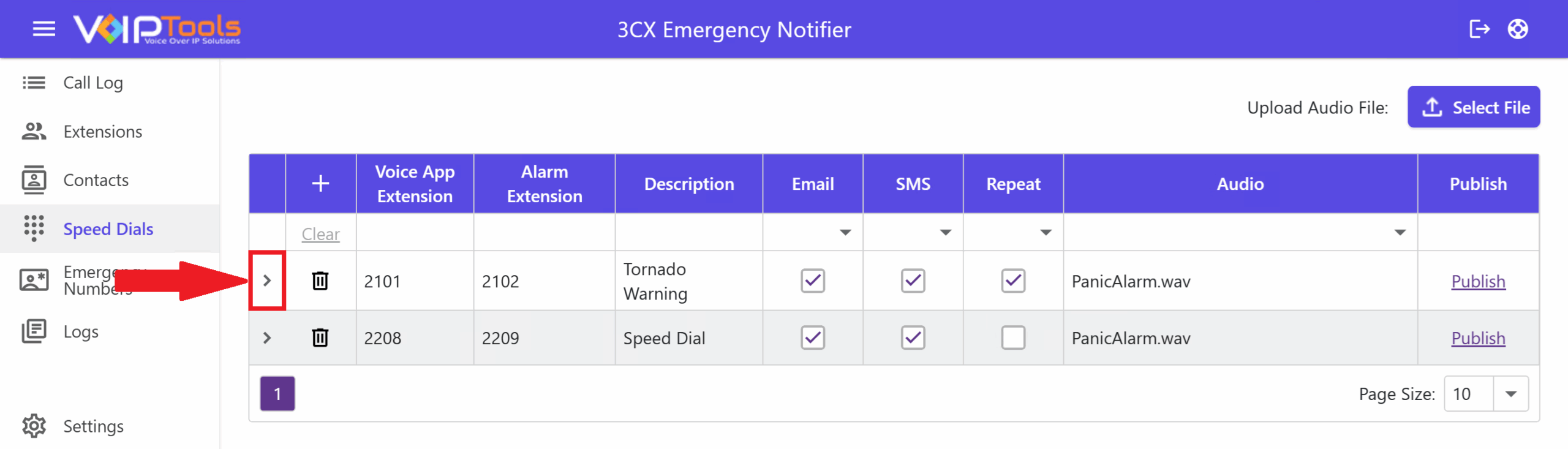
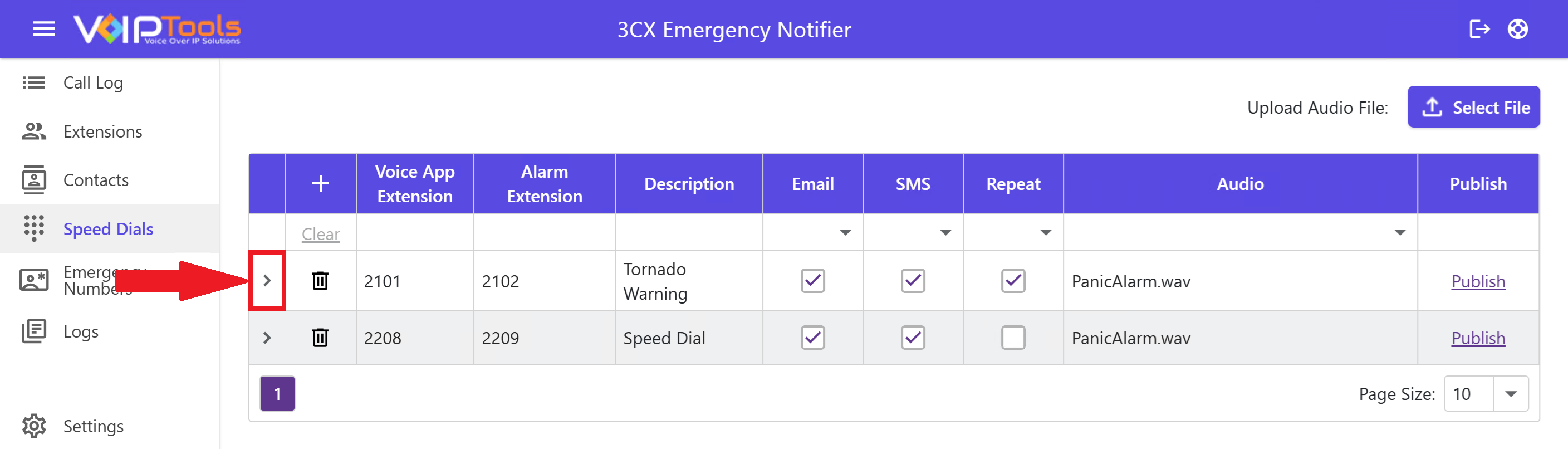
    1. On the Speed Dials screen, click the Expand button beside any notification that you want to add a contact.

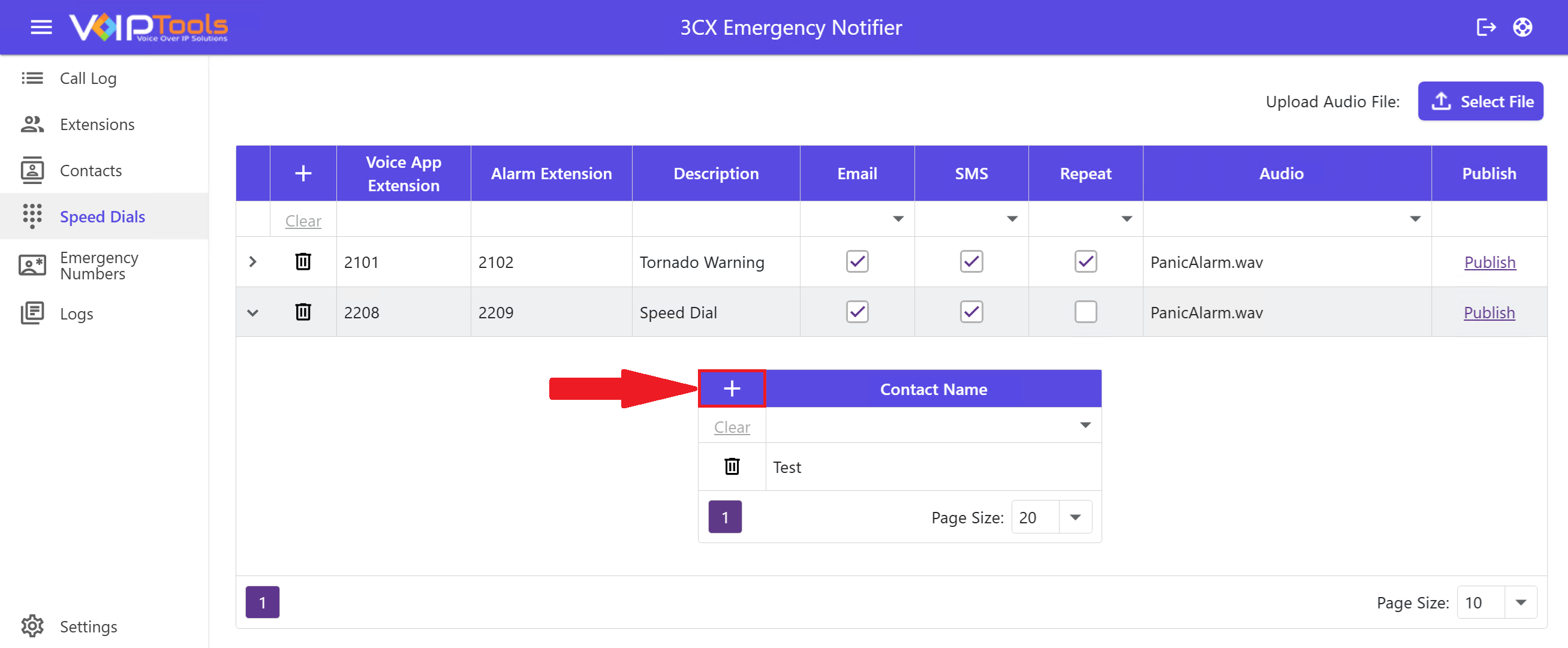
    #

    Figure 97: Speed Dials – Add Contact to Speed Dial – Expand Button

    #

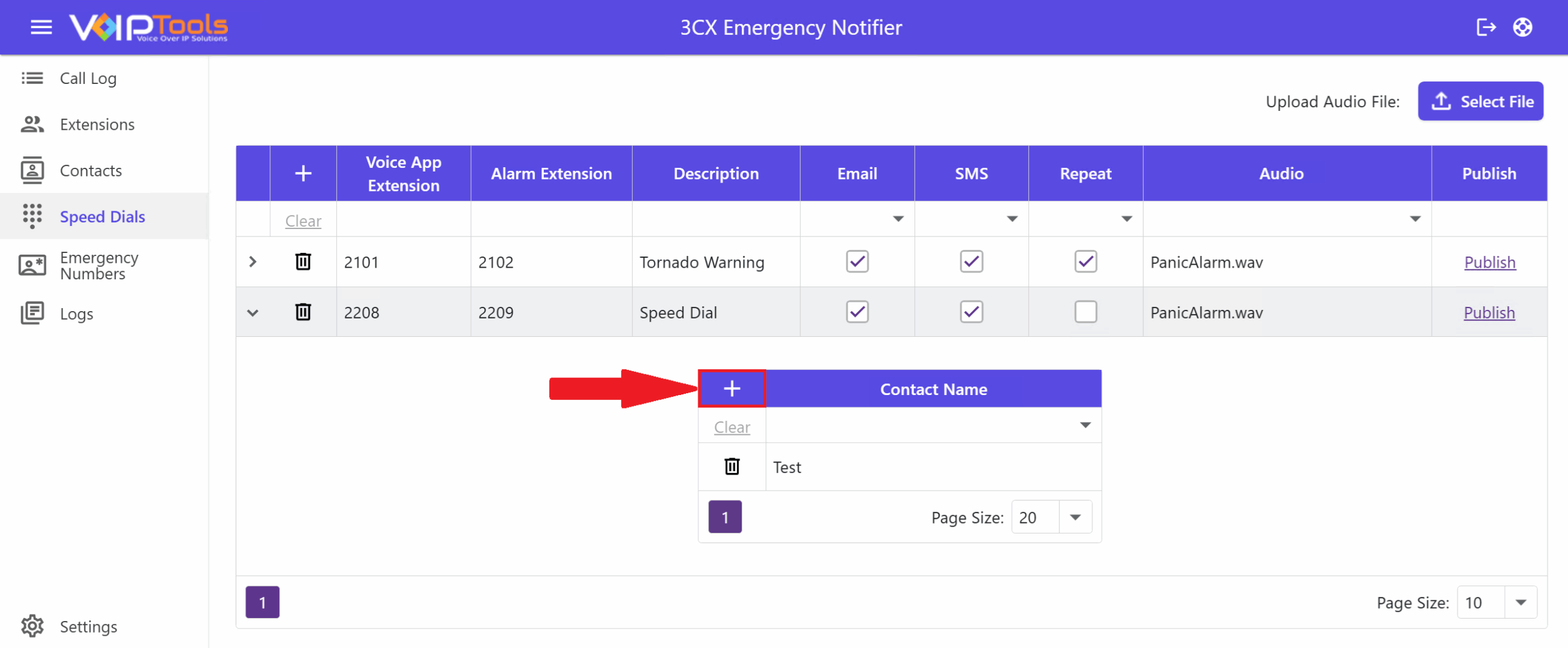
    1. Select the Add Contacts Add Icon icon.

    #

    Figure 98: Speed Dials – Add Contact to Speed Dial – Add contact Button

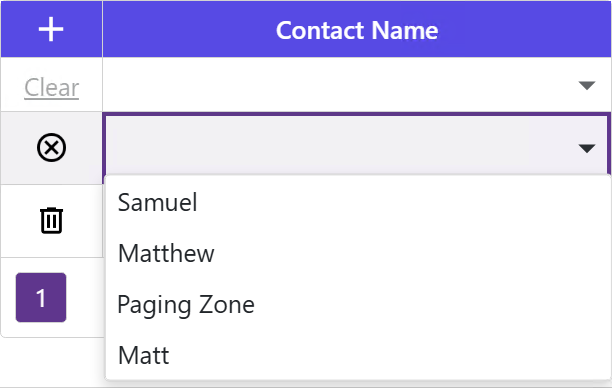
    #

    1. In the Contact Name list, select the desired contact.

    #

    Figure 99: Speed Dials – Add Contact to Speed Dial

    #

    NOTE:

    When you publish a Voice Application Extension, certain services undergo a restart process, causing interruptions to ongoing live calls.

    #

    Set SMS Message as Audio #

    #

    If you have not selected any audio file in the Audio field then, the ‘SMS’ notification that you set for the extension in the Messages tab plays as voice file for all the extensions that received the notification. Follow the procedure to set the SMS message as audio for speed dials.

    #

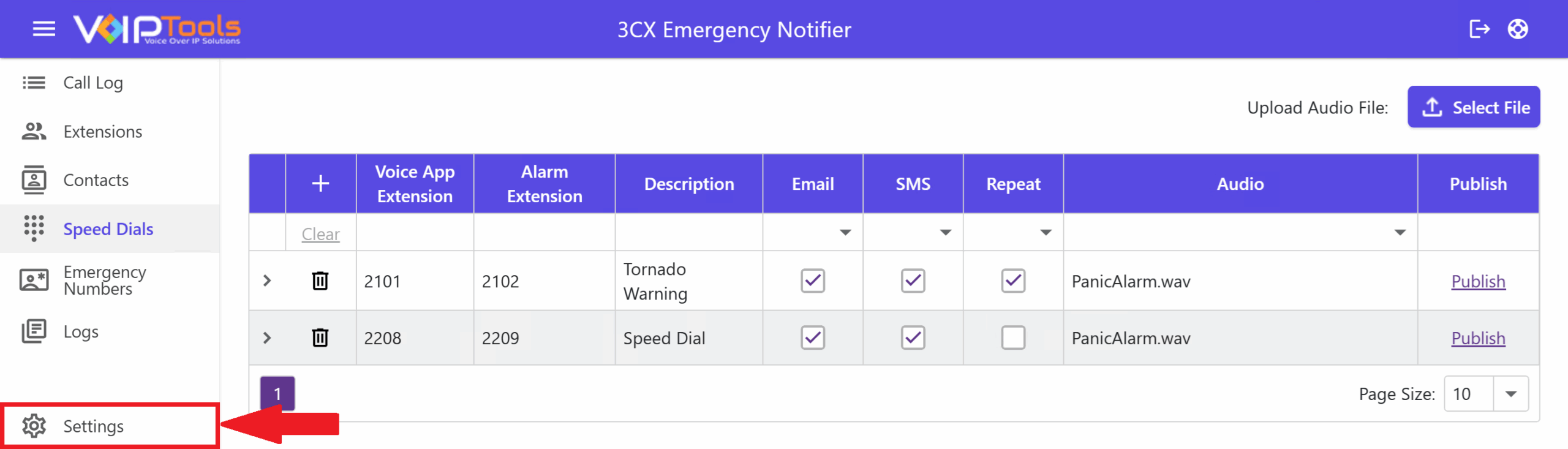
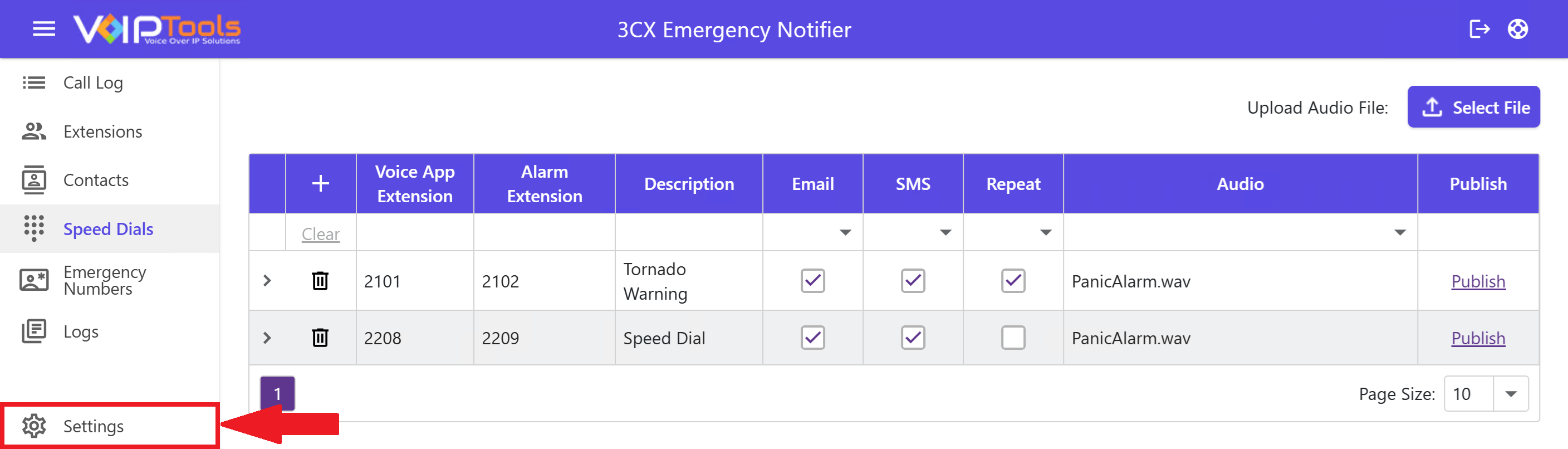
    1. Look at the Left Side Panel of the application. Click Settings at the bottom of the panel. If the Left Side Panel is collapsed, click the  at the top to expand it and view all menu items.

    #

    Figure 100: Speed Dial Menu

    #

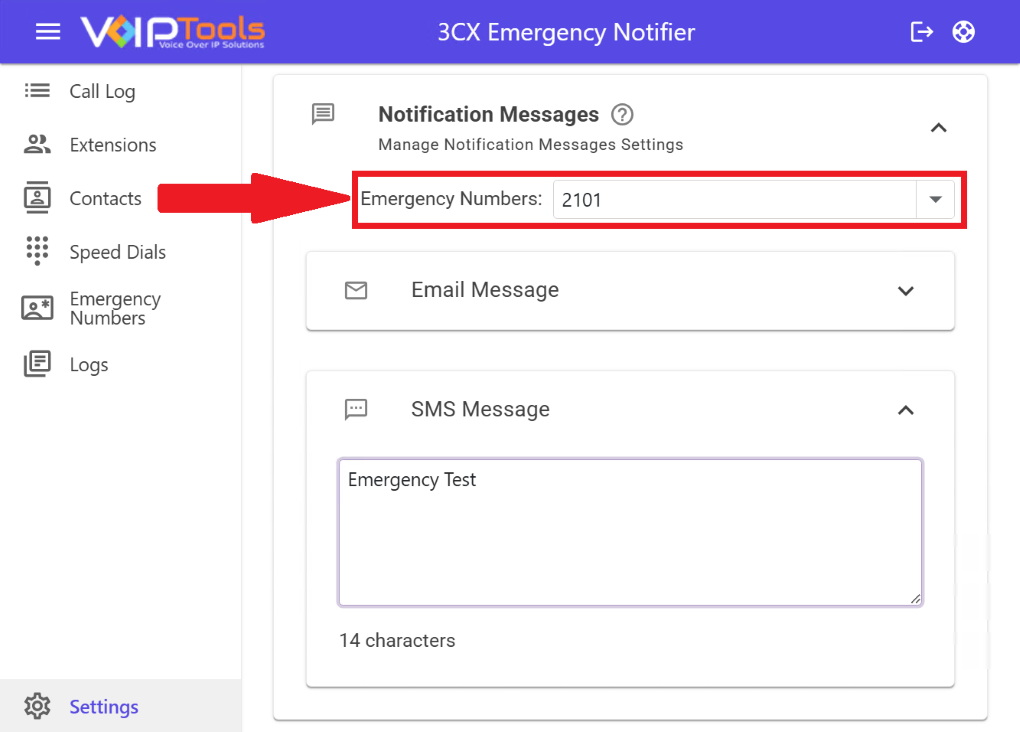
    1. On the Notification Messages tab, beside the Emergency Numbers dropdown, select the applicable speed dial extension.

    #

    Figure 101: Extension Dropdown

    #

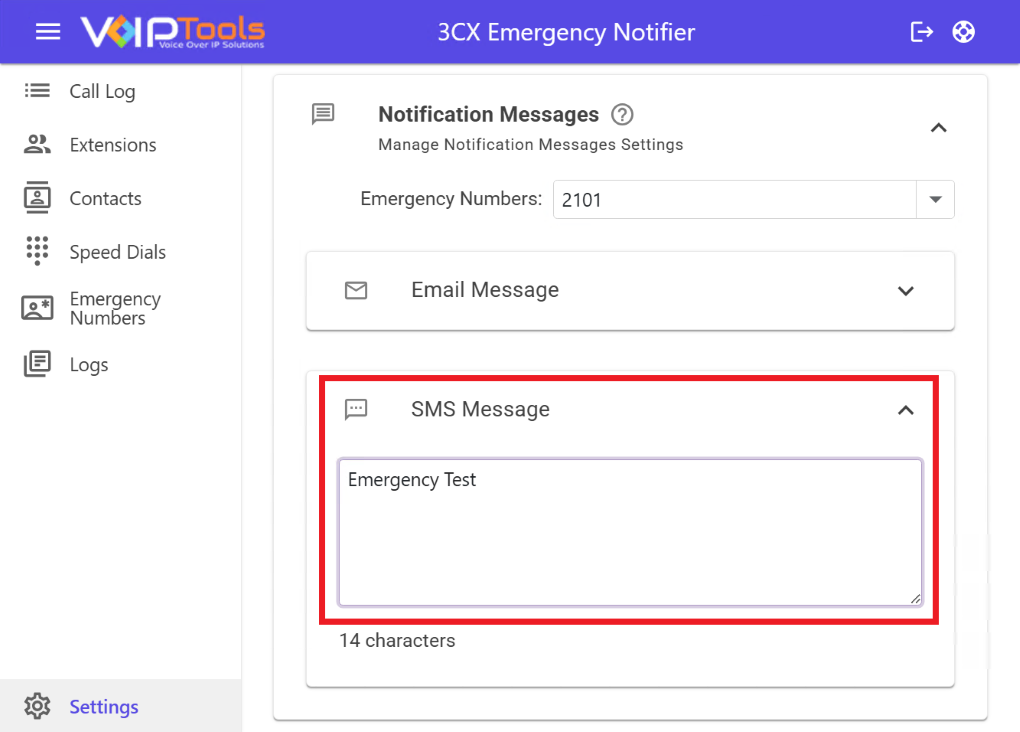
    1. In the SMS section, enter the SMS you want to play as audio.

    #

    Figure 102: SMS Text

    #

    #

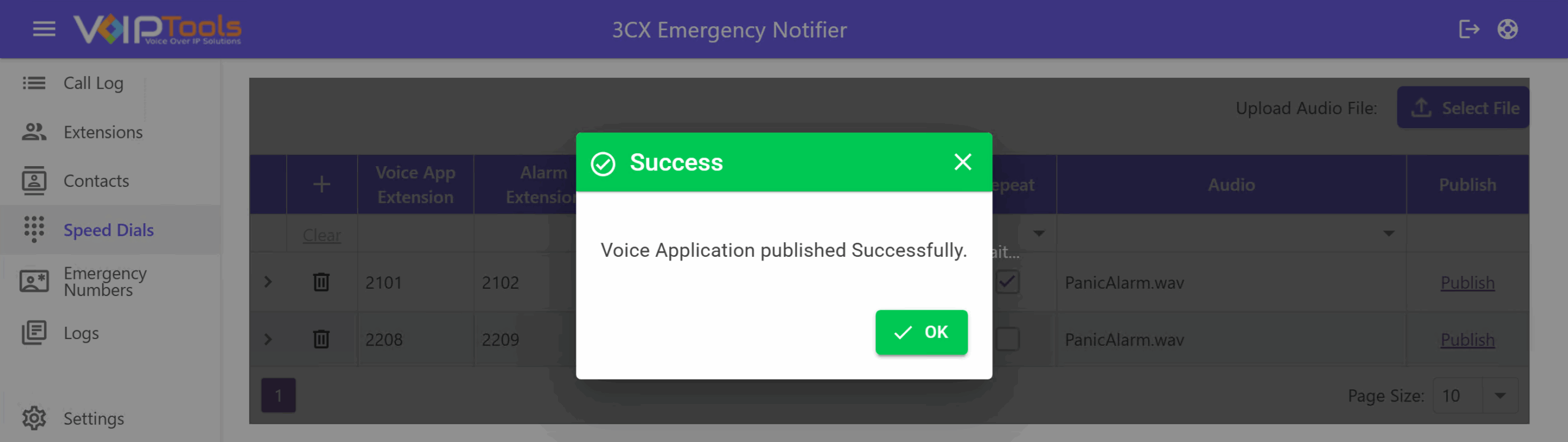
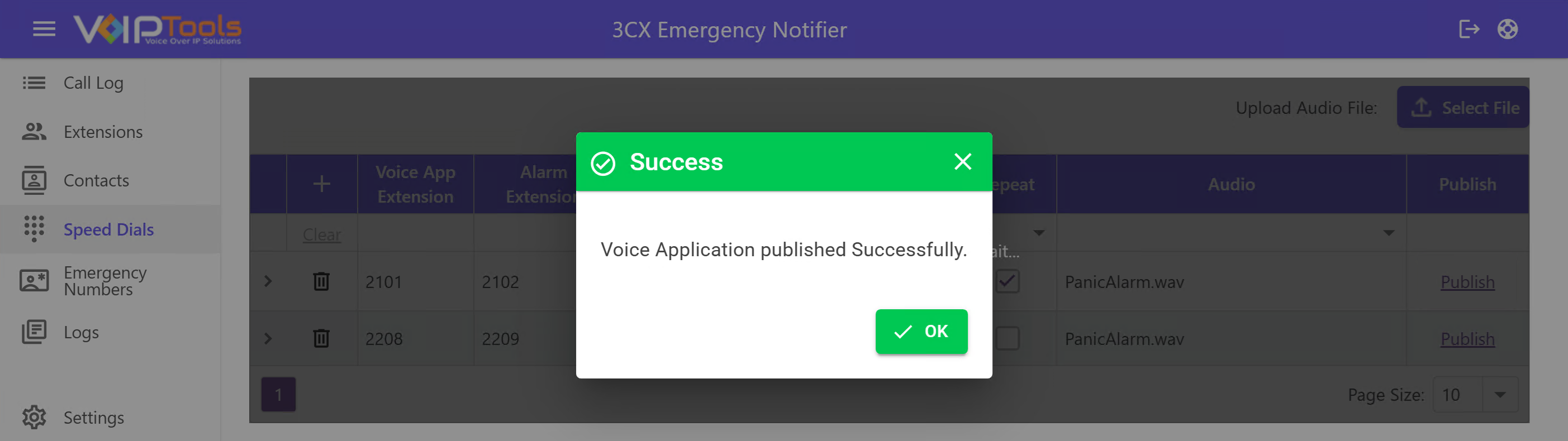
    1. Switch to Speed Dials tab and click the Publish button to publish the speed dial.
    2. Restart the service to save your changes.

    #

    Figure 103: Publish Button

    #

    Delete a Speed Dial #

    #

    Follow the procedure to delete an existing speed dial,

    #

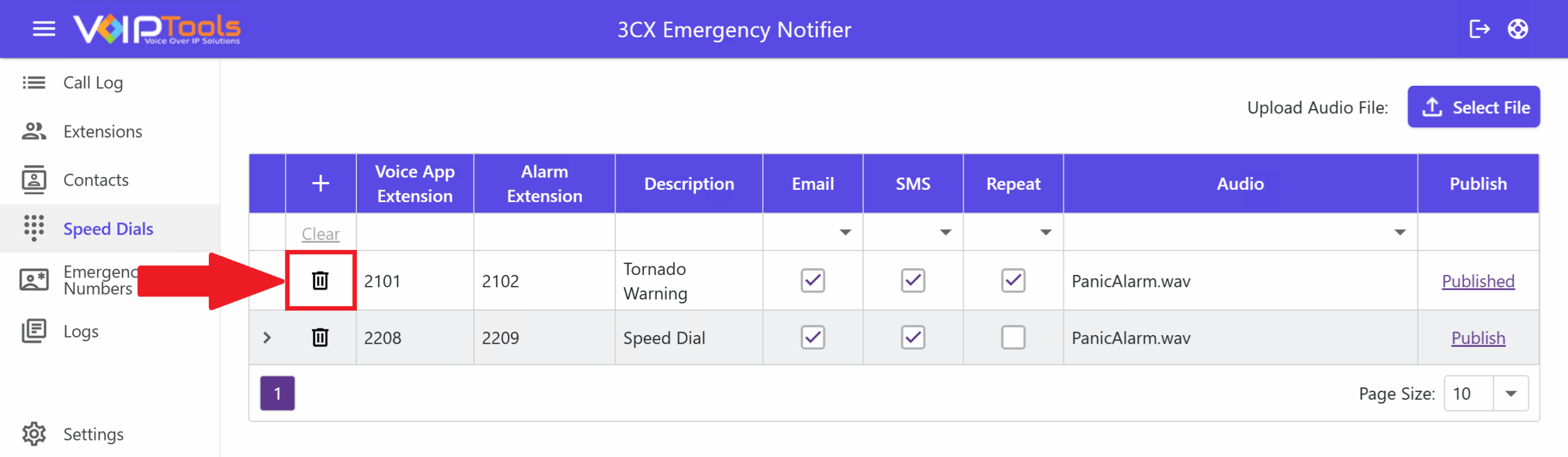
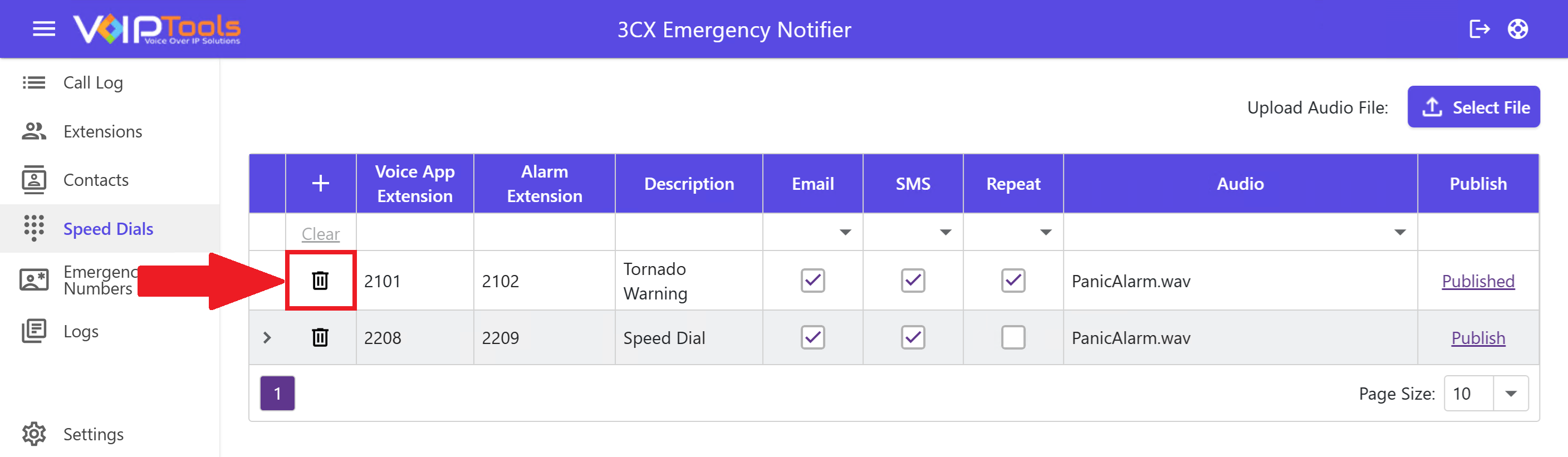
    1. In the Speed Dials screen, click the Delete button to delete an item.

    #

    Figure 104: Delete Speed Dial Button

    #

    1. In the Delete Confirmation popup, click Yes to confirm your deletion. 

    #

    Figure 105: Speed Dial screen – Delete Speed Dial Confirmation Box

    #

    Delete contacts associated with speed dial #

    #

    Follow the procedure to delete existing contacts associated with speed dial,

    #

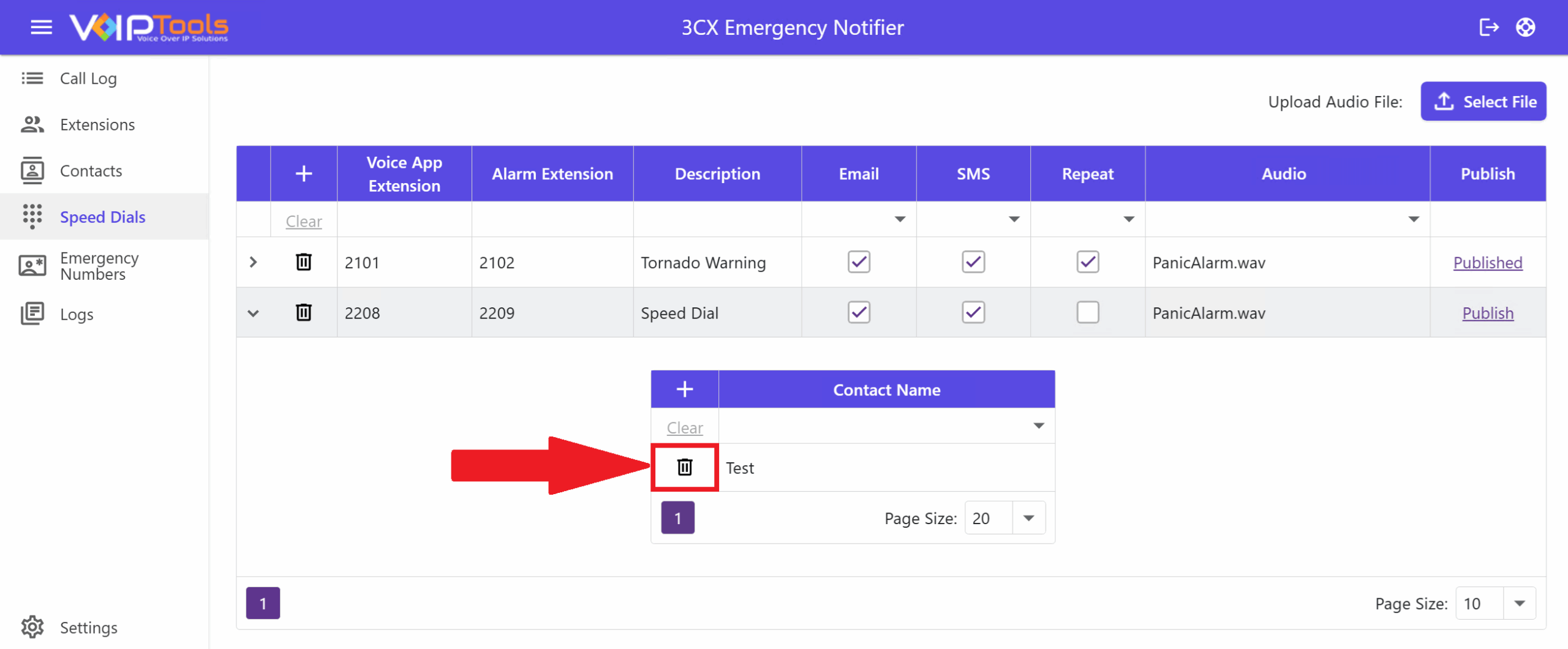
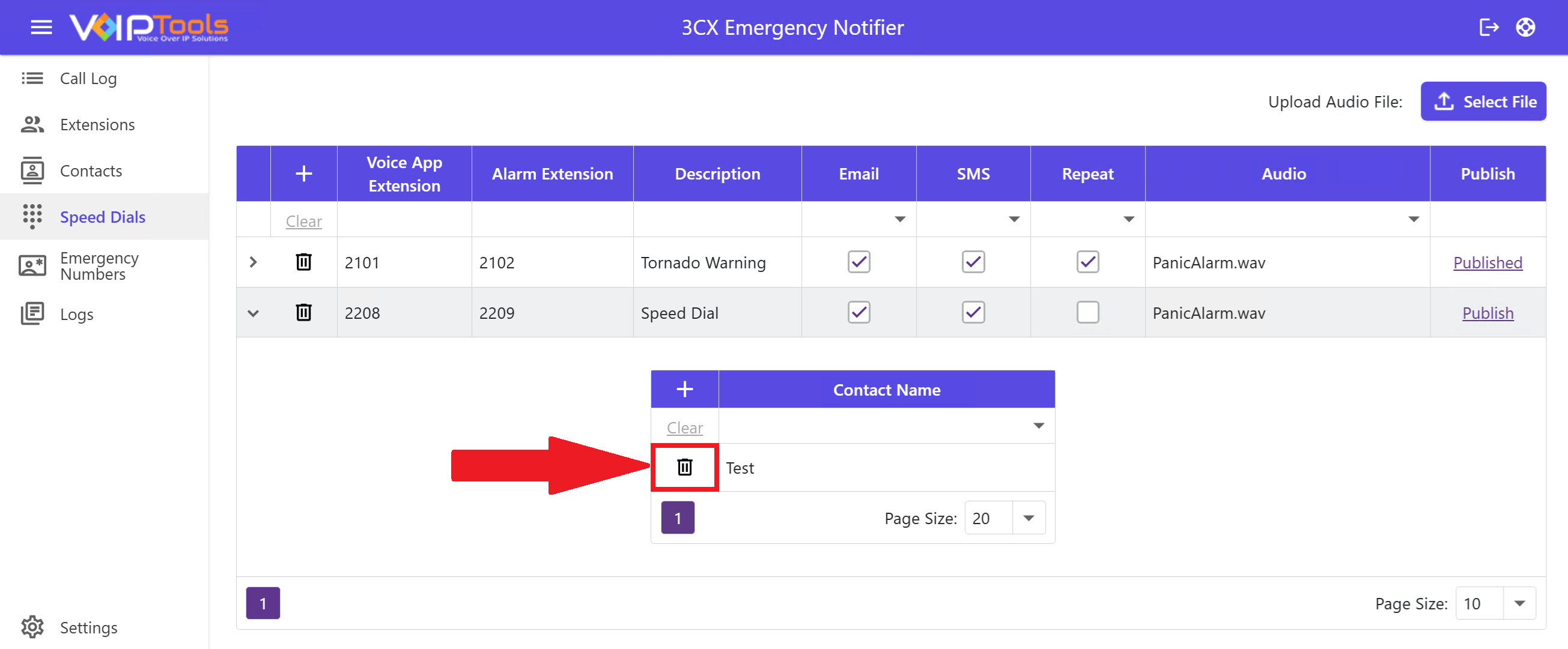
    1. In the Speed Dial screen,  click the Expand button beside the VoIP App Extension column to view the contacts associated with the speed dial.
    2. Click Delete button to delete the contacts and click Yes in the Delete confirmation popup.

    #

    Figure 106: Delete Contacts Associated with the Speed Dials

    #

    Emergency Numbers Screen #

    #

    The Emergency Numbers menu lets you define and manage emergency contact numbers used by the 3CX Emergency Notifier. Here, you can add internal or external emergency numbers, assign clear descriptions, and control how emergency calls are handled. This ensures critical situations are routed quickly and accurately to the appropriate emergency services or internal response teams.

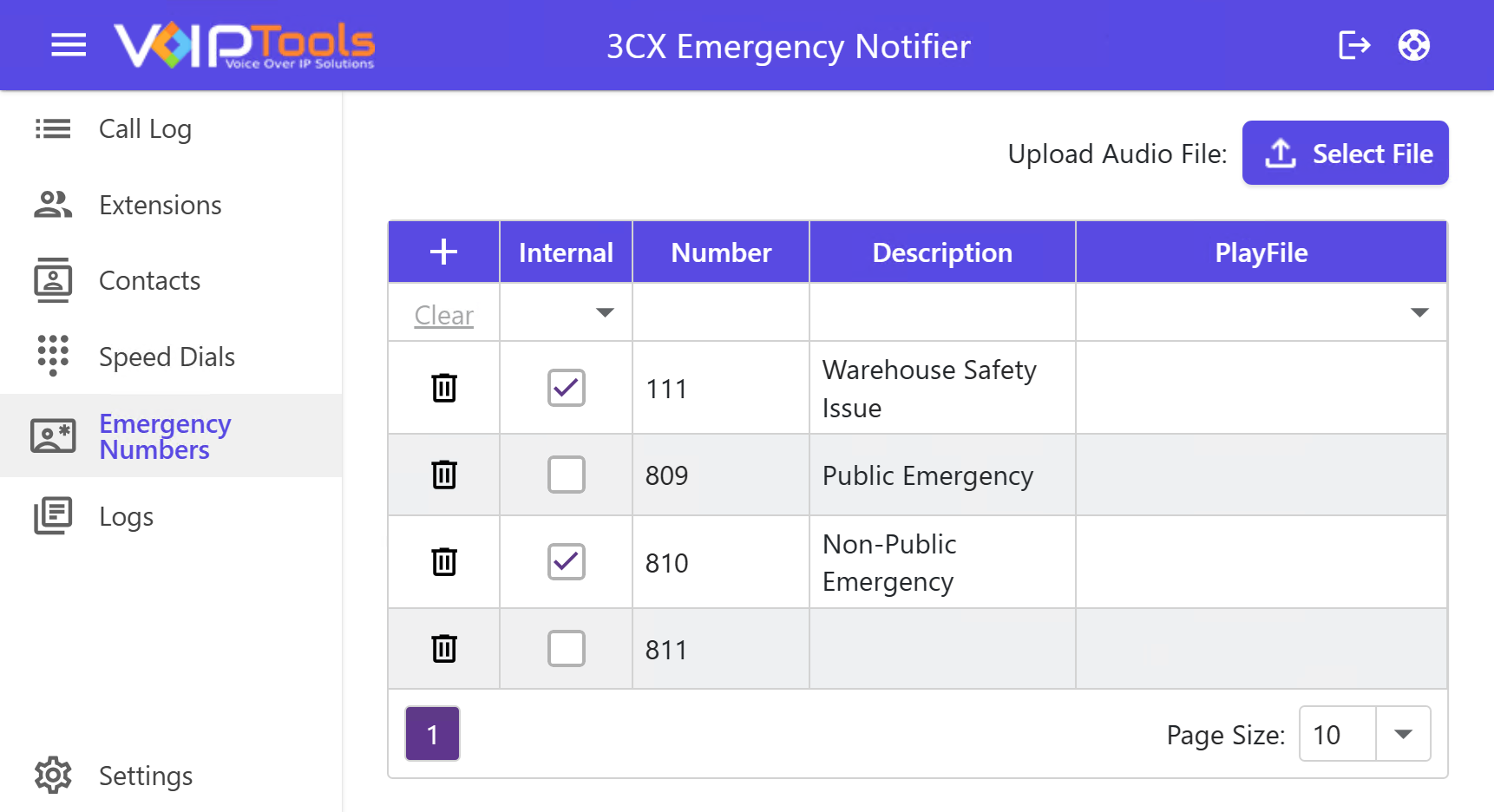
    Emergency Numbers tab overview
    Figure 107: Emergency Numbers tab Overview

    Upload Audio Files to an Existing Emergency Number #

    Before proceeding with the following instructions, make sure you have the audio file in .WAV format on your local device.

    #

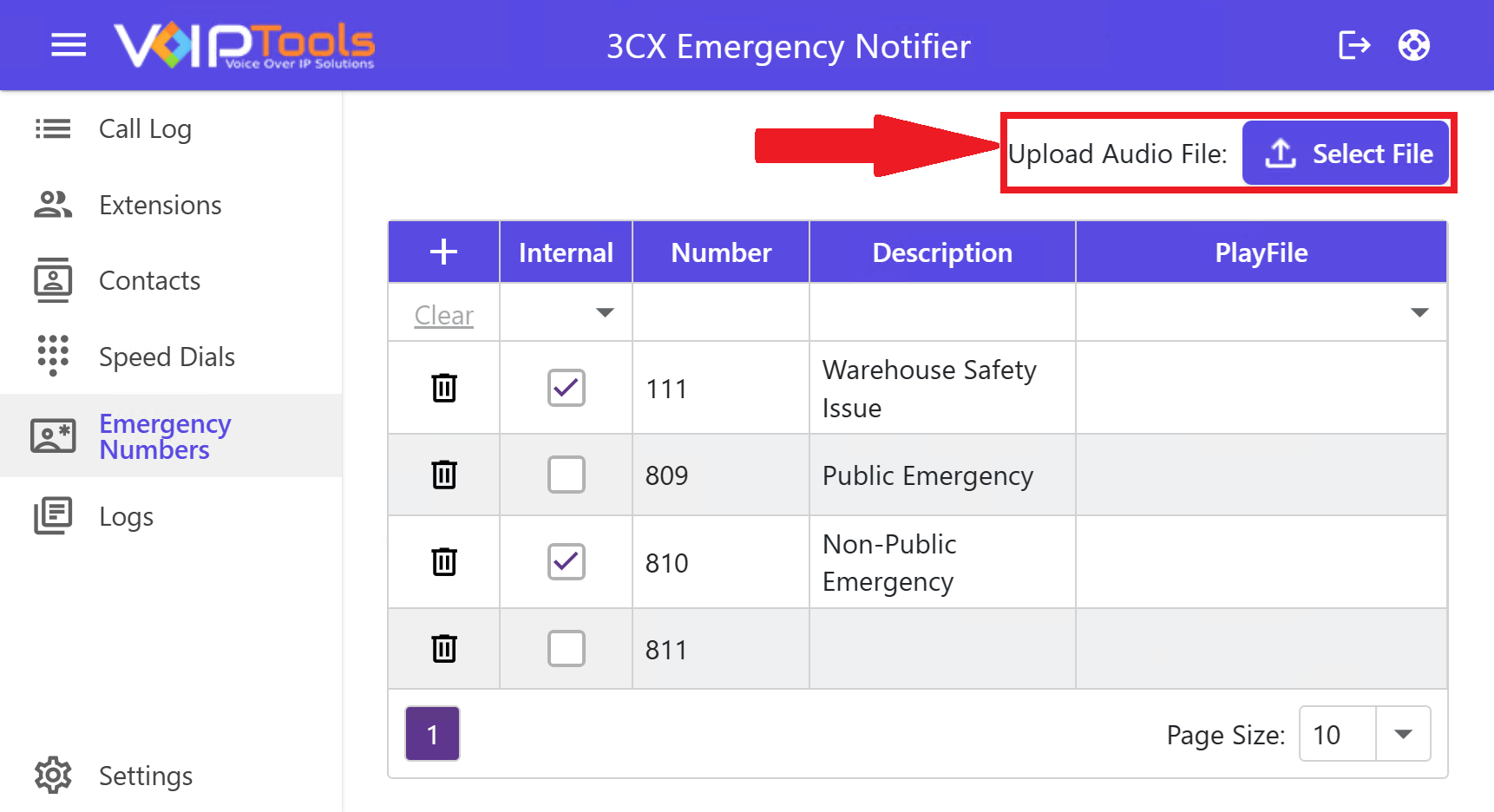
    1. Click the Select File button to upload an audio file.

    #

    NOTE:

    You can upload only .WAV audio file type. Click the link to access 3CX’s audio file conversion feature to convert your audio files into .WAV format.

    #

    Figure 108: Emergency Numbers screen – Browse button

    #

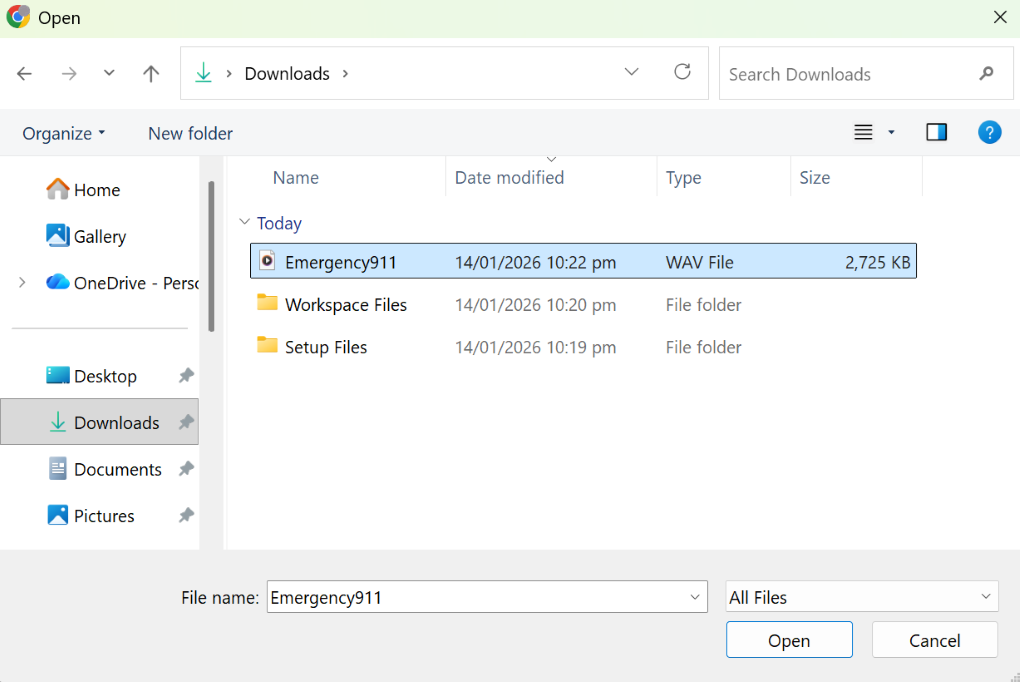
    1. In the Open popup double click the audio file or select the applicable audio file and click Open to upload to the application

    #

    Figure 109: File Upload Popup

    #

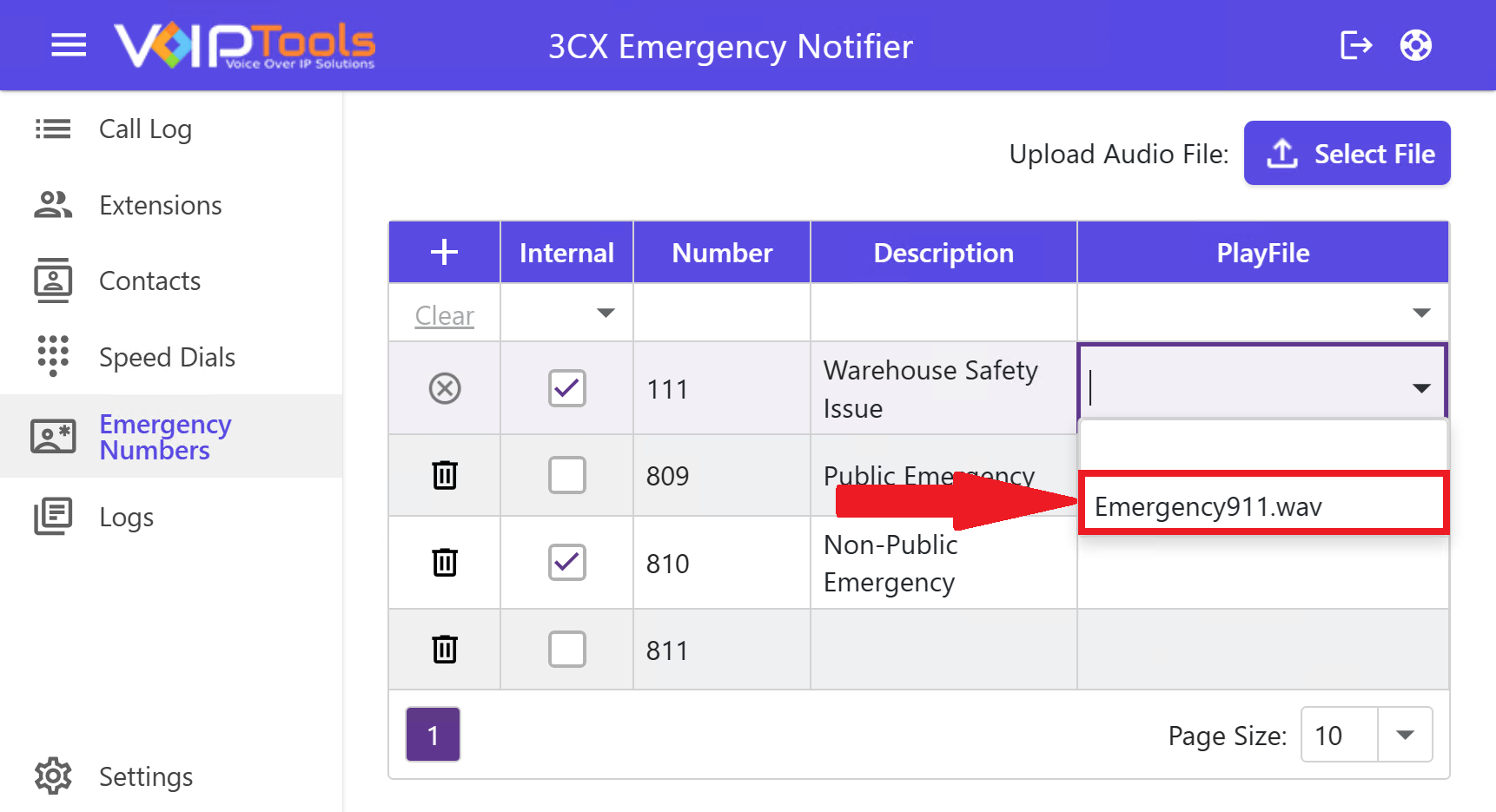
    1. In the PlayFile field, select an uploaded audio file and click the file.

    #

    Figure 110: Emergency Numbers – Select Audio File

    #

    NOTE:

    If you have not selected any audio file in the ‘Play File’ field then, the ‘SMS’ notification that you set for the extension will play as voice file for all the extensions that received the notification.

    #

    Create New Internal Emergency Number #

    #

    The internal emergency number is a random number that is created only for the internal testing purposes. Follow the procedure to create a new internal emergency number.

    #

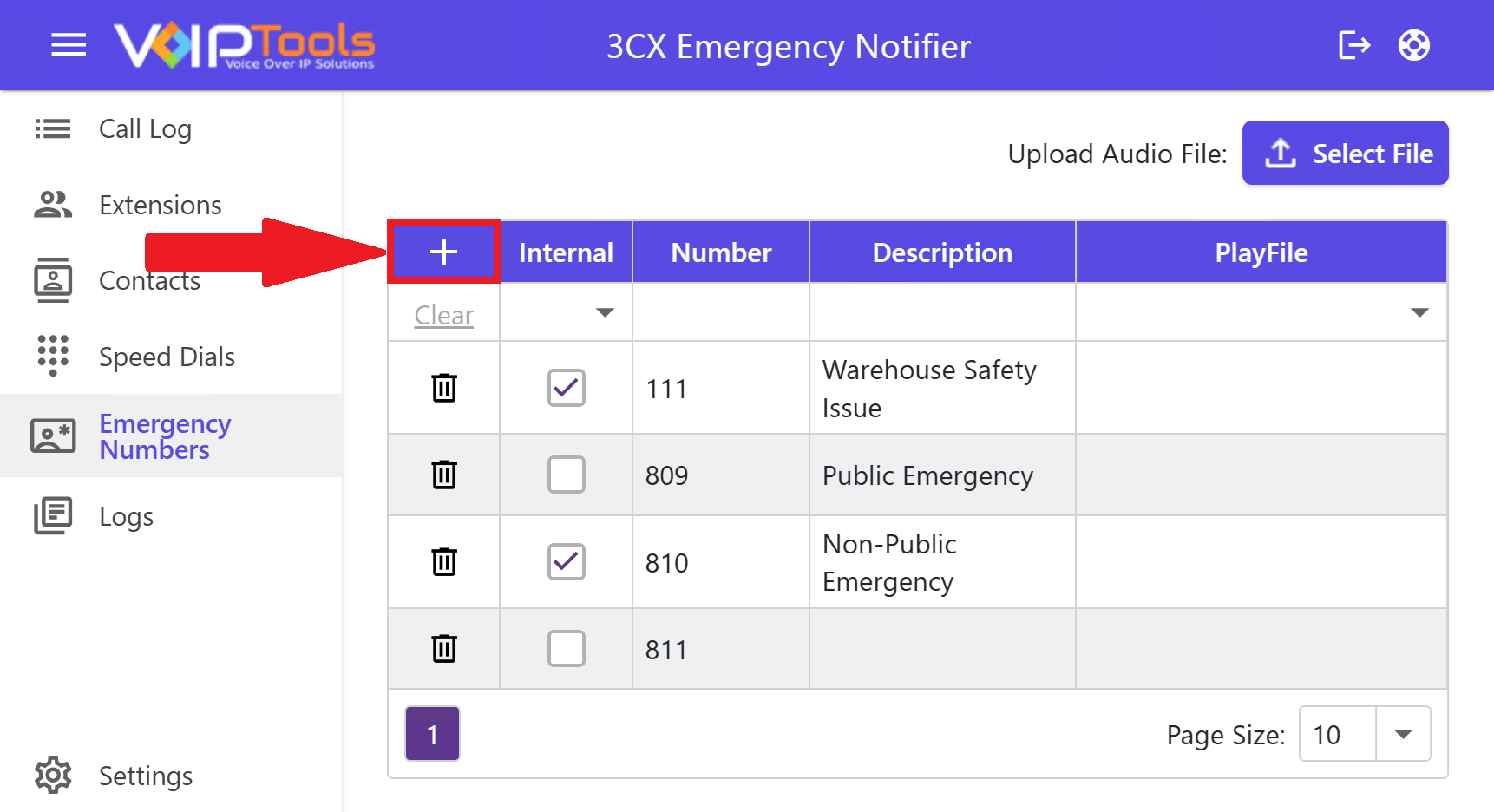
    1. Click the Add button.

    #

    Figure 111: Add Button to Add New Internal Emergency Number

    #

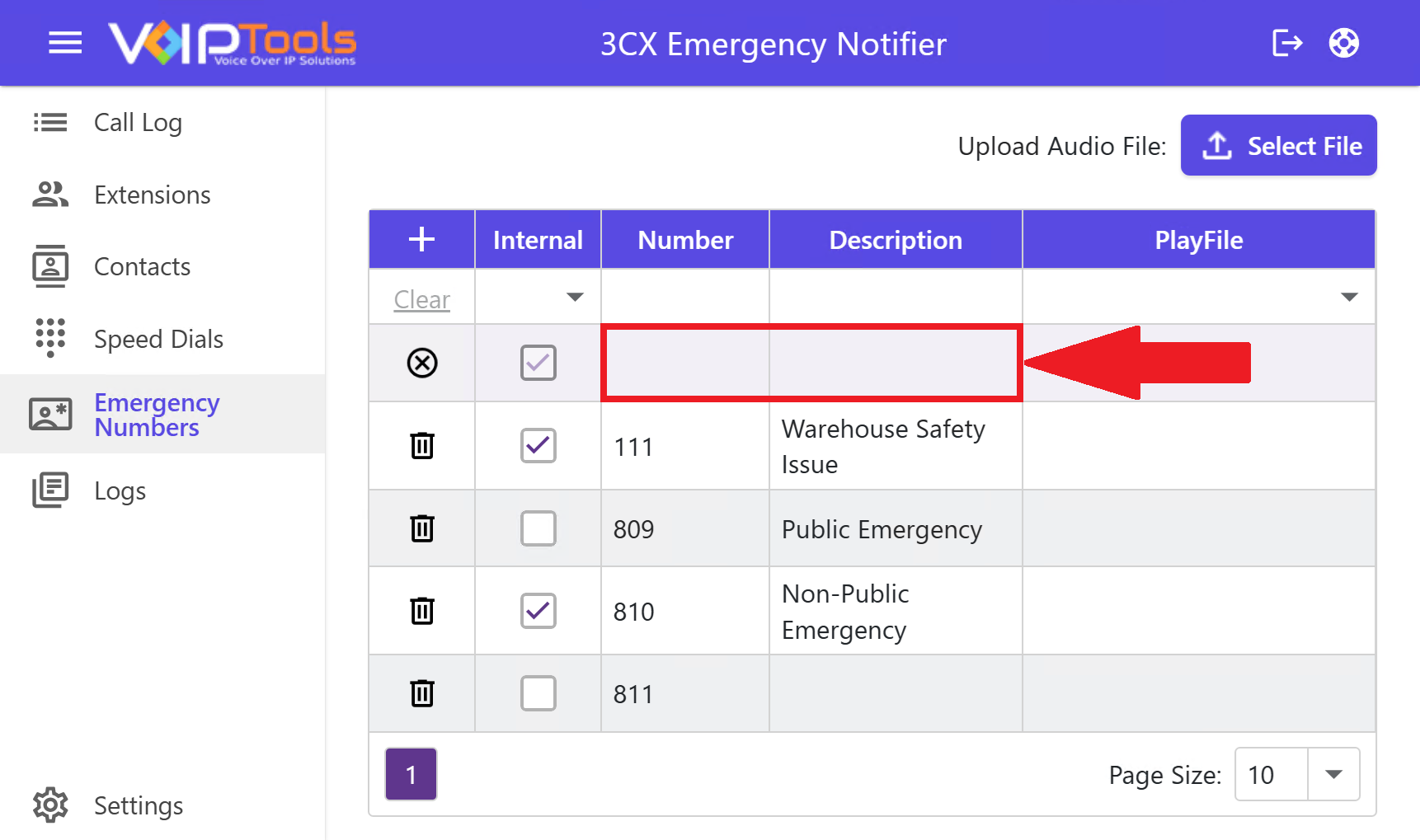
    1. Enter a random number in the Number field and a short description in the Description field.
      • The Number and Description fields cannot be empty.

    #

    Figure 112: Details of Internal Emergency Number

    #

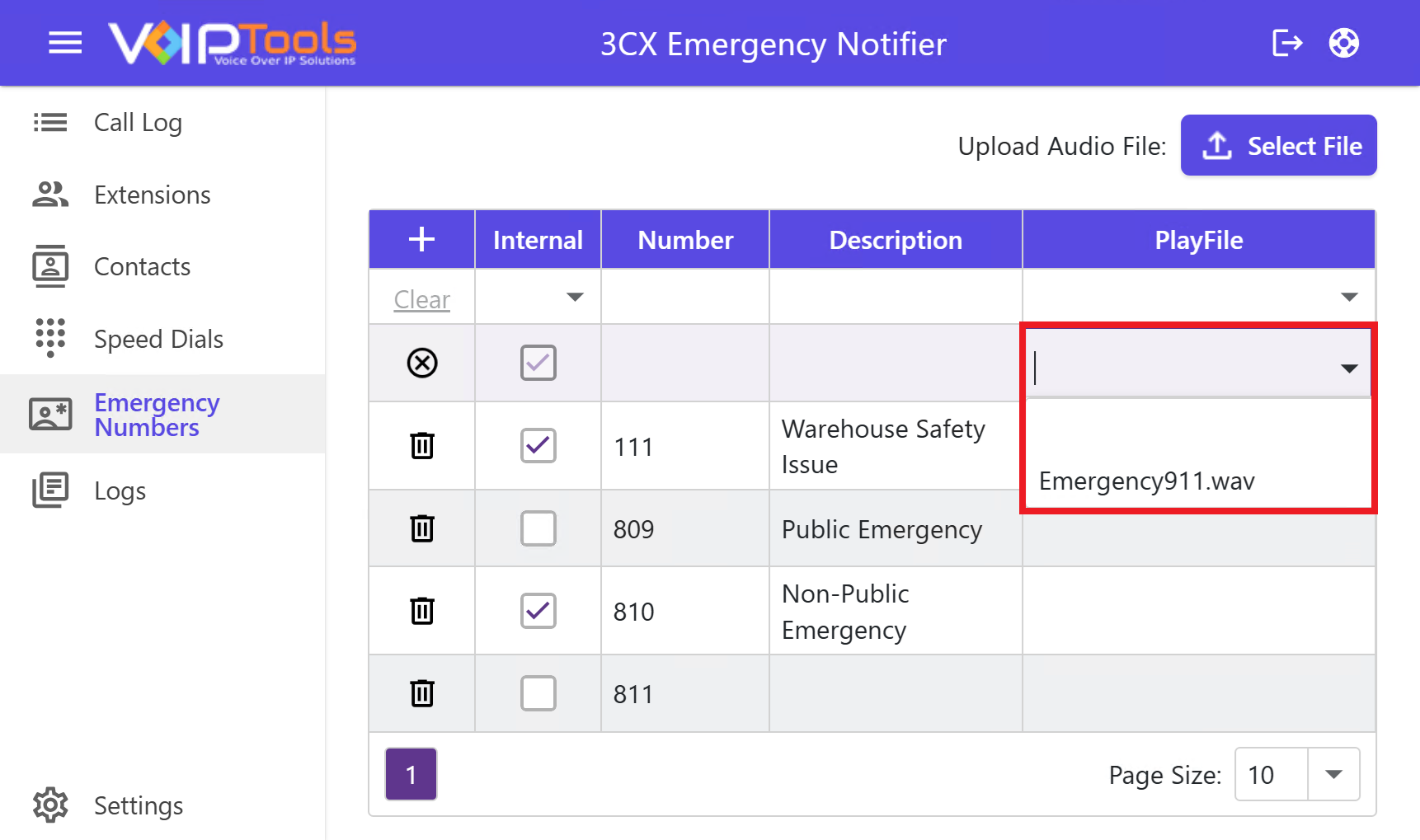
    1. Click the PlayFile dropdown to open the audio list and select the desired audio for the internal emergency number.

    #

    Figure 113: Audio File for Internal Emergency Number

    #

    1. Click the Save button to save your internal emergency number.

    #

    Logs Menu #

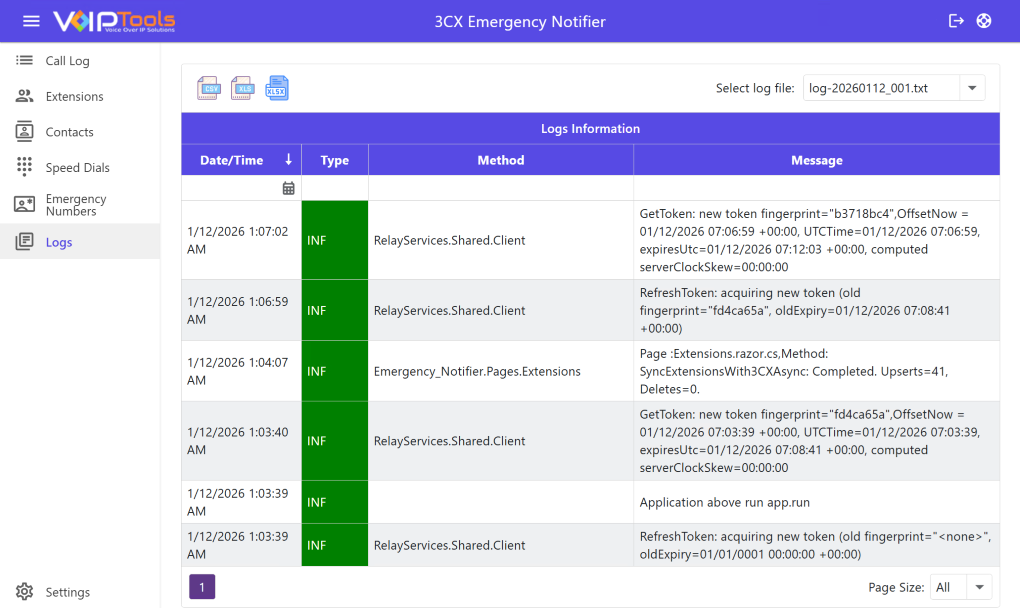
    The Logs menu to track system events and troubleshoot issues within 3CX Emergency Notifier. You can view time-stamped activity, filter by specific log files, and export data to confirm that all notifications and background services are working as expected.

    Figure 114: Log Screen

    Create an Emergency Number in 3CX: #

    You can create an emergency number in the 3CX Console Management. Follow the procedure to create a new emergency number,

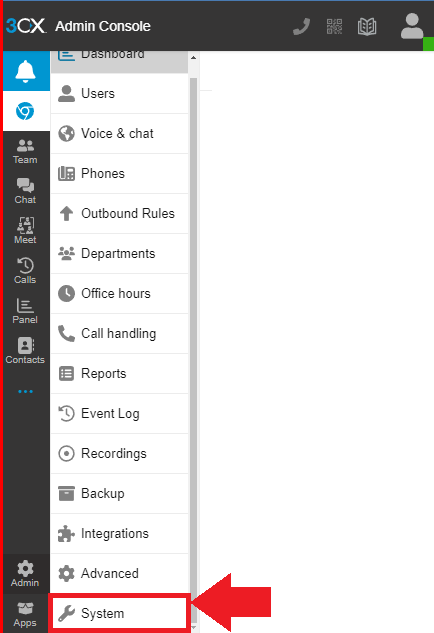
    1. On the 3CX Admin Console, in the left side panel click the Admin option.

    Figure 115: 3CX Admin Console – Admin Tab

    1. In the Admin dropdown, Click the System menu.

    Figure 116: 3CX Admin Console – System Option

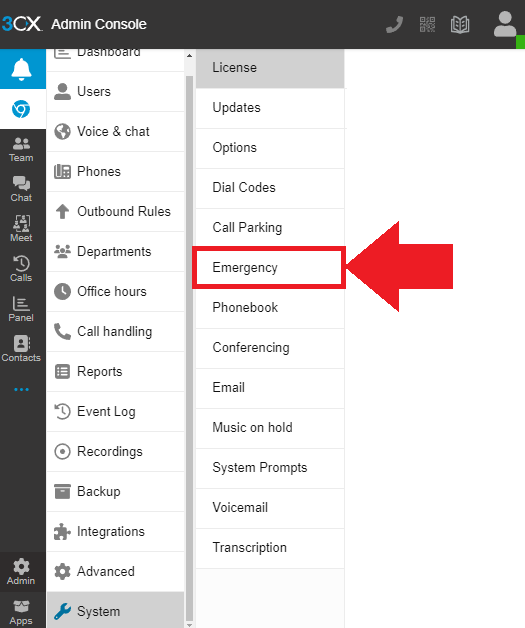
    1. In the System dropdown, click the Emergency option.

    Figure 117: 3CX Admin Console – Emergency Option

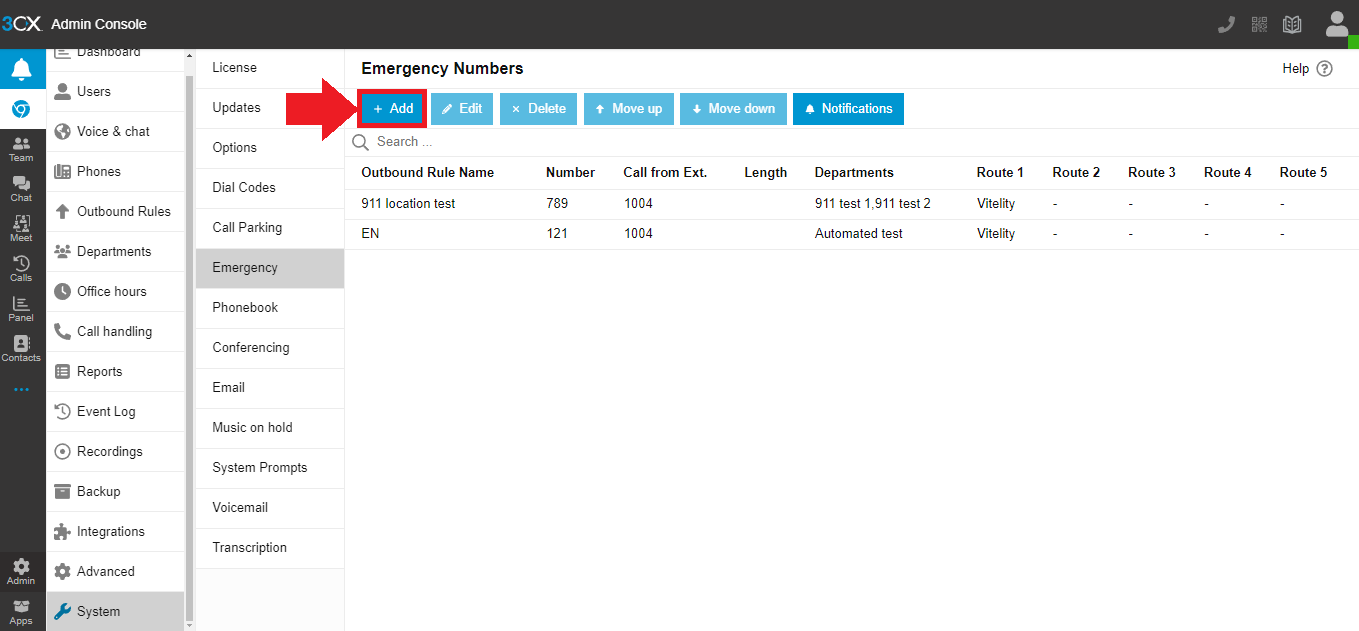
    1. In the Emergency Numbers screen, click the Add button to add an emergency number.

    Figure 118: 3CX Admin Console – Add Button

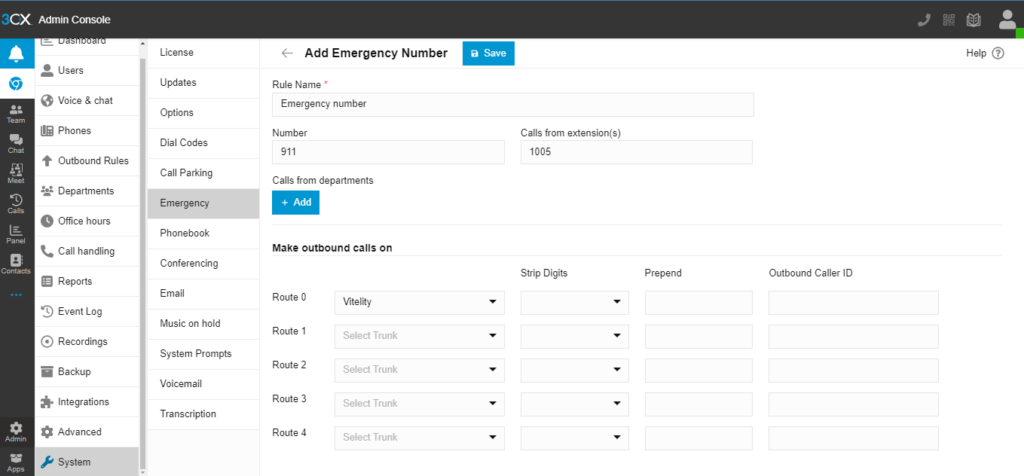
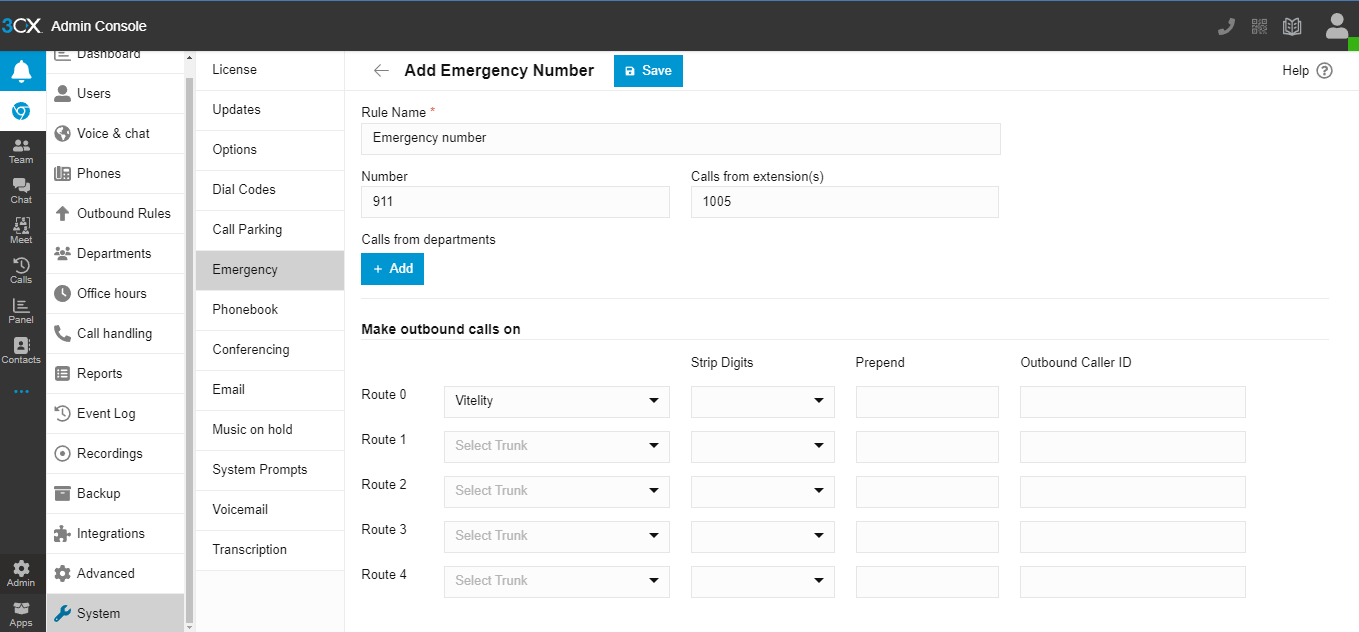
    1. On the Add Emergency Number screen, do the following,
      1. In the Rule Name field, enter a name for your emergency number.
      2. In the Number field, enter the desired emergency number.
      3. In the Calls From Extensions field, enter the extensions from which you want to receive the emergency calls.

    NOTE:

    To get emergency numbers from all the extensions leave this field blank.

    1. In the Calls from Extension Groups field, click the Add button and select the desired extension groups in which the selected extension is present.
    2. Click the OK button to save the emergency number settings.

    3CX Admin Console – Emergency Number Details
    Figure 119: 3CX Admin Console – Emergency Number Details

    NOTE:

    • The extension entered in the Calls From Extensions field should be part of the extension groups in the Calls From Extensions Groups section.
    • Leave the Numbers field empty to get emergency calls from all the extensions.

    In the Emergency Notifier web application, you can see the emergency number added.

    Generate Amazon Associate Product Advertising API Keys #

    Click here to learn how to create an Amazon Web Services account and generate Amazon Web Services Access Key IDs and Secret Key IDs.

      #

    #

    What are your Feelings
    Still stuck? How can we help?

    How can we help?

    Updated on January 15, 2026
    Emergency Notifier Alert V20

    Powered by BetterDocs

    Table of Contents
    • Introduction
      • Why choose 3CX Emergency Notifier?
    • Prerequisites
    • Installation overview
    • Step-by-step Installation Procedure
      • Step 1: Download Software
      • Step 2: Install the Prerequisites
      • Step 3: Start the installation process
      • Step 4: Configure the Relay Services:
      • Step 5: Configure the database
        • SQL Authentication
        • Windows Integrated Authentication
      • Step 6: Installing 3CX Emergency Notifier
      • Step 8: Check for default data in the database server
      • Step 9: Installing the Desktop Alert Application
      • Step 10: Log In to the Web Application
    • Web Portal
      • Login Rights
      • Settings menu
        • General Settings 
        • Automated Test tab
          • Configure Automated Test Settings:
          • Schedule an Automated Test:
        • Email
        • SMS
          • Email Option
          • Skyetel Option
          • Twilio Option
        • Notification Messages
        • Emergency Numbers
        • Email Configuration
        • SMS Configuration
        • Using Variables
          • Voice Settings 
            • Windows TTS
            • Amazon Polly
            • OpenAI
            • Azure OpenAI
        • Web Portal  
        • Role Access Permissions   
        •  
        • Location Department   
        • Location Details
        • Actions
        •  
        • Create a New Emergency Group
        • Delete locations
        • Associate a single IP address with a different location within a subnet
        • Extension Fields Mapping
          • Definitions
          • Actions
          • Example Mappings
          • Usage
        • Custom Branding
          • Branding Elements
          • Actions
      • Call Log 
      •  
      • Extensions Screen
        • Add New Extension
        • Delete an existing extension
        • Export contacts
          • Sample PDF format
          • Sample XLS/XLSX format:
          • Sample RTF format
      • Contacts Screen
        •  
        • Contacts Screen - Column Definition
        • Add New Contact
        • Delete an existing contact
      • Speed Dials Screen
        • Create Speed Dial
        • Add New Contact to Speed Dial
        • Set SMS Message as Audio
        • Delete a Speed Dial
        • Delete contacts associated with speed dial
      • Emergency Numbers Screen
        • Upload Audio Files to an Existing Emergency Number
        • Create New Internal Emergency Number
      • Logs Menu
    • Create an Emergency Number in 3CX:
    • Generate Amazon Associate Product Advertising API Keys
      •  
    Logo - 3CX Platinum Partner
    Logo - 3CX Advanced Certified

    Navigation

    • Tools
    • Subscribe
    • Contact
    • Support
    • Product Downloads
    • Product Manuals
    • My Account
    • Partner Sign Up

    Contact Us

    • Support@VoIPTools.com
    • Billing@VoIPTools.com
    • Live Chat
    • +1 801 642 4655
    • 4464 Glenwillow Dr. Batavia, OH 45103
    Logo - 3CX Platinum Partner
    Logo - 3CX Advanced Certified
    COPYRIGHT © 2024 VOIPTOOLS. ALL RIGHTS RESERVED | PRIVACY | TERMS OF USE

    Roobet Casino définit les standards du gaming moderne avec une approche immersive et des récompenses sans précédent. Préparez-vous à une aventure où chaque décision compte.

    Chez Cheri Casino, le luxe et le divertissement se rencontrent pour créer des moments inoubliables. Des jeux variés, des bonus généreux et un service impeccable vous y attendent.

    Shuffle Casino combine technologie de pointe et expérience utilisateur optimale pour des sessions de jeu fluides et enrichissantes. Votre prochain gros gain est peut-être à un clic.

    Nine Casino élève l’expérience de jeu à un niveau supérieur, avec une esthétique raffinée et des fonctionnalités exclusives. Un paradis pour les joueurs exigeants en quête d’exception. Le futur du gaming est ici.

    Cleantalk Pixel